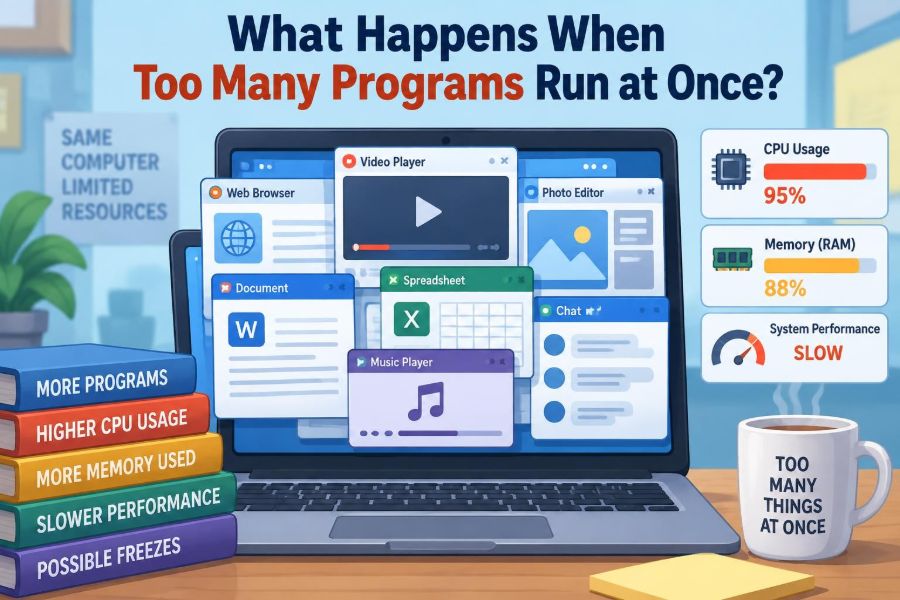

You are editing a document, listening to music, joining a video call, and waiting for a large download to finish. Then the mouse begins to lag. The fan gets louder. A click that should feel instant takes several seconds.
It is tempting to say the computer has “too much open.” That description is not wrong, but it hides a useful question: which resource has run short, and what does the operating system do next?
Modern computers are designed to run many programs at once. In fact, even an apparently quiet computer may be running dozens or hundreds of background processes. The problem is not simply the number of windows on screen; it is competition for limited processing time, memory, storage access, network capacity, and sometimes graphics power.
Understanding that competition makes slowdowns less mysterious. It also helps you diagnose whether closing an app, waiting for a task to finish, restarting the computer, adding memory, or changing a workflow will actually solve the problem.
🧠 1. “Programs” Are Not the Whole Story
A program is a set of instructions stored on disk: a browser, spreadsheet application, game, or editor. Once you launch it, the operating system creates one or more processes to run those instructions.
A process has its own memory space, security identity, open files, and other operating-system resources. A browser may create separate processes for tabs, extensions, graphics work, and network tasks. That is why one application can consume significant resources even when it appears to be a single icon.
Within a process, smaller units of execution called threads do work. One thread might respond to your typing while another loads data in the background. When too much is running, the operating system is usually managing a large collection of processes and threads, not merely a handful of visible apps.
⚙️ 2. A Computer Shares Several Limited Resources
“Too many programs” can mean different bottlenecks on different machines. A system may have plenty of unused processor capacity but be short on memory, or have ample memory but be waiting on a slow storage device.
| Resource | What programs compete for | Common symptom when overloaded |
|---|---|---|
| CPU | Time spent executing instructions | Delayed response and sustained high usage |
| RAM | Fast working space for active data | Frequent pauses as data is moved to storage |
| Storage | Reading and writing files or virtual memory | Long waits, especially during loading or saving |
| GPU | Graphics rendering and compute tasks | Choppy animation, slow video, reduced frame rate |
| Network | Internet connection bandwidth and responsiveness | Buffering, slow uploads, poor call quality |
This distinction matters because closing random programs may not address the real constraint. A video call disrupted by an upload is often a network issue, while a machine that freezes when switching windows may be under memory pressure.
🧩 3. Multitasking Is Rapid Switching, Not Magic Parallelism
On a single CPU core, only one thread can execute instructions at one exact instant. The operating system creates the experience of multitasking by switching the core among runnable threads extremely quickly.
With multiple cores, several threads can truly run at once. A four-core processor can execute work on several cores simultaneously, but it still cannot give unlimited programs their own dedicated core. Eventually, tasks must take turns.
This design is remarkably effective because many programs spend time waiting: for input, disk data, a network response, or a timer. While one task waits, the CPU can run another. Trouble begins when many tasks all want active CPU time at the same time.
⏱️ 4. The Scheduler Decides Who Runs Next
The operating system component that chooses the next runnable thread is the scheduler. Its goal is not simply to make one program finish as fast as possible. It must balance responsiveness, fairness, power use, throughput, and the needs of system services.
Interactive work often receives favorable treatment. For example, a thread responding to a keystroke should generally run soon, even if a background indexing job is also busy. Operating systems use priorities and scheduling policies to make this possible.
Priorities are not a promise that a high-priority task gets everything it wants. They are a way of influencing allocation. If the machine is saturated, even important work can be delayed; the scheduler can distribute a shortage, but it cannot create extra CPU capacity.
🔄 5. Context Switching Has a Cost
When the CPU moves from one thread to another, it performs a context switch. It saves enough information about the old thread to resume it later, then loads the state needed for the new thread.
Context switching is a normal and necessary part of multitasking. It is usually inexpensive compared with meaningful work. But if a computer has a huge number of runnable threads that constantly wake up, the system can spend a noticeable share of time coordinating work rather than completing it.
This is one reason a crowded system may feel less responsive than its average CPU reading suggests. The cost is not only arithmetic; it includes scheduling decisions, cache disruption, and competition for shared resources.
🧮 6. CPU Saturation Creates a Queue
Imagine one checkout lane and a growing line of shoppers. A fully occupied CPU is similar: jobs are not necessarily failing, but they wait longer before receiving service.
When CPU demand stays below available capacity, short bursts are absorbed easily. When demand exceeds capacity for an extended period, the queue grows. Your click, a background scan, an application update, and a video encoding task all wait their turn.
High CPU use is not automatically bad. Rendering a video or compiling software is expected to use available processing power. It becomes a usability problem when the workload prevents the tasks you care about from receiving time quickly enough.
🧠 7. RAM Is the Computer’s Active Workspace
RAM, or random-access memory, holds the code and data that active programs need quickly. It is much faster to access than long-term storage and is lost when the computer loses power.
Each running process needs memory for its instructions, current data, stacks, and internal bookkeeping. A photo editor may hold image data in RAM; a browser may retain page contents, scripts, and tab state; a database may cache frequently used information.
Unused RAM is not always a sign of efficiency. Operating systems often use available memory for useful file caching, because recently used data may be needed again. The important question is whether the system can provide memory to active tasks without excessive disruption.
📦 8. Memory Pressure Changes System Behavior
Memory pressure occurs when programs collectively need more RAM than the system can comfortably provide. The operating system first tries to reclaim memory that is easily reusable, such as cached file data or inactive pages.
If that is not enough, it may move less recently used memory contents out of RAM. This allows a program to remain open without keeping every part of it in the fastest memory.
Light memory pressure can be almost invisible. Severe pressure is different: switching back to an old application may trigger a delay while the system retrieves its data. Apps may reload content, and the whole desktop can feel sticky even if CPU usage is modest.
💾 9. Virtual Memory Extends RAM, With Limits
Most general-purpose operating systems use virtual memory. Each process sees a large, private-looking address space, while the operating system maps portions of that space to physical RAM and, when necessary, to storage-backed areas often called swap space or a page file.
Virtual memory provides isolation and flexibility, not just an emergency overflow area. It helps prevent one program from casually reading or overwriting another program’s memory, and it lets the system place data where it is most practical.
However, storage is far slower than RAM for the small, unpredictable accesses involved in active program execution. Swap can keep a system alive under pressure, but it is not a substitute for sufficient memory for the workload.
🚧 10. Thrashing Is Productive Work Replaced by Moving Data
In a severe memory shortage, the computer may repeatedly move memory pages between RAM and storage, then immediately need those pages again. This condition is commonly called thrashing.
Picture a tiny desk covered with papers needed for several assignments. If every next step requires putting one sheet in a cabinet and retrieving another, most of the effort goes into shuffling paper rather than solving problems.
Thrashing often produces a distinctive pattern: the computer is slow, storage activity is busy, and applications pause when brought to the foreground. Closing one or two memory-hungry applications can produce a surprisingly large recovery because it stops the constant shuffling.
🗄️ 11. Storage Can Become the Slowest Part
Programs use storage for more than opening documents. They read libraries, save temporary files, write logs, synchronize cloud folders, install updates, index content, and use virtual memory.
Traditional hard disk drives are especially sensitive to competing small reads and writes because their physical parts must move to different locations. Solid-state drives handle random access much better, but they still have finite throughput and can become busy.
A full or nearly full drive can complicate matters. The operating system and applications need room for updates, temporary files, and virtual-memory activity. Freeing storage does not increase RAM, but it can remove a separate source of failure and slowdown.
🎨 12. The GPU Has Its Own Workload
The GPU, or graphics processing unit, draws windows, games, 3D scenes, visual effects, and often video. Many systems also use it for specialized parallel computations.
If several graphically demanding applications are active, the GPU and its video memory can become constrained. Signs may include stuttering animation, delayed window redraws, a game lowering performance while a recording application runs, or video playback dropping frames.
Not every visual lag is a GPU bottleneck. A graphics-intensive display can also suffer because the CPU is busy preparing work, RAM is under pressure, or the system is waiting for storage. Resource monitors help separate these possibilities.
🌐 13. Programs Also Compete for the Network
Your internet connection has limited capacity in both directions. A large download can consume much of the incoming connection, while a cloud backup or file upload can consume outgoing capacity.
Video calls, online games, and remote desktops care about more than raw bandwidth. They need low delay and reasonably steady delivery. A background upload may make a call sound broken even if a speed test reports a large connection capacity.
Routers and operating systems can sometimes prioritize traffic, but prioritization cannot erase a heavily overloaded connection. Pausing or scheduling large transfers is often the most direct solution when real-time communication matters.
🔒 14. Locks Can Make Fast Hardware Wait
Programs sometimes need exclusive access to shared data or a shared device. They use synchronization mechanisms such as locks so that two threads do not change the same information in conflicting ways.
While one thread holds a lock, another may have to wait. This is correct behavior when it protects data, but poor design can create unnecessary waiting. A slow operation performed while holding a heavily used lock can delay many other parts of an application.
This kind of slowdown is harder to spot than a full CPU or memory meter. The CPU may appear partly idle because threads are blocked, not because they have nothing useful to do.
🧵 15. More Threads Do Not Always Mean More Speed
Adding threads can improve performance when work can be divided cleanly across CPU cores. For example, independent image-processing tasks may run in parallel.
But threads share caches, memory bandwidth, locks, and CPU cores. If a task is mostly sequential, or if its threads repeatedly need the same shared data, extra threads can add overhead without delivering proportional speed.
A useful rule is: concurrency improves throughput only when the work and the hardware have room to run concurrently. More workers in a cramped kitchen can create collisions rather than faster meals.
🧾 16. Background Tasks Are Often Legitimate
Many slowdowns are caused by work you did not explicitly start: operating-system updates, malware scans, search indexing, file synchronization, backup jobs, browser updates, or photo analysis.
These tasks are not automatically wasteful. Search indexing can make later searches faster, backups protect data, and updates can address bugs or security weaknesses. The trade-off is that they consume resources at inconvenient moments.
Well-designed systems try to delay or reduce background work when you are actively using the computer. Still, a laptop opened after several days offline may have multiple maintenance tasks waiting to catch up.
🪟 17. A Hidden App Can Still Be Active
Closing a window does not always end its process. Some applications keep a helper running for notifications, synchronization, quick launching, downloads, or menu-bar functions.
Likewise, minimizing a window only hides it; it does not suspend the underlying work. A minimized game, virtual machine, or browser tab may still use CPU, memory, network bandwidth, or GPU resources.
This does not mean every background process should be terminated. System services and trusted application helpers can be necessary. The practical lesson is to distinguish a visible window from the actual activity occurring behind it.
📊 18. Resource Monitors Turn Guessing Into Diagnosis
Operating systems provide tools such as Task Manager, Activity Monitor, system monitors, or command-line utilities. They show which processes are using CPU time, memory, disk activity, network traffic, and sometimes GPU resources.
Look for patterns rather than one dramatic number. A process using high CPU during a planned export may be normal. A process repeatedly consuming resources while the computer is idle, or an unfamiliar process using unusual amounts of network traffic, deserves closer attention.
- Sort by CPU when the system feels actively busy or delayed.
- Sort by memory when app switching causes pauses or reloads.
- Check disk activity when programs hang while opening, saving, or switching.
- Check network activity when calls buffer or cloud services feel slow.
Names alone can be misleading, especially for system components. Before ending an unfamiliar process, identify the application it belongs to and save any work that could be affected.
🧭 19. Measure the Symptom Before Choosing a Fix
A useful troubleshooting sequence starts with what you observe. Is everything slow, or only one application? Does it happen while rendering, after waking the laptop, during a meeting, or only when many browser tabs are open?
Next, identify the busiest resource. A restart may clear a temporary software problem, but it will not make a large dataset fit into too little RAM. Closing an idle browser may free memory, while pausing a sync job may be more effective for a congested network.
Changing one thing at a time helps. If you close five applications, disable several startup tools, and reboot all at once, you may recover performance without learning which cause mattered.
🛑 20. When Closing Programs Is the Right Answer
Closing applications is sensible when they are not needed and are consuming a scarce resource. Common candidates include unused browser tabs with active pages, duplicate cloud clients, launchers, large documents, games left running, and applications performing background exports.
Save your work first. Force-quitting a program can lose unsaved changes or interrupt a file operation. If an application is unresponsive, give it a brief opportunity to finish a disk or network task before assuming it has failed.
For recurring problems, reduce the workload rather than repeatedly performing emergency cleanup. Fewer simultaneous heavy apps, smaller batches, or scheduled background transfers can be more reliable than relying on force quit.
🚀 21. Startup Apps Shape the Computer’s Baseline
Some applications ask to start automatically when you sign in. A few are genuinely useful, such as security software, accessibility tools, device drivers, or a synchronization service you depend on.
Others mainly provide convenience: update checkers, launchers, chat clients, media helpers, and vendor utilities. Individually they may be light, but together they increase the amount of work and memory present before you open anything important.
Review startup items periodically. Disable only entries you recognize and do not need immediately. Removing essential system components merely to lower a process count can create problems that are harder to diagnose than the original slowdown.
🌡️ 22. Heat and Power Limits Can Look Like Overload
A laptop may reduce processor or graphics speed when it becomes hot or when power-saving settings restrict performance. This behavior, often called thermal throttling, protects hardware from operating outside intended limits.
The result can resemble an overloaded system: work takes longer, games stutter, and fans run loudly. Yet the underlying issue may be limited cooling, a blocked air vent, a soft surface restricting airflow, or a power mode chosen to extend battery life.
A heavily loaded computer naturally produces more heat, so overload and thermal limits can occur together. Check whether performance improves after cooling, connecting appropriate power, or reducing the demanding workload.
🦠 23. Unwanted Software Is One Possibility, Not the First Assumption
Unexpected resource use can come from unwanted software, including poorly behaved extensions, adware, or malware. It is reasonable to investigate an unfamiliar process, especially if it repeatedly uses CPU or network resources without a clear explanation.
But slow performance alone is not evidence of an infection. Ordinary causes such as updates, browser tabs, low RAM, full storage, and synchronization are far more common in everyday use.
Keep the operating system and trusted security tools updated, install software from reputable sources, and remove extensions or applications you no longer trust. If a process cannot be identified, use the operating system’s details and reputable support documentation rather than deleting files at random.
🧪 24. A Simple Example: The Busy Workday Laptop
Consider a hypothetical laptop with a browser full of web applications, a video meeting, a spreadsheet, a cloud drive uploading a large folder, and a photo program exporting images. None of these tasks is inherently wrong.
The video meeting needs prompt CPU attention, steady network delivery, audio processing, and graphics updates. The export wants CPU, memory, storage writes, and perhaps GPU time. The cloud upload competes for outgoing network capacity and may also read many files from storage.
If the laptop begins lagging, the best response depends on the bottleneck. Pausing the upload may improve call quality immediately. Closing unused tabs may relieve memory pressure. Pausing the export may restore general responsiveness. The same symptom has several plausible causes.
🖥️ 25. Workload Fit Matters More Than a Single Specification
There is no universal amount of RAM, CPU power, or storage speed that is “enough” for everyone. A person reading documents and managing email has different needs from someone editing video, running virtual machines, analyzing large datasets, or building software.
Hardware decisions should reflect the heaviest combination of tasks you expect to perform, not only each task in isolation. A machine that handles a browser well and handles a video call well may still struggle with both plus an export and a large sync operation.
More capable hardware can reduce waiting, but it does not eliminate software bugs, inefficient workflows, network constraints, or poorly configured background tasks. Capacity helps most when it addresses the actual bottleneck.
🛠️ 26. Practical Ways to Reduce Contention
Good performance habits are mostly about timing and focus, not keeping the machine artificially empty. Let necessary tasks run, but avoid making every resource compete during moments that require responsiveness.
- Schedule backups, large uploads, and system updates for less disruptive times when possible.
- Close or suspend heavy work you genuinely do not need, especially before meetings or presentations.
- Keep enough free storage for updates, temporary files, and normal operating-system activity.
- Restart occasionally when an application has leaked memory or accumulated stuck background work.
- Use fewer simultaneous high-resolution streams, virtual machines, or large projects when hardware limits are known.
- Keep software updated, since updates can fix resource-management issues as well as add features.
These steps are trade-offs, not rules to apply blindly. Disabling a backup forever improves short-term responsiveness but weakens data protection; postponing it to a better time is usually the better choice.
🔍 27. Common Misunderstandings About Slow Computers
One common misconception is that a high CPU percentage always signals a problem. It may simply show that useful work is being completed efficiently. The concern is sustained contention that interferes with the tasks you need.
Another is that every visible process should be removed. Modern operating systems use many services for networking, security, hardware support, search, and user-interface functions. A low process count is not a reliable performance goal.
A third is that adding RAM fixes every slowdown. More RAM is valuable for memory pressure, but it does not speed up a constrained internet connection, repair a failing storage device, or make a single-threaded task use every CPU core.
🏁 28. The Core Principle: Find the Bottleneck
When many programs run at once, the computer does not suddenly stop multitasking. It continues scheduling work, reclaiming memory, managing storage access, and sharing devices. The experience becomes poor when demand for a particular limited resource exceeds what the system can deliver promptly.
CPU contention makes runnable work wait. Memory pressure forces data out of fast RAM. Storage congestion delays reads and writes. GPU overload affects visual work. Network competition disrupts time-sensitive communication. Locks and software design can introduce waiting even when hardware meters do not look full.
The most useful response is therefore targeted: observe the symptom, identify the constrained resource, reduce or reschedule the competing workload, and consider a hardware or configuration change only when it fits the recurring problem.
A computer slows down not because it is “doing too much” in the abstract, but because too many tasks are asking for the same limited resource at the same time. Once you learn to spot that competition, performance problems become much easier to explain and solve. 💻🧠⚙️