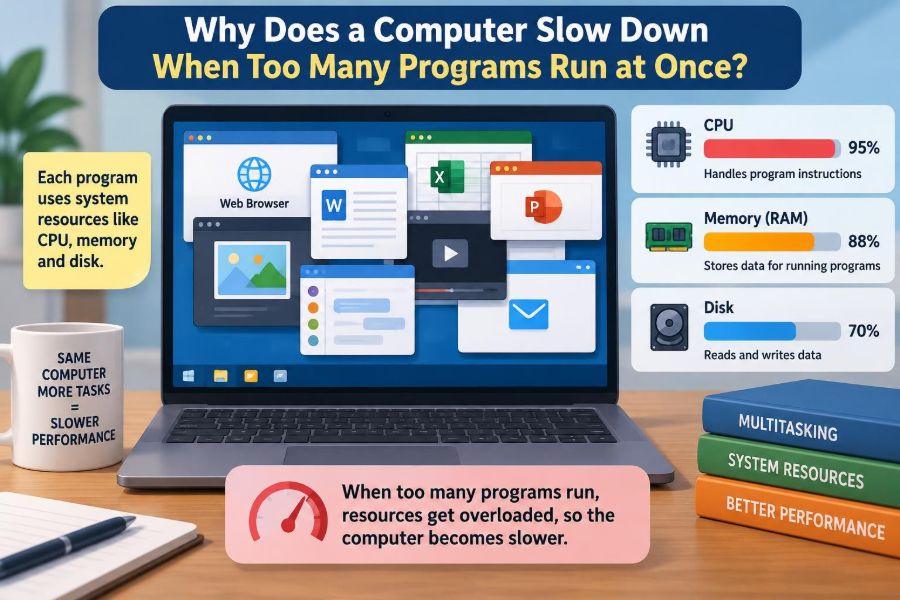

You open a video call, a web browser with several tabs, a spreadsheet, a music app, and perhaps a game download in the background. At first, everything seems fine. Then the cursor begins to lag, the fan grows louder, and a simple click takes far too long to respond.
This experience is not usually caused by a computer “getting confused.” It happens because several programs are competing for a limited set of hardware resources at the same time.
Understanding that competition makes computer slowdowns much less mysterious. It also helps you decide whether closing an app, restarting the system, changing a habit, or upgrading hardware will actually solve the problem.
A computer can do many things at once, but it cannot give every task unlimited attention. The details of how it shares that attention explain why performance changes so sharply under a heavy workload.
🧠 A Computer Has Finite Resources
Every running program needs access to one or more resources: processor time, memory, storage, graphics power, network capacity, or electrical and cooling headroom. These resources are finite, even in a powerful machine.
When demand is low, the operating system can give each active program what it needs quickly. When demand rises beyond what the computer can provide immediately, programs must wait. That waiting is what you experience as slowness.
Think of a computer as a small office with limited desks, staff, filing space, and delivery capacity. Adding more jobs does not stop the office from functioning, but it creates queues.
⚙️ The CPU Is the Main Work Engine
The central processing unit, or CPU, carries out the instructions that make software work. Opening a menu, calculating a spreadsheet formula, decoding audio, and checking a webpage for updates all require CPU work.
A CPU is extremely fast, but it does not complete every requested instruction simultaneously. It divides its time among active tasks. If several programs all need substantial processing power, each may receive less immediate attention.
This is why a computer can feel responsive when a word processor and browser are open, yet hesitate when you add video editing, file compression, a game, and a security scan.
🧩 CPU Cores Allow More Parallel Work
Modern CPUs contain multiple cores. A core is capable of working on its own stream of instructions, so more cores can help a computer handle several demanding activities at once.
However, more cores do not mean that every task becomes instantly fast. Some programs are designed to split work across many cores, while others depend heavily on one main thread of execution. A thread is a smaller sequence of work managed by a program.
For example, exporting a video may use many cores effectively, while an older application may rely mostly on one. If that busy core is overloaded, the application can still feel slow.
🎛️ The Operating System Schedules the Work
Your operating system acts like a traffic controller. Windows, macOS, Linux, and other systems use a scheduler to decide which process should use the CPU next and for how long.
A process is a running instance of a program. The scheduler rapidly switches between processes, giving the impression that many programs are running at the same moment even when they are sharing a limited number of cores.
Interactive work such as moving a pointer or typing is often prioritized so the computer remains usable. But when too many tasks demand attention, even good scheduling cannot remove the underlying shortage.
🔄 Context Switching Has a Small Cost
Moving the CPU from one task to another is called a context switch. Before switching, the system must save enough information about the current task to continue it later, then load information for the next one.
Context switching is a normal and necessary part of multitasking. On a lightly loaded computer, its cost is usually too small to notice. Under a very busy workload, frequent switching adds overhead and reduces time available for useful work.
It is similar to repeatedly changing between homework assignments every few seconds. You may make progress, but constant refocusing makes the total effort less efficient.
🧮 RAM Holds What Programs Need Right Now
Random-access memory, or RAM, is the computer’s fast working area. Programs store the code, documents, images, browser data, and temporary information they actively need in RAM.
More open programs generally mean more RAM use. A browser with many tabs, for instance, may keep separate page data and scripts in memory so that switching tabs feels quick.
RAM is not permanent storage. Its contents are normally lost when the computer powers off. Its value comes from speed: the CPU can access RAM far more quickly than it can access ordinary long-term storage.
📦 What Happens When RAM Fills Up
When available RAM becomes scarce, the operating system may move less-active data out of RAM and into a reserved area on the storage drive. This technique is commonly called virtual memory, paging, or swapping.
Virtual memory prevents an immediate crash in many situations, but it is much slower than real RAM. If the system constantly moves data out to storage and brings it back again, it spends more time shuffling information than running your programs.
This condition is often called memory pressure. Common symptoms include long pauses when changing applications, delayed typing, and heavy drive activity despite little visible progress.
🗄️ Storage Is Fast, but Not as Fast as RAM
Storage drives hold your operating system, applications, documents, and files when the computer is turned off. They also handle temporary files, application caches, downloads, and virtual-memory activity.
Solid-state drives, or SSDs, are generally much faster at everyday access than older mechanical hard disk drives, or HDDs. An SSD can reduce the pain of paging, loading files, and launching programs.
Still, a fast SSD is not a replacement for enough RAM. If a system is repeatedly paging because too many memory-heavy programs are open, even an SSD can become a bottleneck.
🚦 Storage Queues Can Delay Everything
A storage drive can handle only so many read and write requests at a time. When many programs request files simultaneously, those requests form a queue.
Consider a hypothetical laptop downloading a large game update while a cloud service synchronizes photos, an antivirus scan checks files, and a video editor reads source clips. Each task may be reasonable alone, but together they can keep the drive busy.
The visible slowdown may appear in an unrelated program because that program also needs the drive. A document editor might pause simply because it is waiting to save an autosave file.
🎮 The GPU Has Its Own Workload
The graphics processing unit, or GPU, draws windows, animations, video, games, and many visual effects. Some professional and scientific applications also use it for specialized calculations.
Running several graphics-heavy programs can overload the GPU or consume its dedicated graphics memory, often called VRAM. A game, high-resolution video stream, animated browser tabs, and multiple large displays can all contribute.
GPU pressure usually appears as choppy animation, reduced frame rates, visual stuttering, or slow window movement. It does not always slow down every task equally, but it can make the whole system feel less smooth.
🌐 Network Activity Can Look Like Computer Slowness
Not every delay comes from the computer itself. Video calls, cloud documents, online games, web pages, and streaming services depend on a network connection as well as local hardware.
If several programs are uploading or downloading data, they may compete for available bandwidth. A large backup or operating-system download can make a call sound distorted or cause webpages to load slowly.
The computer may be ready to continue, but the application is waiting for data to arrive. This distinction matters: closing programs can help, but replacing RAM will not fix a congested internet connection.
📊 One Slow Resource Can Limit the Whole System
Computer performance is often controlled by the busiest required resource. This is known as a bottleneck. A fast CPU cannot make an application respond quickly if it is waiting for a slow drive or a remote server.
The table below shows common signs of different bottlenecks. These signs are clues rather than absolute diagnoses, because several resources can be busy at once.
| Likely pressure point | Common signs | Useful first response |
|---|---|---|
| CPU | High processor use, fan noise, delayed input | Pause demanding calculations or close active tasks |
| RAM | Long app-switching delays, frequent drive activity | Close memory-heavy apps or reduce open tabs |
| Storage | Slow launches, saves, updates, file transfers | Pause competing disk-intensive work |
| Network | Buffering, call problems, slow cloud services | Pause large transfers or check the connection |
🪟 Background Programs Still Consume Resources
A program does not need to be visible to be active. Cloud synchronization tools, messaging clients, update services, backup software, device utilities, and security tools often run in the background.
Many background tasks are useful. A backup protects files, synchronization keeps work available on multiple devices, and security software can detect threats. The goal is not to disable everything blindly.
Instead, notice timing. A backup running during a meeting or a full scan starting while you edit media can create avoidable competition for CPU, storage, and network capacity.
🌍 Browser Tabs Behave Like Small Applications
Modern web browsers are powerful software platforms. A single tab may run scripts, display video, store cached data, maintain a connection, render complex graphics, or refresh content in the background.
Browsers often separate tabs and site processes for stability and security. That design can prevent one broken page from crashing every tab, but it also means a large tab collection can use substantial memory and CPU time.
Tabs containing live dashboards, social feeds, video, online editors, or advertising-heavy pages are usually more demanding than a simple text page. Pinning a tab does not necessarily make it inactive.
🚀 Startup Apps Can Make a New Session Feel Slow
When you sign in, many applications may launch automatically. Some start because they are essential system components; others start because an installer added them to the startup list.
If dozens of programs begin checking for updates, loading data, and connecting to services at once, the first few minutes after startup can feel sluggish. This is a burst of competing work, not necessarily a sign that the computer is permanently slow.
Review startup items occasionally. Keep tools that you genuinely need immediately, but consider delaying or disabling optional launchers, chat clients, game helpers, and vendor utilities you rarely use.
🧵 A Busy Program Can Create Too Much Work
Sometimes the problem is not the number of programs but one poorly behaved program. It may be stuck in a loop, repeatedly retrying a failed operation, rendering an unusually complex file, or using more resources than expected.
A single browser tab with a faulty script can consume a full CPU core. A corrupted media file can make an editor struggle. An application processing a huge dataset may simply need time and resources to finish.
Before assuming the whole computer is inadequate, look for an individual process whose CPU, memory, disk, or network use remains unusually high.
💧 Memory Leaks Gradually Reduce Available RAM
A memory leak occurs when a program keeps reserving memory it no longer needs instead of returning it for reuse. Over time, the program’s memory use can grow even if you are not doing more work.
Not every increase in memory use is a leak. Programs may legitimately cache information to run faster, and a large project may need more memory as it grows. The concern is persistent growth without a clear reason.
If performance gets worse after an application has been open for many hours or days, closing and reopening that application may help. Updating it may also resolve known defects.
🦠 Malware and Unwanted Software Add Hidden Load
Malware, unwanted browser extensions, and intrusive bundled software can consume resources while performing tasks you did not request. They may use CPU power, network traffic, storage space, or background processes.
Slow performance alone does not prove that a computer is infected. Ordinary causes such as low RAM, updates, and too many active tabs are much more common.
Still, unexpected pop-ups, unfamiliar startup programs, unexplained network activity, or repeated browser redirects justify a careful security check using trusted system and security tools.
🛡️ Security Scans and Updates Have Trade-Offs
Operating-system updates, application updates, indexing, and security scans can be resource-intensive. They often need to read many files, download data, install components, or reorganize system information.
These tasks are usually worthwhile because they improve reliability, compatibility, or security. The practical question is when they run. Many systems try to schedule maintenance during idle time, but real usage patterns do not always match that assumption.
If a task can be scheduled, choose a time when the computer is plugged in and not needed for demanding work. Avoid interrupting essential updates unless there is a clear reason.
🌡️ Heat Can Cause the CPU or GPU to Slow Down
Processors generate heat while working. If temperatures rise too high, a computer may reduce clock speeds to protect its components. This protective behavior is called thermal throttling.
Thermal throttling is more likely during sustained heavy work, in hot rooms, or when a laptop’s vents are blocked by bedding, cushions, or dust. The computer may feel fast at first and slower after several minutes.
Use laptops on a hard, flat surface, keep vents clear, and address obvious cooling problems. Opening a device or replacing thermal materials should be left to people who understand the model and associated risks.
🔋 Battery and Power Modes Can Favor Efficiency
Many laptops reduce performance on battery power to extend runtime and limit heat. Power-saving modes may lower processor speeds, reduce background activity, or limit graphics performance.
This behavior is not necessarily a fault. It is a deliberate trade-off between speed, battery life, noise, and temperature. A computer used for notes and email does not always need maximum performance.
If demanding tasks feel unusually slow, check the selected power mode and whether the charger is connected. Use a higher-performance setting when appropriate, while recognizing that it can increase fan noise and energy use.
🔍 Task Manager Helps Find the Real Bottleneck
Most operating systems include a monitoring tool. Windows provides Task Manager, macOS provides Activity Monitor, and many Linux desktop environments provide system monitors. These tools show which processes are using major resources.
Look at the system while the slowdown is happening. A list of installed programs is less useful than live information about CPU use, memory pressure, disk activity, GPU load, and network traffic.
Do not focus only on the top entry. A program using a moderate amount of CPU may be normal, while several programs using moderate amounts together can explain why the system has little spare capacity.
🧭 Diagnose Before You Start Closing Things
Randomly force-closing processes can lose unsaved work or interrupt useful system services. A better approach is to identify what changed and which resource is constrained.
- Did the slowdown begin after opening a specific app, file, tab, or game?
- Is the computer slow everywhere, or only in one program?
- Does performance improve after a download, backup, export, or update finishes?
- Is the issue present only on battery, only during video calls, or only after long use?
Answers to these questions narrow the cause. They also prevent unnecessary changes, such as buying a faster drive when the actual problem is a saturated Wi-Fi connection.
✂️ Close Programs Strategically
Closing unused programs is often the fastest way to free CPU time and RAM. The best candidates are applications that are both unnecessary right now and visibly active or memory-heavy.
Start with extra browser windows, media editors, games, virtual machines, large downloads, and duplicate cloud tools. Save work before closing anything important.
Avoid treating every background process as waste. Core operating-system services, driver components, and security software may be necessary. If you do not recognize a process, investigate its purpose before ending it.
🔁 Restarting Clears Temporary Congestion
A restart closes most running programs, clears temporary memory state, and gives the operating system a fresh start. It can resolve a stuck process, accumulated memory use, or an application that has become unstable.
Restarting is useful troubleshooting, but it is not a permanent cure for every slowdown. If the same workload always overwhelms the machine after a restart, the computer is probably reaching a hardware limit or a recurring software issue.
For a computer that has been sleeping for long periods and gradually becoming less responsive, a restart is a sensible first step before more complicated diagnosis.
🧹 Free Space Supports Smooth Storage Operation
A nearly full drive can make normal computer use more difficult. Programs need room for updates, caches, temporary files, virtual memory, and saved work.
Free space does not directly add CPU speed or RAM, but it gives the operating system flexibility. It also reduces the risk that an update, export, or application save will fail because the drive has no room left.
Remove files you no longer need, move large archives to appropriate external or cloud storage, and empty temporary-download folders carefully. Do not delete unfamiliar system files simply to create space.
🧱 Hardware Upgrades Solve Different Problems
An upgrade is most useful when it matches the bottleneck. Adding RAM can help a system that regularly runs out of memory. Replacing an HDD with an SSD can greatly improve booting, application launches, and file access.
A faster CPU may help computational work, while a stronger GPU can help games, 3D tasks, and supported creative software. On many laptops, however, some components cannot be upgraded after purchase.
Check actual resource use before spending money. A machine slowed by excessive startup software or an unstable browser extension may need maintenance, not new hardware.
🗂️ Match Your Workflow to Your Computer
Good multitasking is not about keeping as many programs open as possible. It is about keeping the programs needed for the current task available without creating unnecessary competition.
For example, before a video meeting, pause large uploads, close demanding games, and reduce unneeded browser tabs. Before exporting a project, avoid starting a backup or copying a large folder if the deadline is tight.
Professionals working with large files may benefit from separating tasks: let a long render finish before launching another resource-heavy job. This is not always convenient, but it often produces more predictable performance.
🧠 Multitasking Means Sharing, Not Unlimited Simultaneity
Computers are remarkably good at making many activities appear simultaneous. Multiple cores, fast scheduling, RAM, caching, and background services create a responsive experience under ordinary workloads.
But responsiveness depends on spare capacity. Once the CPU, RAM, storage, GPU, network, or cooling system becomes saturated, new work joins a queue. Delays become visible because every task is waiting for a resource.
The most useful habit is to treat a slowdown as a clue. Ask which resource is busy, what is competing for it, and whether the competing work needs to happen right now.
✅ The Core Principle Behind a Slow Computer
A computer slows down when active programs collectively demand more from one or more resources than the system can deliver promptly. The visible symptom may be lagging input, slow loading, stuttering video, or delayed switching between applications.
The solution depends on the cause: reduce the workload, wait for a temporary task to finish, change scheduling habits, fix problematic software, improve cooling, or upgrade the constrained component. There is no single fix because there is no single resource behind every slowdown.
The key is not simply how many programs are open, but how much CPU, memory, storage, graphics, network capacity, and cooling headroom those programs need at the same time. With that mental model, slowdowns become easier to diagnose and far easier to manage. 💻⚙️🧠