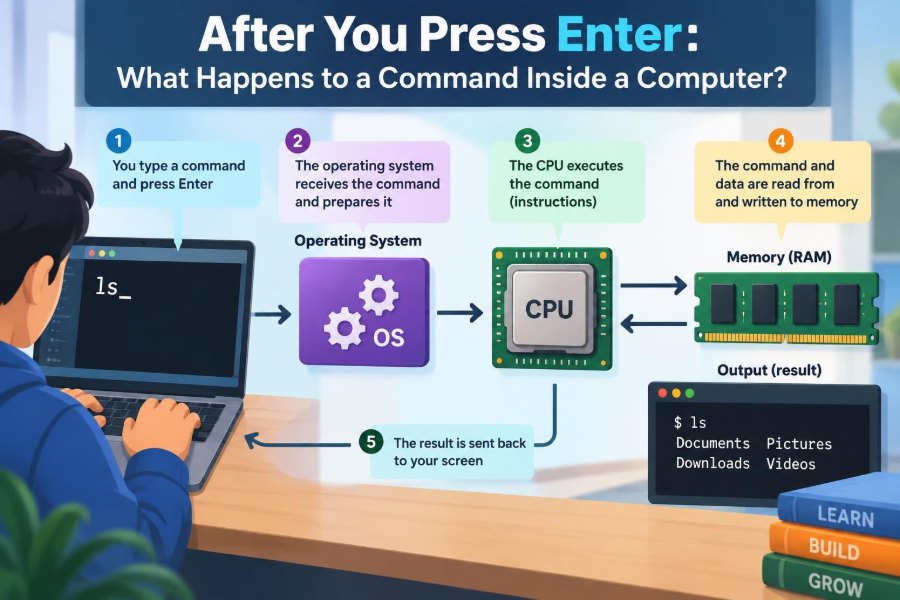

You type ls, press Enter, and a list of files appears. Or you enter python report.py, launch a program, and wait for an answer. The action feels immediate: text goes in, results come out.
But that single keypress starts a carefully coordinated chain of events. Your keyboard, operating system, command shell, storage device, memory, processor, and screen each take part, often in a fraction of a second.
Understanding this journey makes the command line less mysterious. It also explains practical experiences: why a typo produces “command not found,” why a program can run from one folder but not another, and why a command may seem frozen even though the computer is busy.
Let’s follow a typical command from the moment you press Enter to the moment you see its result.
⌨️ The command begins as keyboard input
Before a command is text on your screen, it is a physical keypress. Pressing a key changes an electrical signal in the keyboard, and the keyboard controller reports that event to the computer.
The operating system’s input software interprets the event. It considers details such as the keyboard layout, modifier keys such as Shift, and the active window. The result is a character, such as l, rather than merely “the key located at this physical position was pressed.”
This distinction matters because the same physical key can produce different characters under different layouts or with modifiers held down.
🪟 The terminal receives the characters
A terminal window is an application that displays a text-based interface and sends your keystrokes to a program running behind it. That program is often called a shell.
On Linux and macOS, common shells include Bash, Zsh, and Fish. On Windows, you may use Command Prompt, PowerShell, or a Unix-like shell supplied by another environment. Their syntax differs, but their basic role is similar: accept commands, interpret them, and start or control programs.
As you type, the terminal usually echoes characters back to the display. In the normal interactive mode, it collects them into a line until you press Enter.
↵ Enter sends a newline, not an instruction to the CPU
It is tempting to think that Enter tells the processor, “Run this now.” More precisely, Enter produces a newline character, often written as \n. The terminal’s input path delivers that character to the shell.
The shell recognizes the newline as the end of a command line, unless the line is incomplete. For example, an opening quotation mark, parenthesis, or continuation character can tell the shell that more input is needed.
So Enter is a boundary marker. The shell still has to examine what you typed and decide what it means.
🐚 The shell becomes the first interpreter
A shell is itself a running program. While it waits for input, it is usually blocked, meaning it is not constantly consuming processor time. When input arrives, the operating system makes it ready to run.
The shell reads the line and applies its language rules. A command line is not always a program name followed by simple text. It may contain variables, quotation marks, redirects, pipes, wildcards, conditions, and substitutions.
For example, echo $HOME asks the shell to replace $HOME with the value of an environment variable before starting echo. The program typically never sees the literal characters $HOME.
🔍 Parsing gives the line structure
Parsing means analyzing text according to a language’s grammar. The shell separates words, recognizes operators, and builds an internal understanding of the command.
Consider grep error app.log | sort > errors.txt. This is not one program receiving a long string. The shell identifies two commands, a pipe operator, and an output redirection operator.
grep error app.logsearches the file.|connects its output to another command.sortreceives that output.> errors.txtsends the final result into a file.
Small punctuation differences can therefore change the meaning dramatically. A space, quote, or redirection symbol is part of the command language, not just decoration.
🧩 Expansions transform what you typed
Many shells perform expansions before launching a program. The exact order and rules vary by shell, but the central idea is that the typed line can turn into a different set of arguments.
Common expansions include:
- Variable expansion:
$USERbecomes a value such as a username. - Wildcard expansion:
*.txtcan become a list of matching filenames. - Command substitution:
$(date)runs a command and inserts its output. - Home-directory expansion:
~/notesbecomes a full path in many shells.
Quoting controls these transformations. For example, quotes can preserve spaces inside one argument or stop a wildcard from expanding. This is why filenames with spaces often require careful quoting.
🏷️ Built-in command or external program?
Not every command starts a separate executable file. Some commands are shell built-ins: features implemented directly inside the shell.
cd is a classic example. Changing directories must affect the shell process itself. If the shell started a temporary child program to run cd, that child could change only its own working directory and would disappear immediately afterward.
Other common built-ins may include echo, read, alias, and exit, although details vary. If the command is built in, the shell performs the action without searching for an external executable.
🧭 PATH helps the shell find programs
When a command is not built in and does not include a path, the shell searches locations listed in the PATH environment variable. PATH is an ordered list of directories.
Typing git might lead the shell to look in directories such as /usr/bin or a user-specific tools directory until it finds a suitable executable named git.
Order matters. If two directories contain programs with the same name, the first matching one normally wins. You can inspect the chosen program with tools such as which or shell-specific commands, but remember that aliases, functions, and built-ins can complicate the answer.
📍 A path changes the search rules
A command containing a slash is generally treated as a path rather than a name to search for. For instance, ./build-tool means “run the file named build-tool in the current directory.”
The ./ is meaningful. Current directories are often absent from PATH for safety: otherwise, opening a folder containing a malicious file named ls could cause an unexpected program to run when you type ls.
A full path such as /usr/local/bin/tool is more explicit still. It reduces ambiguity, though it can make scripts less portable between machines.
🔐 Permissions determine whether execution is allowed
Finding a file is not enough. The operating system checks whether the current user is allowed to execute it. On Unix-like systems, file permissions and ownership are part of that decision, along with additional security mechanisms that may be present.
A script can exist and be readable yet lack execute permission. In that case, invoking it directly may fail. Running an interpreter explicitly, such as python script.py, is different: you are executing Python and asking it to read the script as data.
Permission checks are a reminder that a command name is not inherently trusted. The operating system enforces rules about who may run which files.
📦 The operating system identifies the file type
Once the shell requests execution, the operating system examines the target file. A native executable contains a format understood by that operating system and processor architecture.
A script may begin with a special first line, often called a shebang, such as #!/usr/bin/env python3. This line tells the system which interpreter should run the file. The system effectively starts the interpreter and gives it the script.
If the file is not a recognized executable format and lacks a usable interpreter instruction, execution fails. A filename ending in .py or .sh alone does not reliably tell the operating system what to do.
🌱 A new process is created
A running instance of a program is called a process. The shell asks the operating system to create one for the command. On many Unix-like systems, this commonly involves creating a child process and then replacing its program image with the requested executable.
Windows uses different underlying interfaces, but the useful mental model is similar: the shell requests that the operating system create a new process configured to run a particular program.
The new process receives an identifier, often called a process ID or PID. The shell keeps track of it, especially for foreground jobs that it needs to wait for.
🧬 The child inherits a starting context
A newly started process does not begin with nothing. It receives a starting context from the shell and operating system. This context usually includes command-line arguments, environment variables, a current working directory, and connections for standard input and output.
The command printenv, for example, can display environment variables passed into the process. These variables commonly hold configuration such as locale preferences, PATH, home directory location, or application-specific settings.
Inheritance is convenient, but it can also create surprises. A command that works interactively may fail in an automated task because the task starts with a different PATH, directory, or environment.
📝 Arguments are structured data, not one text string
Although you type a line of text, a launched program commonly receives an argument vector: an ordered list of separate strings. The shell decides where one argument ends and another begins.
For cp "draft report.txt" archive/, the filename in quotes is one argument containing a space. Without quotes, the shell would normally pass two separate arguments, draft and report.txt.
This distinction matters in programming and security. Safely launching a command from software usually means supplying a program name and argument list directly, rather than constructing one large shell command string.
🔀 Redirection rewires standard streams
Most command-line programs use three conventional data channels called standard streams. They allow programs to work with terminals, files, and other programs without needing to know every destination in advance.
| Stream | Typical purpose | Common shell notation |
|---|---|---|
| Standard input | Data read by the program | < |
| Standard output | Normal results | > or >> |
| Standard error | Warnings and error messages | Often redirected separately |
By default, all three are commonly connected to the terminal. With sort < names.txt > sorted.txt, the shell arranges for the program to read from one file and write normal output to another before the program begins.
🚰 Pipes let processes cooperate
A pipe connects the standard output of one process to the standard input of another. In ps | grep editor, one program produces a stream of process information, while another program filters lines containing a word.
The operating system provides a buffer between the processes. The producer can write data and the consumer can read it, often while both are running at the same time.
Pipes encourage a useful command-line style: make small tools that do one job and combine them. This is powerful, but it also means an error in one stage can affect the final result in ways that are not always obvious.
🧵 Threads provide activity inside a process
A process can contain one or more threads. A thread is a sequence of instructions that the operating system can schedule for execution. A simple command may use one main thread; a browser, database, or compiler may use many.
Threads in one process share much of the same memory, which makes communication efficient. It also creates coordination challenges: two threads changing the same data carelessly can cause incorrect results.
Do not equate “one command” with “one thing happening at a time.” A command can start several processes, and each process can use several threads.
🧠 Virtual memory gives each process its own view
Programs behave as though they have a large, private range of memory addresses. This abstraction is called virtual memory. The operating system and hardware translate those addresses to actual locations in RAM and, when necessary, other storage-backed mechanisms.
Virtual memory improves isolation. One ordinary process cannot simply read or overwrite another process’s memory by guessing an address. It also lets the operating system organize memory more flexibly than a program could on its own.
When a program needs code or data that is not currently in physical memory, the system may need to load it. This is one reason the first run of a program can sometimes feel slower than later runs.
📚 Program code and shared libraries are loaded
The executable contains machine instructions, but it may rely on shared libraries: reusable code supplied by the operating system or installed software. Libraries can provide tasks such as file access, networking, graphics, encryption, and text handling.
A loader prepares the program’s address space, maps needed code and data into memory, and connects references to library functions. Exact details depend on the operating system and executable format.
Shared libraries reduce duplication because multiple programs can often use common code in memory. They also introduce dependencies: if a required library is missing or incompatible, a program may fail before its own main logic starts.
⚙️ The processor executes machine instructions
Eventually, the processor runs the program’s machine instructions. At a high level, it repeatedly fetches an instruction, decodes what it means, performs the required operation, and moves to the next instruction.
Real processors optimize this work heavily. They can predict likely branches, perform some independent operations out of order, and use several levels of fast cache memory. These details improve speed but do not change the programmer’s basic model of instructions operating on data.
Your original command text is long gone from this stage unless the program chooses to inspect its arguments. The CPU runs binary instructions, not shell syntax.
⏱️ The scheduler shares processor time
Many processes may be ready to run at once: your shell, terminal, browser, background services, and the command you just launched. The operating system’s scheduler decides which thread gets processor time next.
On a multi-core processor, several threads can execute truly in parallel. Even on a single core, rapid switching creates the appearance that many tasks are progressing together.
A program that is waiting for disk, network, or keyboard input often yields the processor while it waits. That is why “the command is running” does not necessarily mean it is actively using a CPU core.
💾 System calls cross into the operating system
Programs cannot directly perform every privileged action. To open a file, allocate certain resources, send network data, or create another process, they ask the operating system through a system call.
For example, a program may request “open this file,” then “read these bytes,” then “write these bytes to standard output.” The operating system checks permissions, locates resources, and coordinates with device drivers where needed.
This boundary helps protect the system. A buggy text editor should not be able to issue arbitrary disk-controller commands or inspect protected memory just because it is running.
🗄️ Filesystem work may involve storage devices
When a command reads a file, the filesystem translates a human-readable path into stored data. Directories map names to filesystem objects, and metadata records properties such as ownership, timestamps, and permissions.
Not every read reaches the physical drive. The operating system keeps recently used data in memory caches, so a repeated read may be served quickly from RAM. If the data is not cached, the system asks the storage device for it.
Storage latency can dominate the running time of commands that scan many files. A fast processor cannot eliminate the wait for data that has not yet arrived.
🌐 Network commands wait on distant systems
A command such as curl, ssh, or a package manager may spend much of its time waiting on a network. It may need to resolve a name, establish a connection, negotiate encryption, send a request, and receive a response.
Those steps involve systems beyond your computer: routers, name servers, remote services, and their own workloads. A slow result is therefore not always a problem with your local machine.
Networked commands should also treat remote input as untrusted. Encryption can protect a connection in transit, but it does not automatically guarantee that every command, file, or response is appropriate to trust.
🖥️ Output travels back to the terminal
When a program writes to standard output, those bytes may go directly to the terminal, into a pipe, or into a file, depending on the shell’s setup. If they go to the terminal, the terminal application interprets them for display.
Most output is ordinary text. Some programs also send control sequences that move the cursor, apply colors, clear parts of the screen, or update a progress display.
The terminal then asks the graphical system to draw updated pixels. The result looks like instant printed text, but it is the end of another input-and-output pipeline.
⚠️ Standard error is separate for a reason
Error messages are conventionally written to standard error rather than standard output. This lets you process normal data while still seeing diagnostics.
For example, program > results.txt usually saves normal output to a file but leaves errors visible in the terminal. If you need both, you can redirect them deliberately according to your shell’s syntax.
A common beginner mistake is assuming all visible text is the same kind of output. Separating data from diagnostics makes command pipelines more reliable and easier to automate.
🏁 Exit status reports success or failure
When a command finishes, it returns an exit status to its parent shell. By convention, status 0 generally means success, while a nonzero value signals some kind of failure or special condition.
The number does not provide a universal explanation. One program’s status 1 may mean a missing file; another’s may mean “no matching lines found,” which can be an expected result in a script.
Shell scripts use exit statuses to make decisions. Commands connected with operators such as && and || can run conditionally based on whether the previous command succeeded.
👪 The shell waits, or lets the job continue
For a foreground command, the shell normally waits until the child process exits before showing the next prompt. During that time, the terminal is usually connected to the foreground program, so your keystrokes go to it rather than to the shell.
Appending & in many shells starts a background job. The shell returns a prompt sooner, while the process continues. Job control commands can list, pause, resume, or bring jobs back to the foreground.
Background work is useful, but it needs care. A background program may still write to the terminal, depend on the terminal remaining open, or compete for CPU, memory, disk, and network resources.
🧹 Process cleanup releases resources
When a process exits, the operating system closes its open files, releases its memory mappings, and removes most of its active resources. This automatic cleanup prevents many resources from being permanently lost when a program ends unexpectedly.
The parent process is also notified that its child has finished. On Unix-like systems, the parent collects the child’s final status. Until that happens, a small record may remain so the status is not lost.
Cleanup does not undo external effects. If a program already modified a file, sent a request, or deleted data, process termination does not magically reverse those actions.
🐛 “Nothing happened” can mean several different things
A command that appears silent may have succeeded without producing output, be waiting for input, be doing slow work, or have sent output somewhere else. The terminal alone cannot always tell you which.
Useful first checks include:
- Look at the exit status after the command finishes.
- Check whether output was redirected into a file.
- Confirm the current directory and the exact command spelling.
- Use a more verbose option if the program provides one.
- Inspect running processes when a command seems stuck.
Debugging becomes easier when you locate the stage that failed: shell parsing, command lookup, permissions, program logic, file access, or a remote dependency.
🛡️ Shell interpretation creates security boundaries
Shell features are convenient, but they can be dangerous when untrusted text is treated as shell code. If a program builds a command by concatenating user-provided text, special characters may change the command’s meaning.
For example, a semicolon, command substitution, wildcard, or redirection operator can have effects beyond an intended filename. The safe approach in software is usually to avoid invoking a shell when it is unnecessary and pass arguments as structured values.
At the terminal, pause before pasting commands from unknown sources. Read redirects, deletion commands, elevated privileges, and downloaded-script patterns carefully.
🧪 A compact example: following wc -l notes.txt
Suppose you type wc -l notes.txt and press Enter. The shell parses wc as the program name and -l plus notes.txt as arguments.
It finds the wc executable through PATH, creates a process, supplies the arguments and inherited environment, and connects standard streams to the terminal. The operating system loads the program and schedules it to run.
wc asks the operating system to open notes.txt, reads its contents, counts newline characters, writes the count to standard output, and exits. The terminal displays the result, the shell receives the exit status, and a new prompt appears.
🧭 The core takeaway: a command is a coordinated request
Pressing Enter does not send a sentence straight to the CPU. It sends input to a shell, which interprets a command language, locates or performs an action, configures a process, and asks the operating system to manage execution.
From there, hardware and software cooperate: the scheduler assigns CPU time, virtual memory isolates the process, system calls reach protected services, files and networks supply data, and output returns through configured streams.
This model is useful far beyond terminals. Graphical applications, scripts, development tools, and servers all rely on related ideas: processes, memory, permissions, input/output, and operating-system coordination.
A command succeeds not because one component “runs it,” but because many layers agree on what it means and carry out their specialized parts. Once you see those layers, errors become clues instead of mysteries. 💻⚙️🔎