
You receive an email that looks like it came from a delivery company. It says a package cannot be delivered until you confirm your address. The button looks ordinary, the message sounds urgent, and you are busy. A single click can be enough to expose a password or install unwanted software.
Or perhaps a browser suddenly displays a warning that your computer is infected and asks you to call a number. Maybe a familiar account reports a login you do not recognize. These moments are common because attackers usually target everyday habits, not only technical weaknesses.
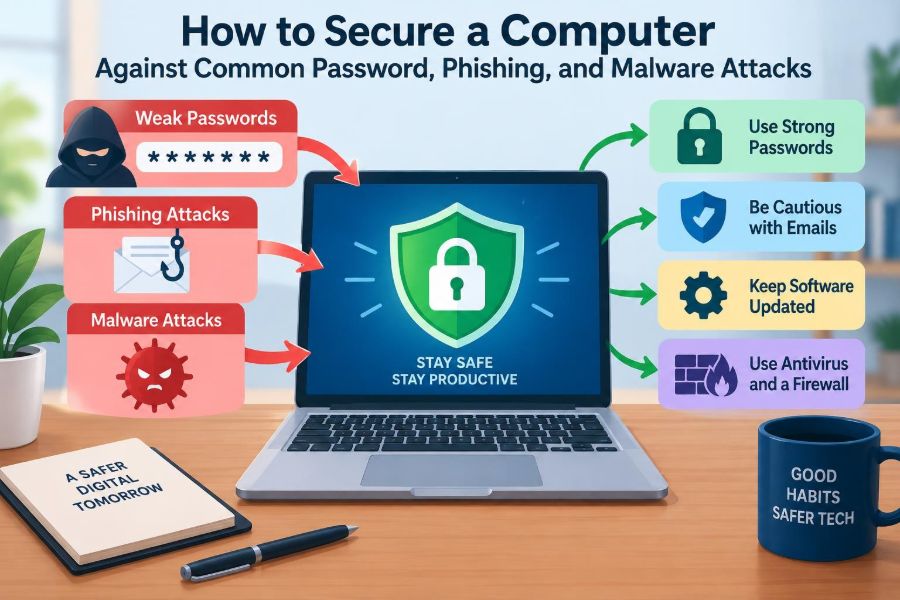
Computer security is not about becoming suspicious of everything or memorizing obscure commands. It is about building a few dependable layers: stronger sign-ins, safer decisions around messages and downloads, updated software, and recoverable data.
Each layer handles a different failure. A strong password helps if a company suffers a breach; multi-factor authentication helps if a password is stolen; backups help if malware damages files. Together, they make ordinary attacks much harder to turn into a serious loss.
🛡️ Security Is a Set of Layers
No single product or setting can make a computer completely safe. Security works more like doors, locks, lighting, and alarms in a building: each one reduces a different opportunity for an intruder.
For a personal computer, the most useful layers include account protection, operating-system updates, cautious browsing, malware defenses, limited privileges, and backups. If one layer fails, the others can limit the damage.
🎯 Understand What Attackers Want
Many attacks are motivated by access rather than by drama. An attacker may want email access to reset other passwords, financial information for fraud, personal files for extortion, or a device they can use as part of a larger criminal operation.
Email accounts deserve special attention. They often receive password-reset links, invoices, personal correspondence, and security alerts. Protecting email well protects many other accounts indirectly.
🔑 Make Every Password Unique
Password reuse turns one leaked password into a master key. If the same password is used for a small forum, a shopping account, and email, a breach at the least important site can lead attackers to try it everywhere else.
Use a different password for every account, especially for email, banking, work services, cloud storage, and password managers. This approach is more valuable than trying to invent many clever variations of one password.
🧩 Prefer Long Passphrases
Length generally gives a password more room to resist guessing than decorative substitutions alone. A passphrase made from several unrelated words can be memorable while remaining difficult to predict, such as a private phrase you do not quote or reuse.
Avoid names, birthdays, street addresses, song lyrics, sports teams, and patterns such as Summer2025!. Attackers use lists of common choices and personal details gathered from public profiles.
🗝️ Use a Password Manager
A password manager stores unique credentials in an encrypted vault protected by one strong master password and, where available, multi-factor authentication. It can generate long random passwords that no person needs to remember.
It also provides a useful phishing clue. A manager normally fills credentials only on the matching website. If it does not recognize a page that appears to be your bank, stop and inspect the address rather than typing the password manually.
- Choose a reputable manager that fits your devices and recovery needs.
- Use a long, unique master passphrase.
- Keep recovery information secure and separate from the computer when practical.
- Do not share vault entries casually through screenshots, notes, or chat messages.
📲 Turn On Multi-Factor Authentication
Multi-factor authentication (MFA) requires an additional proof after a password, such as a confirmation prompt, an authenticator-app code, a security key, or a biometric check on a trusted device. It reduces the value of a stolen password.
Authenticator apps and hardware security keys are usually more resistant to phishing than text-message codes. SMS-based MFA is still often better than password-only access, but phone numbers can sometimes be redirected through fraud or account-recovery abuse.
🔐 Protect Recovery Methods Too
Account recovery can bypass a carefully chosen password. Review recovery email addresses, phone numbers, backup codes, and security questions for your most important accounts.
Store backup codes somewhere protected, such as an encrypted vault or a secure physical location. Do not use answers to security questions that are easy to discover; where a service permits it, treat answers as random saved credentials rather than biography questions.
🚪 Lock the Device Itself
A secure online account does not help much if someone can sit down at an unlocked computer. Configure the screen to lock automatically after a short period and lock it manually whenever you step away.
Use a strong device sign-in method. On laptops and phones, enable full-disk encryption when supported. Encryption helps protect data if the physical device is lost or stolen, particularly when it is powered off or locked.
👤 Use a Standard Account for Daily Work
Administrator accounts can install software and change system-wide settings. That power is necessary sometimes, but it also gives malicious software more room to operate if it runs under that account.
Use a standard, non-administrator account for routine browsing, email, and documents when your operating system supports this workflow. Enter administrator credentials only when you understand the change being requested.
🔄 Install Operating-System Updates Promptly
Updates do more than add features. They often correct vulnerabilities: flaws that could let malware or an attacker do something the software was not supposed to allow.
Enable automatic updates for the operating system where feasible, and restart when required. Delaying every update indefinitely leaves known weaknesses available to attackers, although organizations may need to test major updates before broad deployment.
🧱 Update Browsers, Apps, and Firmware
Your browser, PDF reader, office applications, video-conferencing tools, and browser extensions all process data from outside sources. An old application can be an opening even when the operating system is current.
Remove applications you no longer use, because unused software is software you may forget to update. Obtain firmware updates for routers and other network equipment from their legitimate manufacturer or provider channels.
📧 Recognize the Goal of Phishing
Phishing is a deceptive message designed to make someone reveal information, approve a login, send money, or open harmful content. It may arrive through email, text message, social media, collaboration tools, or a phone call.
The message does not need to look obviously fake. Modern phishing frequently copies logos, writing styles, and real business processes. The key question is not “Does this look polished?” but “Is this request independently expected and verified?”
🚩 Notice Pressure and Mismatched Requests
Phishing messages commonly create urgency, fear, secrecy, or reward: “Your account will close today,” “pay this invoice immediately,” or “keep this confidential.” A real request can be urgent too, so urgency alone is not proof, but it is a reason to slow down.
Watch for a mismatch between the sender and the action. A shared-document notification that asks for a password, a manager asking for gift cards by text, or a shipping email asking for banking details deserves independent verification.
🔍 Check the Destination, Not Just the Display Name
A sender name can be copied, and visible link text can hide a different destination. On a computer, hover over a link to preview its address; on a phone, press and hold carefully where the app allows it.
Look at the actual domain name, the part immediately before the final suffix. For example, accounts.example.com belongs to example.com, while example-login.invalid-site.com does not. Small spelling changes and extra words are common warning signs.
🌐 Navigate Independently for Sensitive Tasks
When an email says an account needs attention, do not use its link. Open a saved bookmark, type the known address, or use the organization’s official app. Then check whether the claimed alert is present.
This habit is especially useful for financial services, payroll, cloud storage, package delivery, and account-security notices. It removes the attacker’s most important control: choosing the website you visit.
📎 Treat Attachments as Active Content
An attachment can contain a harmless document, but it can also contain a program, a malicious script, or a file crafted to exploit a vulnerable application. File names and icons are not reliable proof of safety.
Be particularly cautious with unexpected archives, installer files, and documents that ask you to enable macros or “content.” A macro is automation code inside some office documents; enabling it can allow malicious instructions to run.
- Confirm an unexpected attachment through a separate channel.
- Scan downloads with your security software before opening them.
- Do not enable macros merely because a document says it is protected.
- Use a trusted sharing service or official portal when exchanging work files.
🧠 Verify People Through a Separate Channel
Attackers can compromise a real mailbox and send believable requests from it. A message from a colleague is not automatically trustworthy if it asks for credentials, payment changes, sensitive files, or unusual actions.
For a high-impact request, call a known number, start a new message using a verified address, or speak to the person directly. Do not reply to the suspicious message or use the contact details it supplies.
📥 Download Software From Trustworthy Sources
Free utilities, pirated software, game modifications, fake updates, and “cleaner” applications are common delivery routes for unwanted programs. A download page can look professional while bundling adware, password stealers, or remote-access tools.
Use the developer’s official website, a recognized operating-system app store, or an established organization’s software portal. Be wary of search advertisements and download buttons that lead to a third party rather than the publisher.
🦠 Know the Main Types of Malware
Malware is software designed to harm, spy on, disrupt, or gain unauthorized access. Different types behave differently, so the right response depends on what occurred.
| Type | Typical purpose | Common warning sign |
|---|---|---|
| Ransomware | Encrypts files or blocks access for payment | Files become unreadable or a payment note appears |
| Spyware or infostealer | Collects passwords, browser data, or activity | Often has few visible signs |
| Trojan | Pretends to be legitimate software | Unexpected behavior after a download |
| Adware | Forces advertising or browser changes | Pop-ups, redirects, unwanted extensions |
These labels can overlap. The practical priority is to contain the device, protect accounts, and preserve evidence rather than attempting to diagnose every detail alone.
🛡️ Keep Built-In Security Protection Enabled
Modern operating systems commonly include anti-malware protection, firewall features, download reputation checks, and application warnings. Keep these protections enabled unless you have a specific, understood reason to change them.
Security software can miss new threats, and it cannot decide whether a fraudulent message is legitimate. Its job is one layer of defense, not permission to take risks with unknown links or installers.
🧭 Be Careful With Browser Extensions
Extensions can read or alter web pages, sometimes including what you type. A poorly designed, abandoned, or malicious extension may create more risk than convenience.
Install only extensions you genuinely need, review their permissions, and remove those you no longer use. A request to “read and change all your data on all websites” may be necessary for some tools, but it deserves careful judgment.
📡 Secure Your Home Network
Use WPA2 or WPA3 security on home Wi-Fi with a strong, unique router password. Change default administrator credentials, keep router software updated, and disable remote management if you do not need it.
Public Wi-Fi is not automatically hostile, but it is less controlled. Avoid sensitive tasks on unfamiliar networks when possible, verify that websites use secure connections, and do not accept unexpected certificate warnings. A virtual private network can add privacy in some situations, but it does not make phishing pages or malicious downloads safe.
💾 Back Up Files Before You Need Them
A backup is a separate copy of data that can be restored after deletion, hardware failure, theft, or ransomware. Synchronization alone is not always a backup: if a file is deleted or encrypted, the change may synchronize too.
Keep more than one copy of important files, and ensure at least one is not continuously writable from the computer. Cloud services with version history can help, while an external drive stored disconnected after backup can reduce exposure to ransomware.
🧪 Test Recovery, Not Just Backup Creation
A backup that cannot be found, opened, or restored is not a dependable safety net. Periodically restore a few noncritical files to verify that the process works and that you understand it.
Also record what matters most: documents, photos, project files, encryption recovery keys, and important application settings. Reinstalling software is inconvenient; losing irreplaceable work is often the real problem.
⚠️ Spot Signs That Need Attention
Possible signs of compromise include unfamiliar login alerts, unexpected MFA prompts, new browser extensions, changed search settings, unusually slow behavior, unknown programs, or messages sent from your account that you did not create.
None of these signs proves malware on its own. Slow performance can have ordinary causes, and an account alert may be a false alarm. Still, unusual activity is a prompt to investigate rather than dismiss.
🚨 Respond Quickly to a Suspected Infection
If you think malware is active, disconnect the computer from Wi-Fi or unplug its network cable. This can limit communication with an attacker and reduce the chance of spreading through a local network.
- Use a different, trusted device to change passwords for important accounts, starting with email.
- Revoke unfamiliar sessions and review recovery methods and MFA settings.
- Run the operating system’s security scan and follow trusted vendor or organizational guidance.
- Tell your workplace IT or security team promptly if a work device or account is involved.
- Consider professional help or a clean operating-system reinstall if there is evidence of a serious compromise.
Do not enter new passwords on a device you believe may be recording keystrokes. Preserve relevant messages or screenshots if they may help a support team investigate.
💳 Act Fast After a Phishing Mistake
Clicking a suspicious link is not always a compromise. The risk becomes greater if you entered a password, approved an MFA request, downloaded a file, or supplied financial information.
Change the affected password from a trusted device, ensure it is not reused elsewhere, and review recent account activity. If payment information or a bank account may be involved, contact the institution through a known official channel; do not use phone numbers or links from the suspicious message.
🏢 Follow Workplace Security Procedures
Work accounts often connect to shared files, customer information, and internal systems. Report suspicious messages early, even if you did not click anything. Security teams can block a malicious sender, warn colleagues, and check whether other accounts were targeted.
Do not move work files to personal email or cloud storage merely to make a task easier. Those shortcuts can bypass retention rules, access controls, and incident-response processes designed to protect both the organization and its people.
👨👩👧 Help Others Without Taking Over
Security advice is more likely to stick when it fits someone’s routine. Help family members set up a password manager, automatic updates, MFA, and backups before a problem happens.
Agree on a simple verification rule for urgent money requests: pause and call the person using a known number. This is useful for everyone, including technically experienced users, because social pressure can affect anyone.
🧾 Create a Personal Security Routine
Security works best when routine tasks are small and predictable. Set aside time occasionally to review key accounts, update recovery information, remove unused apps, check backups, and install pending updates.
A practical routine might include:
- Weekly: install updates and review unexpected account notifications.
- Monthly: check backups and remove unneeded browser extensions or applications.
- After any breach notice: change the affected unique password and review account activity.
- Before travel or device replacement: confirm encryption, backups, and recovery access.
⚖️ Balance Convenience and Protection
Every security measure has a cost. MFA can add a step, updates can require restarts, and strong passwords are difficult to manage without tools. Ignoring these trade-offs leads to rules people work around.
Choose protections that are sustainable. A password manager plus MFA is usually more realistic than trying to memorize dozens of complex passwords. Automatic updates are usually safer than relying on memory. The best plan is one you will actually maintain.
✅ The Core Principle: Pause, Verify, Recover
Most common password, phishing, and malware attacks rely on one of three gaps: a reused secret, an unverified request, or a lack of recovery options. Addressing those gaps provides a strong baseline without requiring advanced technical skills.
Pause before acting on an unexpected request, verify through a trusted path, and maintain a recoverable copy of what matters. Add unique passwords, MFA, updated software, and careful downloads, and a routine attack is far less likely to become a major incident.
Good computer security is not perfect prediction; it is a set of habits that limits mistakes and makes recovery possible. Start with one improvement today, then build the next layer when it becomes routine. 🔐🛡️💻