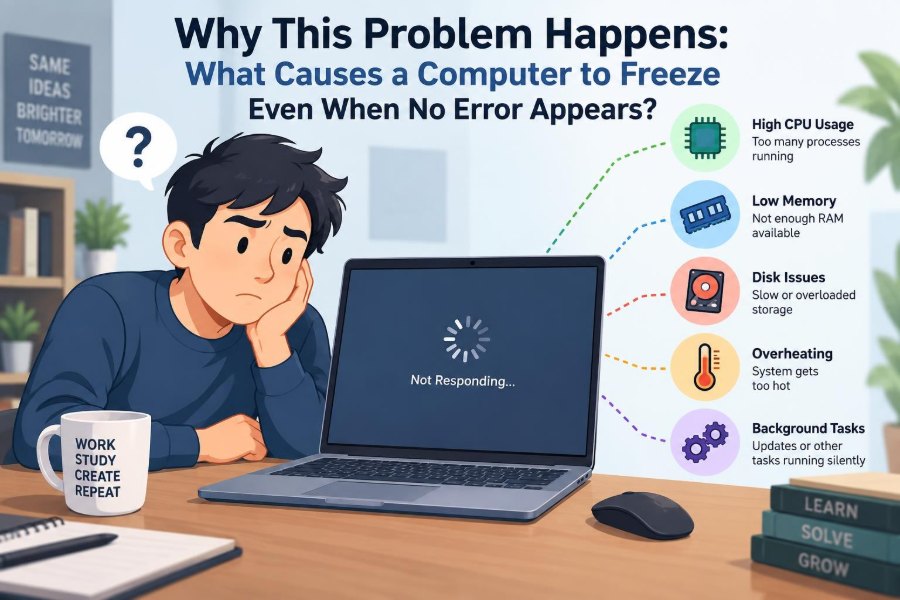

You are typing a report, joining a video call, or saving a spreadsheet when the computer suddenly stops responding. The pointer may still move, or it may be frozen in place. Clicking does nothing. No warning appears, no useful message explains the problem, and the only obvious option seems to be holding the power button.
That experience is frustrating because a freeze feels mysterious. A blue screen, crash dialog, or failed application at least offers a clue. A silent freeze can look as though the computer simply decided to stop working.
Usually, it has not stopped for no reason. It is stuck waiting for hardware, software, memory, storage, or a background task to complete. The screen may show no error because the part responsible for displaying an error is also waiting.
Understanding what a freeze means makes troubleshooting calmer and more effective. Instead of reinstalling everything at random, you can look for the pattern behind the interruption.
🧊 What “Frozen” Actually Means
A computer freeze is a loss of useful responsiveness. An application, the operating system, or the entire machine may stop accepting input while some internal work continues.
This differs from a normal slowdown. During a slowdown, commands eventually finish. During a freeze, an important task may be blocked indefinitely, looping without progress, or unable to obtain a resource it needs.
🧭 Not Every Freeze Is a Full System Freeze
The scope of the failure is an early clue. If one program is stuck but the task switcher, clock, and other applications work, the operating system is probably still healthy.
If the mouse moves but clicks fail, the graphical interface may be stalled. If the keyboard lights cannot change and audio repeats in a short loop, the whole system may be locked. These observations narrow the likely causes.
🪟 Why No Error Message Appears
Error messages require working software, available memory, and a responsive display system. When the operating system scheduler, graphics driver, or storage subsystem is blocked, it may not be able to draw the message that would explain the problem.
Some faults also have no clean “error” state. A program waiting forever for a file, a device response, or another thread has not necessarily detected a failure; it is simply still waiting.
⚙️ The Operating System Is a Traffic Controller
Modern computers run many processes at once by rapidly sharing processor time. The operating system schedules work, manages memory, moves data to and from storage, and controls access to devices.
A freeze often happens when this coordination breaks down. Think of a busy intersection: one blocked vehicle can delay many others, especially when they all need the same road.
🧵 Deadlocks: When Tasks Wait on Each Other
A deadlock occurs when two or more tasks each hold something the others need. For example, one program component may hold a file lock while waiting for a database response, while another holds the database resource and waits for that file lock.
Neither task can move forward. Developers design software to avoid these situations, but complicated applications, plugins, network services, and drivers can still create them.
🔁 Infinite Loops and Runaway Work
A program can also freeze because it repeatedly performs work without reaching a result. A coding error may create an infinite loop, but legitimate work can look similar: rendering a complex video timeline, calculating a huge spreadsheet, or searching a damaged data structure.
One processor core may become fully busy while the application appears still. If the program does not regularly return control to the interface, it can be labelled “not responding.”
🧠 Memory Pressure Slows Everything Down
RAM is the fast working area where active programs keep their code and data. When too many applications, browser tabs, virtual machines, or large files compete for RAM, the operating system must move less-active data elsewhere.
This does not always cause a true lockup, but it can make a computer feel frozen for long periods. Closing unused work before opening a demanding task is often more effective than repeatedly clicking the stalled window.
📦 Virtual Memory Can Create a Storage Bottleneck
When RAM is limited, the system uses virtual memory, storing some memory pages on the drive. This is useful, but drives are far slower than RAM, especially when many pages are being exchanged repeatedly.
This condition is often called paging or thrashing. The computer spends much of its time moving data instead of running your task. Disk activity may be heavy while the interface barely responds.
💽 A Busy or Failing Drive Can Stall the System
Programs depend on storage for application files, documents, caches, virtual memory, logs, and updates. If a drive is overloaded, nearly full, corrupted, disconnecting, or developing hardware faults, requests can take far longer than expected.
A mechanical hard drive may pause while retrying a difficult read. An SSD can also experience firmware, connection, or file-system problems. Back up important data promptly if freezes accompany read errors, disappearing drives, or unusual drive behavior.
🗂️ File-System Problems Add Delays
The file system tracks where files and folders are stored. An improper shutdown, failing drive, interrupted update, or software defect can leave its records inconsistent.
Operating systems include disk-checking tools because they can detect and sometimes repair logical file-system problems. These tools are not a substitute for backup, and repeated corruption deserves investigation rather than endless repair attempts.
🎮 Graphics Drivers Can Freeze What You See
The graphics processing unit, or GPU, draws the desktop, games, video, and many creative applications. A faulty graphics driver can make the display appear frozen even when some background work continues.
Common clues include a black screen, flickering, distorted image, or a freeze when launching a game, using external displays, waking from sleep, or accelerating a browser. A stable driver version can be better than the newest version when a regression is suspected.
🔌 Drivers Bridge Software and Hardware
A driver tells the operating system how to communicate with a specific device: a Wi-Fi adapter, printer, storage controller, webcam, audio interface, or USB dock. Because drivers operate close to the system, a bad one can affect more than its own device.
Freezes that start after connecting one accessory or installing one utility are especially revealing. Disconnect nonessential peripherals and test again before assuming the computer itself has failed.
🌡️ Heat Can Trigger Protection or Instability
Processors and graphics chips produce heat under load. Cooling systems remove that heat using fans, heat sinks, vents, and thermal material. Dust, blocked airflow, failing fans, and demanding workloads can raise temperatures.
Many systems reduce speed or shut down to protect hardware, but heat can also expose marginal stability. A freeze mainly during gaming, compiling, rendering, or charging under load is worth treating as a cooling clue.
⚡ Power Problems Are Not Always Obvious
An unstable charger, damaged cable, weak battery, failing power supply, or loose internal connector can interrupt power delivery without producing a tidy error. Desktop systems may freeze or restart under graphics load; laptops may behave differently on battery and wall power.
Use the correct rated charger and avoid diagnosing with a questionable power strip. Do not open a power supply: it can retain dangerous electrical charge even after it is unplugged.
🧩 Faulty RAM Can Corrupt Running Work
Memory errors may alter data while programs are using it. The result can be unpredictable: one application crashes, a file appears damaged, the system freezes only under load, or the computer fails at different times in different ways.
Built-in or vendor memory diagnostics can help identify a pattern, although an occasional fault is not always easy to reproduce. Recently added or overclocked memory deserves particular suspicion when instability begins.
🚀 Overclocking and Aggressive Tuning Reduce Margin
Overclocking runs a processor, graphics card, or memory beyond its standard settings. Undervolting, memory profiles, and performance tuning can also affect stability. A system may seem fine in light work but fail during a particular workload.
Returning firmware settings to stable defaults is a useful diagnostic step. It does not prove the hardware is defective; it tests whether the chosen settings leave enough operating margin.
🧪 Software Conflicts Can Be Trigger-Specific
Security software, cloud-sync clients, overlays, screen recorders, hardware-control tools, browser extensions, and old utilities can all interact in unexpected ways. A conflict may occur only when a file is saved, a microphone activates, or a program uses the GPU.
The key is timing. If freezes began after a new application, update, extension, or device, remove or disable that change temporarily and observe whether the behavior changes.
🦠 Malware Is Possible, but Not the Default Answer
Malicious software can consume resources, alter system settings, interfere with security tools, or use the network and storage heavily. A reputable security scan is sensible when there are other warning signs, such as unknown startup items or unexpected account activity.
However, calling every freeze a virus can hide ordinary causes such as a damaged driver or failing drive. Start with evidence, keep security software updated, and avoid downloading “repair” tools from untrusted pop-ups.
🌐 Network Waiting Can Look Like a Freeze
Some applications rely on servers, shared folders, printers, licenses, or cloud storage. When a network request waits too long, the application may stop responding even though the computer itself is functional.
A document editor that stalls only while opening a shared file points in a different direction from a machine that freezes at the desktop. Test the same action with the network disconnected or with a local copy when appropriate.
🔄 Updates Can Introduce or Reveal Problems
Operating system, driver, firmware, and application updates fix many defects, but they can also change compatibility. An update may reveal an existing hardware weakness or conflict with a device that previously worked by chance.
Do not assume either “always update immediately” or “never update” is universally right. Keep backups, note what changed, and use official update paths. If a clear timing relationship exists, a supported rollback may be a reasonable test.
🛌 Sleep, Wake, and Docking Are Special Cases
Sleep and wake require hardware to enter and leave low-power states in the right order. Displays, USB devices, network adapters, and docks can complicate that transition.
If freezing happens only after waking, test without the dock or external peripherals, install relevant firmware and driver updates, and compare sleep with a full shutdown. This isolates the power-state transition from normal operation.
🔍 Read the Pattern Before Changing Everything
Good troubleshooting is controlled comparison. Record what was running, whether the machine was plugged in, what device was attached, how long it had been on, and what happened just before the freeze.
- Does it occur in one application or every application?
- Does it happen only under load, only when idle, or only after sleep?
- Did it begin after a software, driver, hardware, or configuration change?
- Can you reproduce it with the same file, website, device, or action?
A repeatable trigger is often more valuable than a vague impression that the computer is “randomly broken.”
📊 Use Built-In Monitoring Tools
Task managers and system monitors can show processor use, memory pressure, disk activity, network activity, and the processes consuming them. Event logs and reliability histories may record driver resets, unexpected shutdowns, application failures, or storage warnings.
These records are clues, not verdicts. A process using a lot of CPU may be doing valid work; a warning near the freeze may be relevant or merely coincidental. Look for repeated entries and timing that match the incident.
🧯 What to Do During a Freeze
First, wait briefly if the computer is saving, updating, or processing a large task. Repeated clicking can queue more requests and make the interface appear worse.
- Try to save work if the active application responds.
- Try switching applications or opening the system task manager.
- Close only the unresponsive application if the rest of the system works.
- If the entire system is locked, use the normal restart controls if available.
- Use a forced shutdown only when no safer option remains, then check unsaved work and note the circumstances.
A forced shutdown can interrupt writes, so it should be an emergency measure rather than routine maintenance.
🧹 Start With Low-Risk Fixes
Restarting clears temporary states and is a useful first test, but it is not a diagnosis. Next, free storage space, close unnecessary startup programs, update the operating system and key drivers through official sources, and remove recently added software that correlates with the problem.
Make one meaningful change at a time. Changing drivers, antivirus settings, memory settings, and system files all at once makes it impossible to learn which action helped.
🧰 Safe Mode and Clean Startup Help Isolate Causes
A minimal startup environment loads fewer drivers and background programs. If the computer is stable there, a third-party startup item, service, or driver becomes more likely than a basic hardware fault.
This is an isolation method, not proof of a specific culprit. Re-enable items gradually and test, rather than leaving every protective or useful service disabled permanently.
🧑🔧 When Professional Repair Makes Sense
Seek qualified help when freezes are paired with drive errors, repeated unexpected restarts, overheating, damaged ports, battery swelling, liquid exposure, or a computer that cannot reliably start. Back up data first when possible.
Business systems may also need an IT administrator because encryption, managed security tools, network policies, and warranty requirements can affect safe repair options.
🛡️ Prevention Is Mostly About Reducing Stress and Surprise
Keep reliable backups, leave breathing room on storage, use trusted software, maintain reasonable airflow, and shut down carefully when updates or disk activity are underway. Protect laptops and desktops from spills, unstable power, and physical damage.
Prevention cannot eliminate every bug or hardware failure. It does make recovery less stressful and gives you better information when an issue begins.
🧾 The Core Principle: A Freeze Is a Clue, Not a Diagnosis
A computer can freeze without an error because the system may be too busy, waiting on a resource, unable to communicate with hardware, or unable to display its own warning. The visible symptom is similar, but the underlying causes are very different.
The most reliable response is to identify the scope, collect the pattern, protect your data, and test likely causes methodically. That approach separates a one-off application problem from a driver conflict, storage issue, thermal condition, or hardware fault.
A silent freeze is usually a stalled chain of work, and the fastest path to a solution is finding where that chain first stopped. 💻🧭🛠️