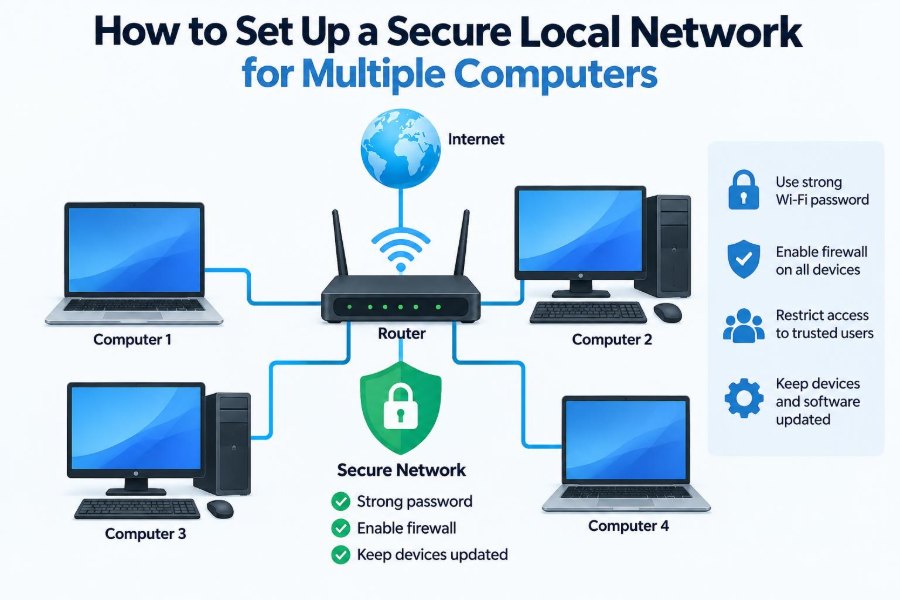

A small local network often begins with a simple need: one computer needs a printer, a colleague needs access to a shared folder, or several household devices need a reliable internet connection. Connecting everything may seem as easy as buying a router and entering a Wi-Fi password.
But a network is more than a collection of cables and wireless signals. Once computers can communicate, they can also expose files, services, and accounts to one another. A convenient setup with poor defaults can create problems long before anyone notices them.
The goal is not to build a fortress worthy of a large corporation. It is to make sensible choices about equipment, passwords, access, updates, and recovery so that the people and devices on the network can work safely.
This guide explains how to plan, build, and maintain a secure local network for multiple computers, whether it serves a home office, a classroom, a small studio, or a growing team.
🧭 Start with a Clear Network Goal
Before changing settings, decide what the network must do. A household may need internet access, printer sharing, and backups. A small business may also need protected work files, guest Wi-Fi, video calls, and separate devices for staff and visitors.
Your requirements determine the appropriate design. Security works best when it supports real tasks instead of being added later as a collection of confusing restrictions.
- List the computers, phones, printers, storage devices, and smart devices.
- Identify which devices need to share files or printers.
- Decide who should have access to sensitive information.
- Record any need for remote access before enabling it.
🏠 Understand What a Local Network Is
A local area network, or LAN, connects devices within a limited place such as a home, office, or classroom. Devices on the LAN can exchange data directly when sharing is permitted.
Your internet connection is separate from the LAN, even though a router usually joins them. The router directs traffic between the private local network and the public internet, making it a key security boundary.
Think of the LAN as rooms inside a building and the router as the controlled entrance. Interior doors matter too: not every device needs access to every room.
🗺️ Choose a Simple Network Layout
For most small setups, the reliable pattern is modem or internet gateway, then router, then wired and wireless devices. A network switch can add more Ethernet ports when the router does not have enough.
A switch expands a wired network; it is not normally a substitute for a router. Avoid connecting multiple consumer routers randomly, because overlapping address assignment and double network translation can make troubleshooting difficult.
Internet → modem/ONT → router → switch → computers, printer, storage
                         └→ Wi-Fi devices
If your internet provider supplied a combined modem and router, check whether you are adding another router behind it. The setup can work, but it should be configured deliberately rather than by accident.
🔌 Prefer Ethernet for Fixed Computers
Ethernet uses cables to connect devices to the router or switch. It is generally more stable than Wi-Fi, has predictable performance, and is harder for outsiders to intercept because physical access is required.
Desktop computers, shared storage, printers, and media systems are good candidates for wired connections. Wi-Fi remains essential for laptops and mobile devices, but wiring stationary equipment reduces congestion and removes a common source of connection problems.
Use undamaged, appropriately rated cables and avoid running them where they can be crushed, sharply bent, or become a tripping hazard.
📡 Select Wi-Fi Equipment That Receives Updates
A router is a small computer exposed to both your local devices and the internet. Choose equipment from a vendor that provides firmware updates and clearly identifies supported models.
Older hardware may still connect devices successfully while no longer receiving fixes for known security flaws. That is a risk worth considering when a router is the primary gatekeeper for several computers.
For larger spaces, a mesh system or wired access points may give better coverage than one powerful router. Better coverage can improve security indirectly because people are less tempted to create unofficial hotspots or disable protections to solve connectivity issues.
🔐 Change the Router Administrator Credentials
The router’s administrator account controls network-wide settings, including Wi-Fi passwords, firewall rules, and device access. Its login password is not the same as the Wi-Fi password.
Change the default administrator password immediately. Use a long, unique passphrase stored in a password manager, and change the default administrator username too if the device allows it.
Do not share this account casually. A family member or colleague who only needs Wi-Fi should not need the credentials that can reconfigure the entire network.
🔄 Update Router Firmware Before Expanding
Firmware is the software that runs networking hardware. Updates can fix faults, improve compatibility, and address security weaknesses discovered after the device was sold.
Check for updates during initial setup and periodically afterward. Some routers can install security updates automatically; if you enable this feature, still make sure you know how to recover access if an update changes a setting.
Download updates only through the router’s built-in update tool or the manufacturer’s official support path. Unverified firmware files can compromise the very device meant to protect the network.
🔒 Use WPA3 or WPA2-AES for Wi-Fi
Wi-Fi security controls who can join the wireless network and protects traffic over the air. Use WPA3-Personal when all necessary devices support it. If older devices need compatibility, WPA2 with AES encryption is a practical alternative.
Avoid obsolete choices such as WEP and WPA with TKIP. They were designed for earlier generations of wireless networking and do not provide suitable protection for a modern network.
| Setting | Recommended use |
|---|---|
| WPA3-Personal | Best choice when compatible with your devices |
| WPA2-Personal (AES) | Suitable compatibility option for many small networks |
| WPA2/WPA3 transition mode | Useful temporarily when older devices need access |
| WEP or WPA/TKIP | Do not use; replace incompatible legacy devices where possible |
🗝️ Create a Strong Wi-Fi Passphrase
A strong Wi-Fi password is long, unique, and difficult to guess. A memorable passphrase made from several unrelated words is often easier to type correctly than a short string of symbols.
Do not reuse the password from email, banking, cloud storage, or the router administrator account. Reuse turns one leaked password into access to multiple systems.
Change the Wi-Fi password when someone who should no longer have access leaves the household or organization. In a shared office, keep a documented process for doing this without losing track of connected equipment.
📛 Give the Network a Sensible Name
The Wi-Fi network name is the SSID, or service set identifier. Choose a name that helps authorized users recognize the network without revealing personal details, a company address, or the router model.
For example, “StudioNet” is clearer and less revealing than a name containing a surname and apartment number. Hiding the SSID is not a meaningful security control; devices can still detect a network that is actively in use.
Clarity matters during troubleshooting. Distinct names for staff, guest, and smart-device networks reduce the chance of joining the wrong one.
🚫 Turn Off WPS and Unneeded Remote Management
Wi-Fi Protected Setup, often labeled WPS, was intended to make device onboarding easier through a button or PIN. It is usually unnecessary and can weaken the enrollment process, so disable it.
Also disable router administration from the internet unless there is a well-understood operational need. Remote management exposes an administration interface beyond the local network, where configuration errors and weak credentials become more serious.
Manage the router from a trusted local computer whenever possible. If remote administration is essential, use the vendor’s documented secure method, strong unique credentials, and multi-factor authentication when available.
🧱 Keep the Router Firewall Enabled
A router firewall generally blocks unsolicited connection attempts arriving from the internet. This prevents many outside systems from directly reaching computers on your LAN.
Leave the firewall enabled unless you understand exactly why a change is needed. A firewall is not a replacement for updates and strong passwords, but it reduces exposure by rejecting traffic that no device requested.
Many routers also include a separate firewall or filtering option for IPv6. If your provider uses IPv6, ensure that this protection remains enabled as well.
🚪 Be Careful with Port Forwarding
Port forwarding tells a router to send incoming internet traffic to a particular computer or service inside the LAN. It can be necessary for certain games, servers, cameras, or remote tools, but it deliberately opens a path through the network boundary.
Before forwarding a port, ask whether the service can use a safer alternative such as a trusted remote-access platform, a virtual private network, or vendor-managed access with multi-factor authentication.
If forwarding is necessary, forward only the required port to the required device, keep that device updated, and remove the rule when the need ends. Never place an entire computer in a router’s exposed-host or “DMZ” setting merely to solve a connection issue.
🧩 Separate Guest Devices from Work Devices
A guest network gives visitors internet access without placing their devices on the same network as work computers, printers, and shared storage. This is useful even when guests are trustworthy: their device may be outdated or infected without their knowledge.
Enable guest isolation if your router provides it. This prevents guest devices from communicating with one another as well as with your main LAN.
For a home office, this boundary is especially helpful. Visitors can use the internet without gaining a route to the computer holding personal records or work material.
🤖 Isolate Smart Home and IoT Devices
Internet-connected cameras, speakers, televisions, plugs, and appliances often need network access but do not need to reach your personal computers. These products may have limited update support and varied security quality.
Put them on a separate guest network or a dedicated Internet of Things network if your router supports VLANs or network segmentation. A VLAN is a logical separation that allows one physical network to behave like several isolated networks.
Segmentation limits the consequences if one less-trusted device behaves badly. It does not make an insecure device safe, so keep its software updated and disable features you do not use.
👥 Create Separate Accounts on Each Computer
Network security also depends on the computers themselves. Each regular user should have a separate account protected by a password, PIN, or supported biometric sign-in.
Use a standard account for daily work and reserve administrator accounts for installing software or changing system settings. This reduces the damage that can occur if malware runs under a normal user account.
Shared logins make it difficult to control access, remove a former user, or determine who changed a file. Individual accounts are a basic form of accountability, not an accusation of distrust.
📁 Share Folders Deliberately
File sharing is convenient, but enabling broad sharing can expose more data than intended. Create a specific shared folder rather than sharing an entire user profile, system drive, or desktop.
Assign permissions by need. Someone who only reads reference documents should receive read access, while the person responsible for updates may receive write access. Avoid granting “full control” simply because it is faster during setup.
Test sharing using a non-administrator account. This reveals what an ordinary user can actually see and change, which is more meaningful than assuming the permissions are correct.
🖨️ Secure Printers and Network Storage
Printers and network-attached storage devices are computers with specialized jobs. Change their default passwords, install available updates, and restrict their administration pages to the local network.
For a shared printer, allow printing only from the networks that need it. For network storage, create named user accounts and folders instead of using one shared administrator login.
Storage permissions deserve extra care because a ransomware infection on one computer may encrypt files it can write to across the network. Limit write access and maintain backups that are not always directly accessible.
🛡️ Keep Every Endpoint Updated
The router cannot protect a computer from every threat, particularly threats introduced through email attachments, downloads, removable drives, or compromised accounts. Each computer needs current operating-system updates, browser updates, and application updates.
Enable automatic security updates where practical, then check occasionally that they are actually completing. Restart prompts are easy to postpone, but some updates do not take effect until a device restarts.
Remove software that is no longer used. Unused applications create maintenance work and may include services that listen for network connections without providing real value.
🦠 Use Device Security Tools Wisely
Modern operating systems include built-in firewalls and anti-malware protections. Keep these enabled unless a specific, understood conflict requires a change. Installing multiple competing security suites can create instability rather than extra protection.
Configure the computer firewall to treat public networks more cautiously than private networks. A laptop moved to a café should not automatically advertise local file shares to nearby devices.
Security software is helpful, but it cannot reliably judge every suspicious message or unsafe download. Careful account practices and user awareness remain part of the defense.
🔑 Protect Accounts with Password Managers and MFA
Many network problems begin with an account takeover rather than a router attack. Use a password manager to generate and store unique passwords for router accounts, email, cloud services, and remote-access tools.
Enable multi-factor authentication (MFA) for important accounts. MFA requires another proof of identity, such as an authenticator-app code or hardware security key, in addition to a password.
Email deserves special protection because password-reset messages often arrive there. If an attacker controls email, they may be able to reset access to many other services.
💾 Build Backups That Survive Network Incidents
A backup is a separate copy of data that can restore files after deletion, hardware failure, theft, or malware. A shared folder on another computer is useful for collaboration, but it is not necessarily a resilient backup.
Keep more than one copy of important data and ensure at least one copy is separated from the normal network or protected from ordinary write access. Cloud backup, an offline external drive, and versioned storage can each contribute to recovery, depending on your needs.
Test restoration occasionally. A backup that cannot be located, decrypted, or restored under pressure is only a hopeful assumption.
📋 Assign Addresses Predictably When Needed
Most small networks use DHCP, a service that automatically gives devices local IP addresses. This is usually the right default because it prevents many manual configuration mistakes.
Some equipment, such as a printer or network storage device, benefits from a predictable address. Prefer a DHCP reservation in the router, which always gives that device the same address while keeping address management centralized.
Do not assign manual addresses at random within the DHCP pool. Two devices claiming the same address can cause intermittent, confusing failures.
🔍 Review Connected Devices Regularly
Open the router’s device list periodically and compare it with your inventory. You may see descriptive names, but some devices appear only as a manufacturer label or hardware address.
An unfamiliar device is not automatically malicious; it may be a phone using a private address, a smart appliance, or a forgotten guest device. Investigate before reacting, then remove or block access if you cannot identify it.
This simple review also reveals old equipment that no longer needs connectivity. Removing unused devices reduces clutter and potential exposure.
📶 Plan Coverage Without Overexposing the Signal
Place the main router or access point in a practical central location, away from obvious physical interference such as dense metal cabinets. Good placement improves reliability and may avoid the need for risky workarounds.
Wi-Fi signals extend beyond walls, and that is normal. Reducing transmit power may slightly reduce outside coverage, but it is not a substitute for WPA3 or WPA2-AES and a strong passphrase.
In larger sites, add access points through Ethernet or a well-designed mesh system rather than relying on cheap repeaters that may create unstable connections and unclear security settings.
🧪 Test the Network from a User’s Perspective
After setup, test the tasks people actually need to perform. Connect a laptop to the guest network and confirm it has internet access but cannot browse work shares. Confirm that authorized users can print and reach the intended shared folders.
Also test failure cases: use a standard account, restart a computer, and verify that backups can be restored. Document the results and any special steps needed after a power outage.
Testing turns security design into evidence. It catches the common mistake of assuming an option called “isolation” or “private network” behaves exactly as expected on every device.
📝 Document the Setup Without Storing Secrets Carelessly
Write down the router model, network names, device roles, address reservations, guest-network process, and recovery steps. Good documentation makes upgrades and troubleshooting much faster.
Do not place passwords in an unprotected text file, on a monitor, or in a widely visible notebook. Store sensitive credentials in a password manager or another access-controlled method.
For a small organization, identify who is authorized to change router settings and where the recovery information is held. A secure configuration that no one can maintain is fragile.
⚠️ Avoid Common Small-Network Mistakes
Many avoidable problems come from convenience settings that remain enabled indefinitely. Review the following items when auditing an existing network:
- Default router or printer administrator passwords.
- Outdated router firmware or unsupported hardware.
- One Wi-Fi password shared with guests, staff, and smart devices.
- Broad file shares with write access for everyone.
- Unnecessary port forwarding or remote administration.
- Missing backups or backups that have never been restored in a test.
You do not need to fix everything at once. Start with the internet-facing router, important accounts, software updates, and backups; then improve access separation and documentation.
🧰 Know When to Ask for Professional Help
A straightforward home or small-office setup is manageable for many people, but some situations deserve specialist support. Examples include handling regulated data, supporting many users, connecting several locations, operating public Wi-Fi, or needing reliable remote access for employees.
A qualified network professional can assess equipment placement, segmentation, firewall policies, monitoring, and recovery plans. Professional assistance is also valuable after a suspected compromise, where preserving evidence and stopping further access may matter.
Do not treat a complicated network as a weekend experiment if downtime could interrupt essential work or expose sensitive records.
✅ Build Security as Layers, Not as One Setting
No single checkbox makes a local network secure. A strong setup combines a maintained router, encrypted Wi-Fi, separate networks for different trust levels, protected computer accounts, limited file permissions, current software, and recoverable backups.
Each layer addresses a different failure. Wi-Fi encryption helps prevent unauthorized joining; a guest network limits visitor access; endpoint updates reduce software weaknesses; backups provide a route back when prevention fails.
The practical principle is simple: give each person and device only the access it needs, then keep the systems providing that access updated and observable.
A secure local network is not defined by complexity; it is defined by deliberate boundaries, maintained devices, and a tested ability to recover. Start with the highest-impact basics, review them regularly, and let the network grow only as its protections grow with it. 🔐💻📡