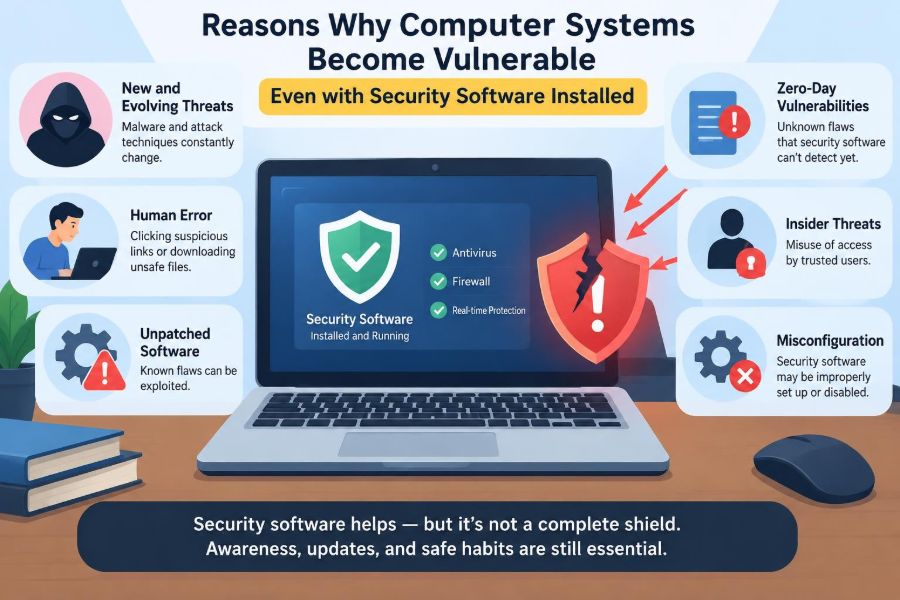

A laptop can show a reassuring message: antivirus active, firewall enabled, protection up to date. Then an employee opens a convincing invoice, a browser extension changes search results, or a router is found to have an old administrator password. Security software was present, yet the system was still exposed.
This feels contradictory until we view security as a system rather than a single product. Antivirus, endpoint protection, and firewalls are valuable layers, but they cannot automatically fix every unsafe decision, configuration error, outdated component, or weakness in an online account.
For students, a vulnerable computer can mean lost coursework, stolen accounts, or unwanted software. For working professionals, the consequences can include leaked client information, disrupted work, and unauthorized access to business services.
Understanding the gaps between “protected” and “secure” makes it easier to use security software well—and to build the other layers it needs around it.
🛡️ Security Software Is One Layer, Not the Whole System
Security software examines files, processes, network activity, and suspicious behavior. Depending on the product, it may block known malware, warn about dangerous websites, isolate harmful files, or detect unusual activity.
That is useful, but a computer system includes far more than the security application. It includes the operating system, browser, router, accounts, cloud storage, installed programs, settings, and the people using them.
A helpful analogy is a house alarm. An alarm can detect some break-ins, but it cannot repair a broken lock, prevent someone from handing over a key, or stop a resident from leaving a window open.
🎯 Attackers Look for the Easiest Available Path
An attacker does not need to defeat every defense. They need one workable route: a reused password, an unpatched application, a deceptive message, or a publicly exposed remote-access service.
This is why a strong antivirus program may never alert during an account takeover. If someone logs in with a real password obtained through phishing, the service may initially treat that login as legitimate.
Security improves when multiple controls cover different paths. Software detection matters, but so do account protection, updates, safe configuration, and careful handling of unexpected requests.
🔄 Delayed Updates Leave Known Weaknesses Open
Software updates do more than add features. They often repair vulnerabilities: flaws that could let an attacker crash a program, run unwanted code, bypass a restriction, or access information.
Once a security flaw becomes publicly known, attackers may try to find systems that have not installed the fix. Antivirus software may detect some related attacks, but it cannot reliably turn an unpatched program into a patched one.
Keep the operating system, browser, office tools, PDF readers, meeting apps, and other common software updated. Remove programs that are no longer supported, because they may no longer receive fixes at all.
🧩 Third-Party Applications Expand the Attack Surface
The attack surface is the collection of places where a system could be attacked. Every installed application, browser plug-in, media tool, driver, and background utility can add to it.
Older utilities are especially easy to overlook. A computer may have modern endpoint protection while an unused remote-support tool, outdated file converter, or abandoned browser add-on remains installed.
Review installed software periodically. If a program is not needed, uninstalling it is often safer than simply assuming it will remain harmless.
🧪 New or Modified Threats May Avoid Detection
Traditional antivirus detection often relies partly on signatures: recognizable patterns associated with known harmful files. Modern tools also use behavior-based detection, reputation checks, and machine-learning techniques, but no detection method sees every threat immediately.
A newly created malicious program, a carefully altered version of an existing one, or a threat aimed at a small set of targets may not match known patterns. Detection can improve later as vendors analyze new samples and publish updates.
This limitation does not make security software useless. It explains why prevention—such as limiting downloads, patching software, and using standard user accounts—still matters.
🎣 Phishing Manipulates People Rather Than Programs
Phishing messages impersonate a trusted person or service to persuade someone to reveal a password, approve a sign-in, open a file, or send money. They can arrive through email, text messages, chat platforms, social media, or fake support calls.
A web-protection tool may block many known phishing sites, but fraudulent pages can be created quickly. Some messages also direct a user to a real website and rely on the user to enter a one-time code into a fake prompt.
Pause when a message creates urgency. Verify requests using a contact method you find independently, not a phone number or link supplied in the unexpected message.
🔐 Weak and Reused Passwords Turn One Leak into Many Risks
Passwords are often exposed through breaches at unrelated services, phishing, malicious browser extensions, or unsafe sharing. When the same password is used elsewhere, an attacker can try it on email, shopping, work, and cloud accounts.
This practice is commonly called credential stuffing when automated attempts use previously exposed username-password pairs. A local antivirus tool may have no role in stopping it because the attempts occur at the online service.
Use a password manager to create a distinct, long password for every account. Protect the password manager itself with a strong unique passphrase and the strongest available sign-in protection.
📱 Multi-Factor Authentication Has Limits Too
Multi-factor authentication (MFA) requires an additional proof beyond a password, such as an authenticator-app code, a hardware security key, or an approval prompt. It substantially reduces the value of a stolen password.
However, MFA is not magic. An attacker may trick someone into approving an unexpected notification, capture a code on a fraudulent page, or exploit weak account-recovery processes. Text-message codes can also face risks that do not affect every other MFA method.
Use an authenticator app or hardware key where available. Never approve a sign-in prompt you did not initiate, and save recovery codes securely rather than leaving them in an inbox.
🧑💻 Administrator Privileges Magnify a Mistake
An administrator account can install software, change system-wide settings, and access protected areas of a device. Those powers are necessary for maintenance, but they also give malicious software more room to act.
If everyday browsing and email occur under an administrator account, a harmful download may inherit broad permissions after the user approves a prompt. A standard account restricts many changes by default.
Use a standard account for routine work when practical, and reserve administrative credentials for deliberate maintenance tasks. Read privilege prompts instead of reflexively clicking “Allow.”
⚙️ Misconfiguration Can Defeat Good Tools
A security product can be installed correctly yet configured weakly. Real-time scanning may be disabled, exclusions may be overly broad, scans may never run, or warning messages may be ignored.
Configuration problems also occur outside the security product. A cloud folder may be accidentally shared publicly, a database may be exposed to the internet, or a remote desktop service may accept weak credentials.
Defaults are not always wrong, but they are designed for many users and situations. Review settings that control sharing, remote access, automatic updates, and administrative privileges.
🚪 Unnecessary Services Create Entry Points
A service is software that listens for requests or performs work in the background. File sharing, remote administration, printing, media streaming, and development tools can all create services.
Services are not automatically dangerous. The risk rises when they are accessible from networks that do not need them, have weak authentication, or are not updated.
Disable features you do not use. On a work device, follow organizational policy rather than turning off required management or protection services yourself.
📡 Unsafe Networks Increase Exposure
Public Wi-Fi is convenient, but the network is outside your control. A malicious hotspot can use a familiar name, and poorly configured networks may expose devices to unwanted local traffic.
Modern encrypted websites reduce some risks, but they do not make every connection safe. A device with open sharing, weak firewall rules, or outdated software may still be more exposed on an unfamiliar network.
Mark unfamiliar networks as public where the operating system offers that choice, turn off unnecessary sharing, and avoid sensitive tasks if you cannot verify the network. A reputable VPN can add privacy in some situations, but it does not repair malware or phishing problems.
🌐 Router Security Is Part of Computer Security
A home router controls how devices reach the internet. If its administrative password is weak, its firmware is outdated, or remote administration is enabled unnecessarily, an intruder may be able to alter network settings.
For example, changed DNS settings could redirect a device toward fraudulent sites even when the user types a familiar address. Endpoint security might not immediately identify that network-level change.
Change default router credentials, install firmware updates from the manufacturer, use modern Wi-Fi encryption, and disable remote management unless there is a clear need for it.
🧭 DNS and Browser Settings Can Be Quietly Changed
DNS translates a name such as a website address into the numerical address used by networks. Browser settings control search engines, home pages, notifications, extensions, and downloads.
Potentially unwanted programs may change these settings to display ads, redirect searches, or collect browsing data. They may not behave like classic malware, so security tools can treat them differently depending on their policies.
Check unexpected browser changes manually. Remove unfamiliar extensions, review notification permissions, reset settings when needed, and install extensions only from sources you trust.
📦 Software from Unofficial Sources Carries Extra Risk
Cracked software, unofficial installers, game cheats, and “free premium” utilities are frequent delivery methods for unwanted or malicious code. The promised program may work while also installing a hidden component.
Attackers benefit because users expect security warnings around such downloads and may disable protection to complete installation. That action removes a layer precisely when risk is high.
Use official stores, vendor websites, or established package repositories. If software is expensive, look for legitimate free alternatives, educational licensing, or trial versions instead of bypassing licensing controls.
🧾 Macros and Documents Can Carry Active Content
Documents are not always passive text. Some can contain macros, embedded objects, external links, or scripts. A macro is a small program that automates actions inside a document application.
Legitimate organizations sometimes use macros for workflows, but attackers can disguise harmful content as an invoice, résumé, shared report, or delivery notice. The danger often depends on whether the recipient enables active content.
Do not enable macros merely because a document tells you to “enable editing” or “enable content.” Confirm the sender and business reason first, especially if the file arrived unexpectedly.
🗂️ Cloud Sync Can Spread a Local Problem
Cloud synchronization is useful because it keeps files available across devices. It can also copy accidental deletions, unwanted edits, or encrypted files to other synced locations.
Version history and recovery features can reduce damage, but their availability and retention differ between services and accounts. Syncing is therefore not the same as having an independent backup.
Keep backups that are separate from normal sync. Test that important files can be restored, and understand where your service stores version history and deleted items.
💾 Backups Do Not Prevent Infection, but They Reduce Leverage
Ransomware is malicious software that can encrypt files or otherwise restrict access in an attempt to force payment. Security tools may block many ransomware attempts, but a backup plan limits the damage if prevention fails.
A resilient backup strategy includes copies not continuously writable by the same compromised account or device. External drives left connected at all times and permanently mounted network folders may be affected during an incident.
Back up coursework, photos, project files, and essential work data on a schedule that matches how often they change. Protect backup accounts with unique credentials and MFA where possible.
📧 Email Is Often the First Point of Failure
Email connects to password resets, invoices, shared documents, contacts, and organizational systems. Whoever controls an email account may be able to reset passwords for many other services.
Because email is so central, protecting it deserves special care. A strong password and MFA are basic requirements, while recovery email addresses, forwarding rules, and connected applications also need review.
Investigate unfamiliar mailbox rules or forwarding settings. Attackers sometimes create rules that quietly hide security alerts or forward valuable messages after gaining access.
🪪 Account Recovery Paths Need Protection
Security is only as strong as the route used when someone forgets a password. Recovery questions with easily discovered answers, old phone numbers, unprotected recovery inboxes, and shared devices can weaken an otherwise secure account.
Review recovery methods after changing jobs, phone numbers, or email addresses. Remove options you no longer control, and avoid answers to security questions that are publicly visible or easily guessed.
For important accounts, recovery codes should be stored in a secure location that remains available if the usual device is lost.
👥 Shared Devices Blur Responsibility and Privacy
Family computers, classroom machines, and shared office devices often have mixed user accounts, saved passwords, broad permissions, and uncertain update habits. This makes it harder to identify who installed software or changed a setting.
Separate accounts provide separate files, browser profiles, and permission boundaries. They also make it less likely that one user’s synchronized data appears in another person’s session.
Log out of sensitive accounts on shared machines. Do not save credentials in a browser profile that other people can open, and clear temporary files according to the device’s rules.
🧰 Security Tools Need Their Own Updates and Health Checks
Protection software depends on current detection data, functioning services, and valid licenses or subscriptions where applicable. If updates fail silently or the product is disabled, the reassuring icon may not reflect real protection.
Occasionally open the security dashboard and verify that real-time protection, update status, and scheduled scans are functioning. Treat unexpected requests to disable security software as a warning sign.
More tools are not always better. Running multiple products with overlapping real-time scanning can cause performance problems or conflicts. Choose a suitable primary solution and follow its guidance.
🕵️ Excessive Trust in Alerts Causes Alert Fatigue
People see many prompts: cookie banners, update notices, permission requests, browser warnings, and workplace approvals. When every interruption is dismissed automatically, meaningful alerts lose their value.
This is called alert fatigue. Attackers exploit it by designing dialogs that resemble ordinary software messages or by creating urgency that encourages quick approval.
Build a small habit: stop at prompts that request passwords, payment details, administrative rights, MFA approval, or software installation. Those are moments where a few seconds of checking can prevent a larger problem.
🧠 Social Engineering Exploits Context and Pressure
Social engineering is the broader practice of influencing people to bypass normal caution. A message may pretend to come from a manager, a delivery service, technical support, or a colleague whose account was compromised.
The message may include true details collected from public profiles or prior correspondence. That context can make a request feel credible even though the request itself is unsafe.
Establish verification habits before an emergency occurs. For example, a team can agree that bank-detail changes or unusual file-sharing requests require confirmation through a separate known channel.
🏢 Workplace Policies Can Help—or Be Circumvented
Organizations may use device management, restricted permissions, email filtering, backups, logging, and endpoint detection to reduce risk. These controls work best when employees understand their purpose and have a practical way to do their work.
When a required tool is blocked or inconvenient, people may seek unapproved alternatives, such as personal cloud storage or random file converters. This “shadow IT” can move sensitive data outside managed protections.
Report workflow barriers rather than quietly bypassing controls. A security or IT team may be able to approve a safer option, adjust a rule, or explain the required process.
📊 Risk Depends on the System and the Data
Not every computer needs identical controls. A device holding personal photos has different consequences from a workstation with customer records, source code, financial data, or administrative access.
A sensible approach considers both likelihood and impact. High-value accounts deserve stronger authentication, stricter recovery options, and more careful access review than a low-risk temporary service.
| Situation | Primary concern | Useful control |
|---|---|---|
| Personal laptop | Phishing and data loss | MFA, updates, separate backups |
| Shared household computer | Mixed access and saved accounts | Separate user accounts, sign-out habits |
| Remote work device | Business data and account access | Managed updates, approved tools, secure network practices |
| Administrator workstation | Broad system impact | Least privilege, dedicated admin account, strong MFA |
🔎 Signs That Deserve Investigation
One odd symptom is not always evidence of compromise. Slow performance can have ordinary causes, and a browser crash may simply be a bug. Still, patterns deserve attention.
- Repeated password-reset notices or MFA prompts you did not request
- Unexpected browser extensions, redirects, or notification pop-ups
- New login locations or devices listed in an account’s security page
- Unknown applications, startup items, or changes to security settings
- Files renamed, missing, or suddenly inaccessible
If you suspect a serious issue, disconnect the device from the network if appropriate, preserve relevant details, change passwords from a known-clean device, and contact your organization’s support team or a qualified technician.
🧯 Incident Response Should Be Calm and Deliberate
Removing a suspicious file is not always enough. An incident may involve an account, a browser session, a network setting, or a cloud service rather than only one program on the computer.
Start by identifying what may be affected: device, email, financial account, work service, or files. Then contain access, reset credentials from a trusted device, revoke unfamiliar sessions, and check recovery information.
For workplace systems, follow the organization’s reporting process quickly. Early reporting is useful because it can help protect colleagues and preserve information needed to understand what happened.
✅ A Practical Security Baseline
A strong baseline is achievable without becoming a security specialist. The goal is not perfection; it is reducing common, preventable paths into systems.
- Enable automatic updates for the operating system, browser, and major applications.
- Use reputable, active security protection and confirm it is updating.
- Create unique passwords with a password manager and enable MFA.
- Use standard accounts for everyday tasks where feasible.
- Install software and extensions only from trusted sources.
- Secure the router and treat unfamiliar networks cautiously.
- Maintain tested backups separate from routine cloud synchronization.
- Review account activity, recovery methods, and sharing permissions.
These measures overlap intentionally. If one layer fails, another may still interrupt the attack or limit its effects.
🏁 The Core Principle: Security Is a Continuing Practice
Computer systems become vulnerable despite installed security software because vulnerabilities arise across technology, configuration, accounts, networks, and human decisions. A security product can reduce risk significantly, but it cannot make every other layer safe on its own.
The most effective mindset is to combine prevention, detection, and recovery. Patch known weaknesses, limit unnecessary access, verify unusual requests, monitor important accounts, and keep recoverable copies of valuable data.
Security is not a switch that stays permanently on after installation. It is a set of practical routines that adapts as software, devices, and threats change.
Security software is essential protection, but safer systems come from combining it with updates, secure accounts, thoughtful settings, and informed daily choices. Each layer makes the next mistake or technical failure less likely to become a serious incident. 🔒💻🛡️