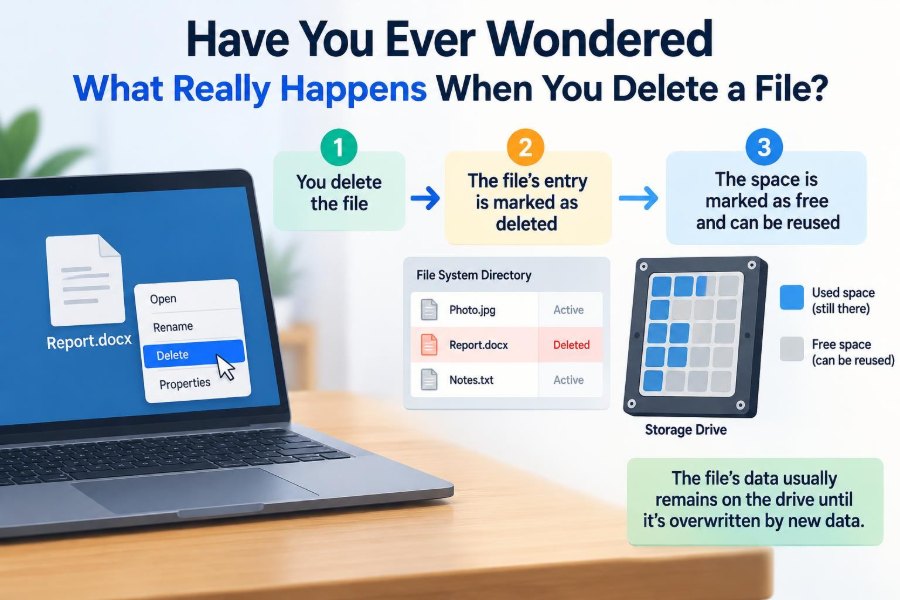

You clear out old screenshots, drag a report to the Recycle Bin, and click “Empty.” The file vanishes from view. Its name is gone, the folder looks tidy, and your storage meter may even show more free space.
But that familiar action does not always mean the file has immediately disappeared from the physical storage device. On many systems, deletion is primarily an instruction to the file system: “This space may be used again.”
That gap between invisible to you and gone from the device explains why deleted files can sometimes be recovered—and why securely removing sensitive information takes more care.
Understanding deletion is useful whether you are rescuing an accidentally deleted assignment, managing a work laptop, choosing backup habits, or preparing a computer to be recycled.
🗑️ Deletion Is Usually a File-System Change
A file is not just its visible name and icon. The operating system tracks information about it: where its data is stored, how large it is, when it was modified, and which folders point to it.
When you delete a file, the operating system commonly removes or changes the record that says the file belongs in a folder. It also marks the storage occupied by that file as available for future use.
The actual data may remain in place for a while. The computer simply stops treating those locations as part of an active file.
📚 Think of Storage Like a Library Catalog
Imagine a library removes a book’s card from its catalog. Visitors can no longer find the book through normal search, and the shelf position can be assigned to something else.
Until someone replaces the book, however, it may still be sitting on the shelf. File deletion often works similarly: the directory entry or catalog record is removed before the old data is physically overwritten.
This analogy has limits—modern file systems are much more complex—but it captures the essential distinction between losing the reference and erasing the contents.
📁 What a File System Actually Does
A file system is the organizational method a storage device uses to store and find files. Examples include NTFS, APFS, ext4, and FAT-based systems.
It maintains directories, filenames, permissions, timestamps, and maps connecting each file to one or more locations on the drive. Those locations may be called blocks, clusters, extents, or pages depending on the system and device.
Deleting a file changes file-system metadata first. The precise behavior varies by operating system, file system, application, and storage hardware.
🏷️ Metadata Can Disappear Before Data
Metadata means data about data. A filename, folder path, file size, owner, and modification date are all examples.
When metadata is removed or marked unused, your operating system no longer has its normal map to the file’s contents. Recovery software may then have to search raw storage for remnants rather than simply restoring the original entry.
That is why a recovered file may have a generic name, no original folder location, or incomplete details even when some of its content survives.
🧺 Why the Recycle Bin and Trash Exist
The Recycle Bin on Windows and Trash on macOS and many Linux desktops are safety nets. Moving a file there usually does not perform the final deletion step.
Instead, the system keeps enough information to restore the file to its original location. You can change your mind without needing specialized recovery tools.
Emptying the bin removes that convenient reference. It does not necessarily overwrite the old file data at that moment.
⌨️ “Delete” Can Mean Different Things
The word “delete” describes several different operations. A button inside an app might remove a local item, move it to a trash folder, hide it from a list, or request deletion from a cloud service.
| Action | Typical result | Easy to undo? |
|---|---|---|
| Move to Trash or Recycle Bin | File is relocated or flagged for later removal | Usually, yes |
| Empty Trash | File-system record is removed; space becomes reusable | Sometimes, before overwriting |
| Delete from a cloud folder | May move to a cloud trash and synchronize changes | Often, for a retention period |
| Secure erase or cryptographic erase | Designed to make old contents inaccessible | No, by design |
Before assuming a file is gone, identify which kind of deletion actually occurred.
💾 Hard Disk Drives Store Magnetic Patterns
A traditional hard disk drive, or HDD, stores data as magnetic patterns on spinning platters. Files occupy logical areas that the operating system sees as addresses.
After ordinary deletion, those logical areas can remain unchanged until the operating system writes new information there. This is one reason recovery from an HDD may be possible after a mistake.
However, continued use of the drive creates new writes. Each write may replace part of the deleted file, making recovery less complete or impossible.
⚡ Solid-State Drives Behave Differently
Solid-state drives, or SSDs, store data in flash memory rather than spinning disks. Flash memory has different rules: it is typically erased in larger groups before cells can be rewritten.
SSDs also use a controller to distribute writing across the device. This process, called wear leveling, helps avoid wearing out the same memory cells too quickly.
Because the controller may move data internally, the location the operating system sees is not always a direct physical location. That makes both deletion and recovery less predictable than on a simple HDD.
🚦 TRIM Tells an SSD Which Data Is No Longer Needed
Many operating systems send a command called TRIM when files are deleted from an SSD. TRIM tells the drive that certain logical blocks no longer contain useful data.
The SSD can then clean those blocks internally when convenient, improving future write performance. Once that cleanup happens, conventional recovery tools may have little or nothing left to recover.
TRIM is beneficial for normal SSD operation, but it means the old assumption—“a deleted file stays there until overwritten”—is less dependable on modern solid-state storage.
🧩 A File May Not Be Stored in One Piece
Large files can be split across multiple locations. This is known as fragmentation, although modern systems often reduce its impact compared with older computers.
If a fragmented file is deleted, a recovery tool must identify all its pieces and put them in the correct order. If some pieces have been overwritten, the recovered result may be corrupted.
A text document might open with missing passages. A video may play for a few seconds and then fail. A database file can be unusable even if most of its bytes remain.
🔎 How Recovery Software Looks for Lost Files
Recovery programs use several approaches. If a deleted file-system record still exists, software may be able to restore the file’s original structure and name.
When that is no longer possible, a program can use file carving. It scans storage for recognizable patterns that identify file formats, such as headers at the beginning of a JPEG image or PDF document.
Carving can recover content without the original folder record, but it is imperfect. It may not reconstruct fragmented files correctly, and it often cannot restore useful filenames.
🛑 Stop Writing When You Delete Something Important
If you accidentally delete a valuable file, the most practical first step is to stop using that storage device as much as possible. Do not install recovery software onto the same drive if you can avoid it.
Downloading applications, editing documents, browser caching, and system updates can all write new data. Those writes may occupy space formerly used by the deleted file.
- Check the Recycle Bin or Trash first.
- Check cloud-service trash folders and version history.
- Look for backups before attempting recovery.
- Recover files to a different drive, not the source drive.
If the data is highly valuable, professional recovery services may be worth considering, especially after physical drive damage. Their success is not guaranteed.
🔁 Overwriting Is What Usually Ends Recovery
Once new data replaces the old contents, software cannot simply “undo” that replacement. The prior logical data is no longer available through ordinary means.
Overwriting may happen gradually. A recovered 2 GB video, for example, could contain intact sections, blank sections, or unrelated fragments depending on which parts were reused.
For this reason, recovery chances are about more than elapsed time. A lightly used computer may preserve deleted data longer than a busy device that writes constantly.
🧼 Why Emptying the Bin Is Not Secure Deletion
Emptying a bin is designed for everyday file management, not necessarily confidential-data disposal. Its main job is to free space and remove the file from normal navigation.
On an HDD, the old content may remain recoverable until overwritten. On an SSD, TRIM may reduce recoverability quickly, but behavior varies, so it should not be treated as a universal security guarantee.
If you are disposing of a device containing sensitive material, rely on an appropriate, documented sanitization process rather than ordinary deletion alone.
🔐 Encryption Changes the Security Picture
Full-disk encryption stores data in encrypted form and requires a key to read it. If a device is properly encrypted, raw remnants on the drive are far less useful without that key.
A process sometimes called cryptographic erase destroys or replaces the encryption keys rather than overwriting every storage location. With the correct implementation, data encrypted by the discarded key becomes inaccessible.
This is efficient, particularly for SSDs, but it depends on encryption having been enabled and managed correctly from the beginning. It cannot protect unencrypted copies stored elsewhere.
🗂️ Copies Can Outlive the Original
Deleting the visible original does not delete every copy automatically. A file might also exist in backups, email attachments, messaging apps, temporary folders, shared drives, or another person’s device.
Photo-editing software may create previews. Office programs may save recovery copies. A cloud platform may preserve versions for a period after you remove the current file.
That is helpful during accidental loss, but it complicates privacy. When managing sensitive information, consider the full set of locations where a file has traveled.
☁️ Cloud Deletion Is a Synchronization Event
With cloud storage, deleting a file often causes a change to synchronize across signed-in devices. Removing a report from a synced folder on one laptop may remove it from the corresponding folder on another.
Many services provide a trash or recently deleted area, and some retain previous versions. The duration and behavior depend on the service, account type, organizational policies, and settings.
Do not assume a cloud deletion means immediate removal from every backup system, or that it can always be reversed. Check the service’s current retention rules when the situation matters.
👥 Shared Files Create Ownership Questions
In shared storage, deletion can affect more than one person. Removing a shared file may revoke access, move it to an owner’s trash, or merely remove your shortcut, depending on the platform.
A useful habit at work is to verify whether you are deleting the original, a local copy, or a link to another person’s file. The labels may look similar while the consequences differ.
Teams should also establish clear retention practices for records, project materials, and customer data rather than relying on individual cleanup decisions.
📱 Phones Have Their Own Deletion Paths
Smartphones commonly put deleted photos and videos into a “Recently Deleted” album before permanently removing them. That makes accidental deletion less stressful, but it also means private media can remain accessible from the device for a while.
Mobile apps may maintain their own caches and downloads. Deleting an image from a chat conversation, gallery, or cloud album does not automatically imply that every app copy is removed.
Storage encryption, synchronization, and flash-memory behavior make phone recovery highly device-specific. Avoid assuming a desktop recovery method will work on a phone.
🧠 Applications May Keep Temporary Files
Programs often create temporary files while you edit a document, render a video, unzip an archive, or browse the web. These files support autosave, previews, performance, and crash recovery.
Normally, applications and operating systems clean them up. But temporary data can remain after a crash or unusual shutdown, and its location is not always obvious.
This is another reason a simple “delete original” action may not fully remove a sensitive document from every location on a computer.
🧾 File Deletion Is Not the Same as Account Deletion
Deleting a local file removes data from a device or service location. Closing an account is a different request with different systems, records, and retention rules.
For example, removing downloaded invoices from a laptop does not remove the copies held in an online billing account. Conversely, deleting an account may not instantly remove copies from every backup process.
When privacy or compliance matters, distinguish between deleting content, revoking access, and closing the account that stores the content.
⚖️ Retention Rules Can Limit What “Delete” Means
Organizations may be required to retain certain records for operational, contractual, legal, or regulatory reasons. They may also place a preservation hold on data related to a dispute or investigation.
In those settings, an employee’s deletion action may remove an everyday view of a file while controlled archives retain it. Policies differ widely, so employees should follow their organization’s approved process.
This is not merely technical detail: deleting information outside policy can create business and legal problems even when the intent was routine cleanup.
🧰 Secure Erasure Methods Need the Right Tool
Secure removal methods depend on the type of media and the security goal. Repeated overwriting has historically been used for magnetic drives, while SSDs need approaches designed for flash storage and their controllers.
Manufacturer-supported sanitize commands, verified cryptographic erasure, or physical destruction may be appropriate in some disposal scenarios. The right choice depends on the device, encryption status, organizational requirements, and whether the drive still works.
Do not casually run destructive tools on a drive unless you are certain it contains no needed data. Secure deletion intentionally makes recovery impractical.
♻️ Preparing a Device for Sale or Recycling
Before giving away, selling, or recycling a computer or phone, first back up the information you intend to keep. Then sign out of accounts, remove device authorization where applicable, and use the platform’s official reset or erase process.
For a computer used with sensitive work data, follow employer procedures rather than personal assumptions. A managed device may require a specific return workflow.
If a storage device is damaged and cannot be securely erased through software, professional destruction or a trusted recycling service may be appropriate. Keep in mind that recycling practices and verification options vary.
💡 Common Mistakes After Accidental Deletion
People often act quickly because they are anxious—and that can make a recoverable situation worse. The most common mistake is continuing to use the same drive normally while searching for solutions.
- Saving a new file with the same name and assuming it restores the old one.
- Installing recovery software on the drive that contains the lost file.
- Recovering results back onto the same drive.
- Ignoring backups, version history, and application autosave folders.
- Trusting a recovery tool’s preview as proof that every file will be usable.
Start with the least destructive option: bins, backups, and version histories are safer than deep scans.
🧪 A Simple Example From Start to Finish
Suppose Maya deletes a spreadsheet from her desktop and empties the Recycle Bin. On an HDD, Windows may mark the spreadsheet’s occupied clusters as free while old spreadsheet data remains temporarily present.
If Maya immediately downloads several large files, the operating system might reuse those clusters. Recovery software could then find only portions of the spreadsheet, or none of it.
If instead the spreadsheet was stored in a synchronized cloud folder, Maya may have another route: the cloud trash or a previous version. The best answer depends on where the file was stored and what happened afterward.
🛡️ Backups Are Better Than Recovery
Recovery is uncertain because it depends on device type, encryption, overwriting, TRIM, corruption, and the structure of the lost file. A backup is a deliberate separate copy made before something goes wrong.
Keep backups separate from the computer’s main storage. A backup that is permanently connected and synchronized can be affected by hardware failure, ransomware, or accidental deletion just like the original.
For important work, test whether you can actually restore files. A backup is only useful if the needed version is present and readable.
✅ The Core Principle Behind Deleted Files
Deletion is best understood as a change in the system’s knowledge and permission structure. The operating system stops presenting a file as active and allows its storage space to be reused.
Whether old content remains recoverable depends on what happens next: the storage technology, TRIM behavior, encryption, new writes, cloud retention, backups, and the file’s structure all matter.
That is why “deleted” is not a single technical state. It can mean hidden in a trash folder, removed from a directory, awaiting reuse, erased by a device, or inaccessible because its encryption key is gone.
Deleting a file usually removes the system’s reference first; reliable recovery requires acting early, while reliable privacy requires using the right erase process and accounting for copies. 💻🗑️🔐