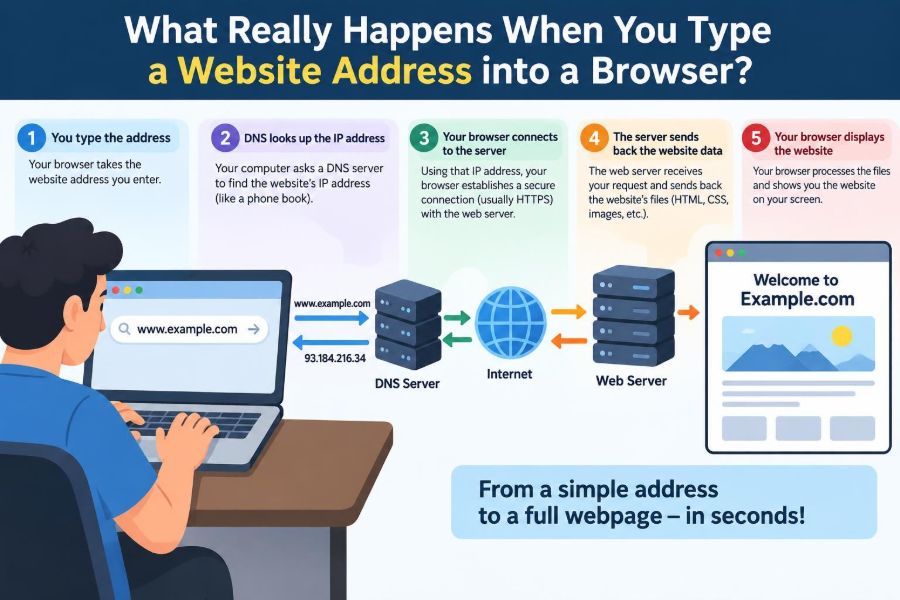

You type www.example.com, press Enter, and a page appears. The whole experience can feel as immediate and ordinary as turning on a light.
But between that keystroke and the first visible button, your browser may consult cached information, ask the internet for an address, negotiate encryption, request several files, and assemble a page from code. Much of this occurs in fractions of a second.
Understanding this path makes the web less mysterious. It also helps when a site is slow, a certificate warning appears, a page works on mobile data but not Wi-Fi, or developers discuss DNS, cookies, caching, and APIs.
Let’s follow one browser visit from the address bar to a usable web page, while keeping in mind that modern browsers optimize many steps and may perform some of them in parallel.
⌨️ The Address Bar Interprets Your Input
The browser’s address bar is often called the omnibox because it accepts more than web addresses. It must decide whether your input is a URL, a search query, a local file path, or a browser command.
A fully formed URL, or Uniform Resource Locator, might be https://shop.example.com:443/products?color=blue#details. Each part gives the browser instructions about where and how to retrieve a resource.
🧩 Reading the Parts of a URL
The https scheme says to use encrypted HTTP. The host, shop.example.com, identifies the destination. The optional port, usually hidden, identifies a service endpoint; HTTPS normally uses port 443.
The path /products identifies a resource on that host. The query string, after ?, sends parameters to the server. The fragment, after #, is generally handled inside the browser and is not sent in the HTTP request.
🔒 Why Browsers Prefer HTTPS
HTTPS is HTTP carried inside a TLS-encrypted connection. TLS, short for Transport Layer Security, helps protect data from being read or altered by someone observing the network path.
It also lets the browser verify that it is communicating with the site named in the URL, provided certificate checks succeed. Encryption does not mean a website is trustworthy in every sense; a legitimate encrypted site can still contain misleading content or poor privacy practices.
🧠 The Browser Checks What It Already Knows
Before sending a new request, the browser checks useful local state. It may have a DNS answer in memory, an existing connection to the same server, or a cached copy of images, stylesheets, scripts, and even the page itself.
Service workers can also intercept requests. These small programs, installed by some websites, can serve previously stored resources and enable features such as offline access. This is why an app-like site may load partially even when the connection disappears.
📍 DNS Turns a Name into a Network Address
Computers route traffic using IP addresses, not memorable names such as example.com. The Domain Name System, or DNS, translates a domain name into an address such as an IPv4 or IPv6 address.
DNS is often compared to a phone book, though it is distributed rather than stored in one central book. The browser commonly asks a resolver supplied by the operating system, network, or a selected privacy-focused DNS service.
🗂️ DNS Caches Save Repeated Work
DNS answers come with a time-to-live value, or TTL, that tells caches how long an answer may be reused. A browser, operating system, router, or resolver may therefore answer without starting a new lookup.
Caching makes repeat visits faster, but it can delay the visible effect of a changed DNS record. When a site moves to a new server, some users may temporarily receive an older cached address until relevant caches expire.
🌳 How a Resolver Finds an Uncached Domain
If no cache has the answer, a resolver can follow DNS’s hierarchy. It starts with root servers, which direct it toward the servers responsible for a top-level domain such as .com.
Those servers point to the domain’s authoritative name servers. The authoritative servers provide the requested record, such as an address record or an alias pointing to another name. Usually the browser only sees the final reply, not every question along the way.
🚪 The Device Finds a Route to the Internet
Knowing an IP address is not enough: your device needs a path to it. On a home network, the device typically sends traffic to its default gateway, often a Wi-Fi router.
To reach that gateway on a local network, the device resolves a local hardware address using protocols such as ARP on IPv4 networks or Neighbor Discovery on IPv6 networks. The router then forwards packets toward your internet provider and beyond.
📦 Packets Carry the Conversation
Network data is divided into manageable pieces called packets. Each packet carries addressing and control information as well as a portion of data. Routers forward packets hop by hop; no single router needs a complete copy of the web page.
Packets may take different routes or arrive out of order. Transport protocols and the receiving device handle reassembly when needed. This layered design lets many different applications share the same underlying network.
🤝 Choosing TCP or QUIC
Many HTTPS connections use TCP, a transport protocol designed to deliver a reliable, ordered stream of bytes. Before application data begins, TCP normally establishes a connection through a short exchange often described as a handshake.
Increasingly, browsers use HTTP/3, which runs over QUIC. QUIC uses UDP as its underlying packet format but provides reliability, encryption integration, and stream management itself. The details differ, yet the practical goal is similar: exchange web data efficiently despite delay and packet loss.
⚡ Latency Is Different from Bandwidth
Latency is the time a message takes to travel and receive a response. Bandwidth is the amount of data a connection can carry over time. A fast broadband plan can still feel sluggish when a distant server requires several back-and-forth exchanges.
A useful analogy is a wide highway with a long drive to reach it. Downloading a large video benefits greatly from width; opening a page with many dependent requests also suffers when each round trip takes a long time.
🛡️ TLS Establishes a Private Session
For HTTPS, the browser and server perform a TLS handshake. They agree on supported cryptographic settings and establish shared keys that will protect the session.
Modern TLS is designed so the browser does not send your password or page content as readable text across the network. The exact messages vary by protocol version and connection reuse, but the browser needs a protected channel before it sends sensitive HTTP requests.
📜 Certificates Prove Control of a Name
During TLS, the server presents a certificate that includes the domain names it is valid for and is signed by a certificate authority trusted by the browser or operating system.
The browser checks that the name matches, that the certificate is within its validity period, and that its signature chain can be trusted. A warning may indicate a real attack, a server setup error, an outdated device clock, or interception on a managed network. Do not casually bypass warnings on sites where you sign in or pay.
🏷️ Server Name Indication Helps Shared Servers
One IP address can host many websites. With Server Name Indication, or SNI, the browser tells the server which hostname it wants during the connection setup, allowing the server to select an appropriate certificate and configuration.
This arrangement makes shared hosting practical. It also explains why an IP address alone is often not equivalent to visiting a site by name: the hostname is part of the server’s routing decision.
📨 The Browser Sends an HTTP Request
Once a secure connection is ready, the browser sends an HTTP request. A simple request includes a method such as GET, a path, headers, and sometimes a body. Headers convey details such as accepted content types, language preferences, cache rules, and the intended host.
A request for a logged-in account may also include cookies. A form submission might use POST and carry entered data in its body. HTTPS encrypts the contents in transit, though some connection metadata may still be observable depending on the network and protocol.
🍪 Cookies Carry Small Pieces of State
HTTP is fundamentally stateless: one request does not automatically remember a previous request. Cookies help a site recognize a browser session, store preferences, or support sign-in flows.
Browsers apply rules to cookies, including domain, path, expiration, secure-only delivery, and restrictions on cross-site use. Cookies are not inherently harmful, but they can be used for tracking as well as convenience, which is why browser privacy controls and consent choices matter.
🏭 A Server May Be a Whole System
The address your browser reaches may belong to a content delivery network, load balancer, reverse proxy, or cloud edge service rather than the application machine itself. That front layer can select a healthy backend, block suspicious traffic, compress responses, or return cached content.
Behind it, an application may query databases, call internal services, calculate prices, check permissions, and create an HTML response. A “server” is often a coordinated system, not one physical computer.
🌍 CDNs Put Copies Closer to Visitors
A content delivery network, or CDN, stores copies of suitable files at geographically distributed locations. Images, fonts, scripts, and public downloads are common candidates.
A nearby CDN location can reduce latency and relieve the origin server. Dynamic personalized pages are harder to cache safely, so websites usually decide carefully which responses can be shared and for how long.
📬 Status Codes Describe the Initial Result
The server responds with an HTTP status code, headers, and usually a body. The code gives the browser a broad result category.
| Range | Meaning | Common example |
|---|---|---|
| 200–299 | Request succeeded | 200 OK |
| 300–399 | Further action or redirection | 301 or 302 |
| 400–499 | Problem with the request or access | 404 Not Found |
| 500–599 | Server-side failure | 500 Internal Server Error |
A status code is useful evidence, not a full diagnosis. A 404 can mean a removed page, a mistyped path, or a link to content that was never deployed.
↪️ Redirects Can Start Another Visit
A redirect response tells the browser to request another URL. Redirects are often used to move visitors from HTTP to HTTPS, from an old page to a replacement, or from a nonpreferred hostname to a canonical one.
A short redirect chain is normal. Long chains add delay and can cause failures if a site accidentally sends the browser in a loop. Browser developer tools reveal these hops when troubleshooting.
🧾 Response Headers Set Important Rules
Headers describe how to interpret and handle a response. Content-Type identifies whether the response is HTML, CSS, JavaScript, an image, or another format. Content-Encoding may indicate compression.
Cache headers tell browsers and intermediary caches whether a response may be reused. Security headers can limit which resources a page may load or prevent certain types of embedding. These small lines can strongly affect speed, privacy, and safety.
📄 HTML Becomes the Document Structure
The first HTML response is not a finished visual page. The browser parses HTML and builds the Document Object Model, or DOM: an in-memory tree representing headings, paragraphs, forms, buttons, and other elements.
As parsing continues, the browser discovers references to other resources. An image element may trigger an image request; a stylesheet link triggers a CSS request. A modern page can require many files beyond its initial HTML.
🎨 CSS Determines How the Page Should Look
CSS, or Cascading Style Sheets, defines presentation: layout, colors, spacing, fonts, responsive behavior, and more. The browser parses CSS into structures it uses to calculate styles for DOM elements.
Stylesheets can affect when a page is safely rendered because showing unstyled content and immediately changing it can be distracting. Efficient sites avoid needlessly large or blocking style resources, especially for content near the top of the page.
🧠 JavaScript Can Change the Page
JavaScript lets pages respond to clicks, validate forms, fetch more data, and update content without a full navigation. It can also modify the DOM before or after the initial page becomes visible.
That flexibility has a cost. A large script, expensive computation, or too many third-party scripts can delay interaction, especially on less powerful devices. Many web applications therefore split code and load features only when needed.
🧱 Rendering Turns Instructions into Pixels
The browser combines document structure and styling to construct rendering information, calculate each visible element’s size and position, then paint pixels into layers. Finally, it composites those layers for display.
This is why changing a page is not always free. A small color change may require repainting, while a layout change can require recalculating positions for many elements. Browser engines continually optimize this work, but page design still matters.
🖼️ Images, Fonts, and Media Arrive on Their Own Schedule
Images and fonts may appear after text because they are separate resources. Browsers prioritize requests based on context, available connections, and hints from the page. They may defer below-the-fold images until a user scrolls near them.
Appropriate image dimensions and modern formats can reduce transferred data. But a format choice is not magic: image quality, device support, compression settings, and the content of the image all influence the result.
🔁 HTTP/2 and HTTP/3 Reduce Request Friction
Older web practices often combined many files to reduce the number of requests. HTTP/2 introduced multiplexing, allowing multiple response streams to share a connection more effectively. HTTP/3 provides similar stream-oriented benefits through QUIC.
This does not make unlimited resources free. Every request still involves headers, processing, bytes, and priorities. It simply means developers can make more sensible trade-offs than when each extra request was especially expensive.
💾 Caching Makes the Next Visit Different
On a later visit, the browser may reuse files it has stored. If a cached item is stale but can be validated, the browser can ask whether it changed; the server may reply that the existing copy remains valid, avoiding a full download.
Good caching improves speed and reduces transfer. Poor caching can show outdated files after a deployment, so sites often use versioned filenames for changing scripts and styles while caching them for longer periods.
🧭 The Page May Keep Working After It Appears
Seeing the first page does not mean networking is finished. The page may request recommendations, live notifications, analytics events, map tiles, chat messages, or data for content farther down the screen.
Single-page applications can change views without a traditional full-page navigation. The URL may update, but the browser may fetch only new data and let JavaScript replace part of the interface.
🧪 Developer Tools Make the Journey Visible
Most desktop browsers include developer tools. The Network panel can show requests, status codes, response sizes, timing phases, redirects, and whether a resource came from memory, disk cache, or the network.
When a page is slow, avoid guessing. Check whether the delay is DNS, connection setup, server response time, a large image, a blocking stylesheet, or JavaScript work after download. Different bottlenecks require different fixes.
⚠️ Common Misunderstandings About Page Loading
- “The browser downloads one page file.” Most pages are collections of many resources and later data requests.
- “A faster internet plan fixes every delay.” Latency, server work, and device performance can remain limiting factors.
- “HTTPS means a site is safe to trust.” It protects the connection, not the honesty or quality of the content.
- “Incognito mode makes you anonymous.” It mainly limits local browsing history; networks and websites can still observe activity.
🛠️ Practical Habits for Safer, Faster Browsing
Keep your browser and operating system updated, because updates often include security fixes and support for newer web standards. Read certificate warnings carefully rather than treating them as routine obstacles.
When diagnosing a problem, try a private window to separate extension or cookie issues from the site itself, test another network if available, and inspect the exact URL. For sensitive tasks, verify the domain letter by letter; lookalike names can be deceptive.
🧠 The Core Principle: A Page Is a Coordinated Exchange
A browser visit is not one request traveling straight to one machine. It is a coordinated exchange among your device, local network, DNS infrastructure, routers, security systems, caches, edge services, application servers, and the browser’s rendering engine.
Some stages can be skipped through caching, merged through connection reuse, or performed concurrently. Yet the overall sequence remains recognizable: identify a destination, establish a route and secure channel, exchange HTTP messages, collect resources, and render the result.
That model turns everyday web behavior into understandable clues. A name-resolution problem points toward DNS; a warning points toward TLS or time settings; a blank but connected page may point toward scripts or rendering; a slow repeat visit may point toward caching or server work.
Every page load is a carefully layered conversation that converts a human-friendly name into interactive pixels on your screen. Once you see those layers, the web becomes easier to use, diagnose, and build. 🌐🔍💻