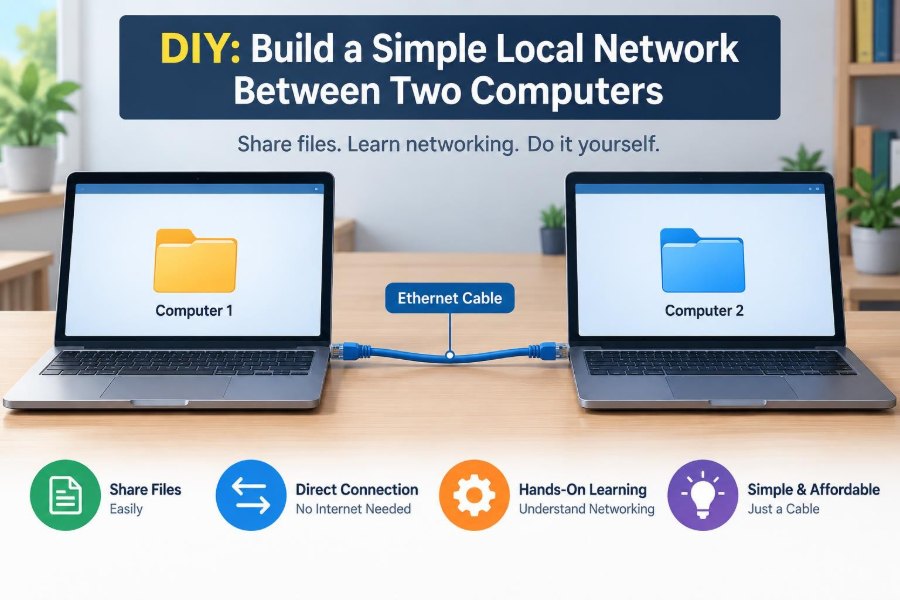

You have two computers in the same room: perhaps an old laptop and a desktop, a work machine and a personal machine, or two systems that need to share a large folder. Emailing files to yourself is slow and messy. A USB drive works, but it creates copies that quickly become outdated.
A small local network solves that problem by letting the computers communicate directly. Once it is set up, you can transfer files, test network software, share a printer in some cases, or simply learn what happens behind the Wi-Fi icon.
This is also one of the best practical introductions to computer networking. Concepts such as IP addresses, subnets, network interfaces, and firewalls become much easier to understand when you can see two machines successfully find each other.
You do not need advanced equipment or professional networking experience. You do need a safe plan, compatible hardware, and a clear understanding of what each setting does before you change it.
🌐 What a Local Network Actually Is
A local area network, or LAN, is a group of devices that can exchange data over a limited area, such as a room, home, classroom, or office. The devices may communicate through Ethernet cables, Wi-Fi, or both.
For this project, the smallest possible LAN has just two computers. They do not need an internet connection to talk to each other. Internet access and local networking are related, but they are not the same thing.
Think of the LAN as a private neighborhood and the internet as the wider world beyond it. Two homes on the same street can exchange a note without sending it across the country.
🎯 Decide What You Want the Network to Do
Start with a concrete goal. A direct connection for moving files has different requirements from a network that also shares internet access or lets several devices join.
- Transfer folders, photos, backups, or installation files.
- Practice configuring IP addresses and testing connectivity.
- Play a LAN-supported game or test client-server software.
- Access a shared folder from a second computer.
- Connect two isolated systems with no need for internet access.
Defining the goal prevents unnecessary configuration. For example, a two-computer cable link does not need a router unless you want automatic addressing, additional devices, or a connection to another network.
🧩 Choose Between a Direct Cable and a Router or Switch
There are two common ways to build this network. You can connect the computers directly with one Ethernet cable, or connect both to a router or network switch.
| Method | Best for | What it provides |
|---|---|---|
| Direct Ethernet connection | Two computers, isolated setup | A simple point-to-point link |
| Router | Home network or internet sharing | Ports, automatic addresses, and often Wi-Fi |
| Switch | Several wired devices on one LAN | Extra Ethernet ports, but usually no automatic addressing |
A router is often easiest if you already have one available. A direct cable is excellent for learning because it makes each manual setting visible.
🔌 Check the Hardware Before You Begin
Each computer needs a working network interface. Most desktops have an Ethernet port, and many laptops do too. Slim laptops may need a USB-to-Ethernet adapter.
Look for the rectangular Ethernet port, slightly wider than a telephone connector. It usually has a small clip notch. If your computers have only Wi-Fi, you can create a wireless network, but the steps and troubleshooting differ.
For a wired project, gather:
- Two computers with Ethernet capability.
- One Ethernet cable for a direct connection, or two cables with a router or switch.
- Administrative access to both computers.
- Time to test settings without rushing.
🧵 Use the Right Ethernet Cable
Modern Ethernet adapters usually support auto MDI-X, a feature that automatically adjusts the signal pairs used by the connection. In practical terms, a normal straight-through Ethernet cable normally works for a direct connection between two modern computers.
Very old network hardware may require a crossover cable for a computer-to-computer link. If a known-good standard cable does not establish a physical link on older equipment, check its documentation or try a crossover cable.
Cat5e, Cat6, and newer common Ethernet patch cables are suitable for short home or office runs. Do not force the plug: it should click gently into place.
💡 Read the Link Lights
After connecting the cable, inspect the LEDs near each Ethernet port, if present. A steady or blinking light commonly indicates that the adapters detect a physical electrical connection. Colors and meanings vary by device.
No light at either end can point to an unplugged cable, a disabled adapter, a damaged cable, or a port problem. Fix the physical layer first; software settings cannot make a broken physical connection work.
On a router or switch, the corresponding numbered port often has its own light. This is a quick way to confirm that each cable reaches the device you intended.
🗺️ Understand IP Addresses as Local Addresses
An IP address identifies a network interface on an IP network. It is not the computer’s permanent identity; the same computer can use different addresses on different networks.
For an isolated two-computer network, you can select private IPv4 addresses yourself. A simple pair is 192.168.50.10 for the first computer and 192.168.50.11 for the second.
These addresses share the same beginning because they belong to the same planned local network. The final number distinguishes one device from the other, much like two different house numbers on one street.
📏 Why the Subnet Mask Matters
A subnet mask tells a computer which part of an IPv4 address describes the network and which part describes the individual device. For a beginner-friendly setup, use 255.255.255.0 on both computers.
This mask is also written as /24. With it, addresses beginning with 192.168.50 are treated as local neighbors, while the last number identifies a host on that local network.
The two computers must use compatible addresses and the same subnet mask. If one believes the other is local while the other does not, communication will fail or behave unexpectedly.
🚪 Leave the Gateway Blank for an Isolated Link
A default gateway is the device a computer uses to reach networks beyond its own local subnet. In a typical home network, the router is the gateway that leads toward the internet.
For a direct, isolated connection between only two computers, there is nowhere else to send traffic. You can usually leave the default gateway and DNS server fields blank.
Adding a made-up gateway does not improve the local connection. It can create delays when software tries to reach addresses that do not exist on your small network.
🧱 Avoid an Address Conflict
Every active device on the same network needs a unique IP address. If both computers use 192.168.50.10, replies may go to the wrong place or neither system may communicate reliably.
Choose two distinct addresses in the same subnet, such as 192.168.50.10 and 192.168.50.11. Write them down before configuring anything.
Do not use an address range already active on another connected network without checking first. If either computer is also connected to a home router using the same range, use a different private subnet for this experiment, such as 192.168.50.x if your router uses 192.168.1.x.
⚙️ Configure Windows with a Manual IPv4 Address
On Windows, open the settings or Control Panel area for network adapters, select the relevant Ethernet adapter, and open its IPv4 properties. Choose the option to specify an address manually rather than obtaining one automatically.
Enter the planned address, subnet mask, and, for an isolated link, no gateway. For example, configure one computer as 192.168.50.10 with mask 255.255.255.0.
Windows versions present these options in different layouts, but the concepts are unchanged. Confirm you are editing Ethernet, not a similarly named Wi-Fi, VPN, or virtual adapter.
🍎 Configure macOS with a Manual IPv4 Address
In macOS, open network settings, select the Ethernet service or USB Ethernet adapter, and locate the IPv4 configuration. Change it from automatic DHCP configuration to manual configuration.
Enter the address and subnet mask that match your plan. The router field can remain empty for the direct two-computer setup.
If Ethernet does not appear as a service, connect the adapter first. Some USB adapters need a moment before macOS recognizes them, and manufacturer drivers may be required for uncommon older adapters.
🐧 Configure Linux with a Manual IPv4 Address
Most Linux desktop environments offer a graphical network panel where you can select the wired connection and set IPv4 addressing to manual. Enter the address, prefix length 24, and no gateway for the isolated design.
At a terminal, the exact command depends on the distribution and network manager in use. A temporary address can be set with the ip command, but temporary commands may disappear after a restart.
sudo ip addr add 192.168.50.10/24 dev enp0s3
sudo ip link set enp0s3 up
Replace enp0s3 with the actual interface name. Use a graphical tool or your distribution’s network manager for a configuration that should persist.
🔄 Configure the Second Computer to Match
Repeat the process on the second computer, using a different host address in the same subnet. For example, set it to 192.168.50.11 with subnet mask 255.255.255.0.
Do not copy every setting blindly. The subnet mask should match, but the IP address must differ. A gateway remains unnecessary unless you deliberately add a router to connect elsewhere.
Once both systems are configured, wait briefly for the operating systems to recognize the updated connection. An Ethernet status indicator should show a connected wired link rather than an unplugged state.
🧪 Test the Connection with Ping
Ping is a basic diagnostic tool. It sends a small Internet Control Message Protocol request to another address and listens for a reply. It tests reachability, not whether folder sharing or every application feature is working.
On the first computer, open Command Prompt, Terminal, or a shell and run:
ping 192.168.50.11
Replies usually show a response time. Then test in the opposite direction by running ping 192.168.50.10 on the second computer. Two-way success is a strong sign that the fundamental IP configuration is correct.
📋 Interpret Ping Results Carefully
A successful ping means the computers can exchange these diagnostic messages. It does not automatically grant permission to browse files, log in remotely, or access a shared printer.
A timeout has several possible causes. The cable may be disconnected, the addresses may not match the same subnet, or a firewall may block incoming ping requests.
- “Destination host unreachable” often suggests a route, interface, or local addressing issue.
- “Request timed out” may indicate a firewall rule or an unreachable device.
- “General failure” can point to a local adapter or operating-system configuration issue.
Read the message as a clue, not a complete diagnosis.
🛡️ Treat Firewalls as a Deliberate Security Layer
A firewall controls which network traffic may enter or leave a computer. It can block ping replies and file-sharing requests even when the cable and IP addresses are correct.
Do not disable the firewall permanently just to make a test succeed. A better approach is to mark the connection as a trusted private network when appropriate and allow only the specific service you need, such as file sharing.
On an isolated cable with two devices you control, a temporary, carefully limited test can help identify a firewall issue. Turn protections back on immediately afterward and create a narrow rule if one is needed.
📂 Choose a Safe File-Sharing Method
Once connectivity works, file sharing is an application-level task. The most convenient method depends on the operating systems involved and what access you want to permit.
Windows commonly uses SMB file sharing. macOS can connect to SMB shares, and many Linux systems can use SMB through Samba. Linux systems may also use SSH-based tools such as scp or SFTP when an SSH server is configured.
For a one-time transfer, a shared folder can be convenient. For recurring access, create a dedicated folder rather than sharing an entire home directory or drive.
🗂️ Share a Folder, Not Your Whole Computer
Create a specific folder such as Transfer or Project-Share, then grant access only to the account or users who need it. This limits accidental exposure and makes cleanup easier later.
Use read-only access if the other computer only needs to copy files. Allow write access only when both sides genuinely need to add, edit, or delete content.
A network share is not automatically a backup. If both users can change files, a mistaken deletion can spread quickly. Keep a separate copy of important data before treating the share as a working location.
🔐 Use Accounts and Passwords Even on a Small LAN
It is tempting to enable anonymous access because it feels simpler. However, password-protected sharing gives you a clear boundary: the other computer must present an approved account before it can access the folder.
Create a dedicated local account for sharing if that fits your operating system and situation. Use a strong, unique password, especially if the computers may later be connected to a broader network.
Never assume a direct cable makes every security decision irrelevant. Devices can be reconnected, interfaces can be bridged accidentally, and shared folders may contain more information than expected.
📡 Add a Router When You Need More Devices
A router is the practical next step when you want several computers, a printer, a phone, or internet access on the same network. Connect each wired device to a LAN port, or join the router’s Wi-Fi network.
Most home routers run DHCP, the Dynamic Host Configuration Protocol. DHCP automatically assigns an address, subnet mask, gateway, and usually DNS information to connected devices.
Automatic addressing reduces manual work, but it can make learning less visible. You can inspect the assigned address afterward to see how the router organized the network.
🔀 Know the Difference Between a Switch and a Router
A switch mainly forwards traffic among devices on the same local network. It is useful when your router does not have enough Ethernet ports. An unmanaged switch generally needs no configuration: connect it to a router and attach devices.
A router connects different networks and makes routing decisions. In a home setup, it commonly connects your LAN to an internet service and provides DHCP, Wi-Fi, and basic firewall functions.
A switch alone does not normally assign addresses or provide a route to the internet. Two computers connected through only a switch still need manual addresses unless another device offers DHCP.
📶 Consider Wi-Fi, but Understand Its Trade-Offs
Wi-Fi can place both computers on the same local network without cables, provided they join the same router or access point. It is convenient for laptops and devices in different rooms.
For large file transfers, wired Ethernet is often more predictable because it avoids interference, weak signal areas, and wireless contention. The actual speed also depends on the adapters, cable category, storage drives, and network equipment.
Some systems support creating a temporary wireless hotspot, but this adds operating-system-specific settings and security decisions. A wired direct link is usually the clearer first networking project.
🚫 Do Not Bridge Connections by Accident
Operating systems can sometimes bridge two adapters, such as Ethernet and Wi-Fi. A bridge makes them act more like parts of the same network. This can be useful in a planned laboratory setup, but it can also expose an isolated device to another network unexpectedly.
Avoid enabling network bridging or internet connection sharing unless you understand the result you want. If your goal is simply a private two-computer link, keep the Ethernet adapters separate from Wi-Fi and other active interfaces.
If behavior becomes confusing, temporarily disable unused VPN, virtual-machine, Bluetooth, or secondary network adapters while troubleshooting. Re-enable them afterward as needed.
🧭 Check Which Network Path Your Computer Prefers
A computer with both Wi-Fi and Ethernet can have multiple possible routes. Operating systems use routing tables and interface priorities to decide where traffic goes.
For the two-computer addresses in your chosen subnet, traffic should use the Ethernet link because that subnet is directly connected. However, overlapping address ranges and unusual configuration can change the result.
This is why selecting a subnet distinct from your home Wi-Fi network is helpful. It makes the intended path unambiguous and avoids trying to reach the second computer through the wrong interface.
🧰 Troubleshoot in the Right Order
Network troubleshooting is faster when you work from simple, physical causes toward higher-level services. Do not start by changing ten software settings at once.
- Check power, cable seating, adapter status, and link lights.
- Confirm the Ethernet adapter is enabled.
- Verify each computer’s IP address and subnet mask.
- Ping each computer’s own address, then the other computer.
- Review firewall and network-profile settings.
- Test the specific service, such as opening a shared folder.
Change one thing at a time and retest. That habit turns errors into useful evidence instead of creating a mystery with several possible causes.
🪟 Recognize Common Windows Sharing Obstacles
Windows may classify a new network as public by default. Public profiles typically restrict discovery and sharing more than private profiles, which is sensible on unknown networks but inconvenient for your controlled direct link.
Confirm that the connection is identified correctly before enabling network discovery and file sharing. Then make sure the folder’s share permissions and its underlying file-system permissions both permit the intended account.
Seeing a computer in a network browser does not guarantee access. Discovery, authentication, share permissions, and file permissions are separate layers that must all allow the requested action.
🧑💻 Work Across Different Operating Systems
A mixed Windows, macOS, and Linux network is possible because the underlying IP networking is shared. The challenge usually appears at the file-sharing layer, where account names, permissions, and service configuration differ.
SMB is often the most practical common choice for graphical file browsing. When connecting, use the other computer’s IP address rather than relying on its name; name discovery can require additional services that are unnecessary for a two-device setup.
For example, a file browser may connect to an SMB share using a form similar to smb://192.168.50.10/ShareName. The exact interface varies, but the address identifies the same destination you tested with ping.
📛 Why Computer Names Sometimes Fail
Humans prefer names such as Office-PC, but networks ultimately deliver IP packets using addresses. Turning a name into an address requires a name-resolution method, often DNS or local discovery services.
An isolated two-computer cable does not automatically provide a DNS server. Some operating systems can discover nearby names using local protocols, but that behavior is not identical across platforms and may be blocked by firewall settings.
Use IP addresses first. Once the connection works, you can explore host names and local name resolution as a separate learning exercise.
🧹 Return to Automatic Settings When Finished
Manual settings are useful in a controlled laboratory network. They can be inconvenient when you later reconnect a computer to a normal network that expects DHCP to provide the address and gateway.
Before reconnecting to an unfamiliar or routine network, consider returning the Ethernet adapter to automatic addressing. Alternatively, keep a note of the static configuration so you can restore it intentionally.
Also remove temporary shares, sharing accounts, and firewall exceptions that you no longer need. Good network hygiene includes cleaning up after an experiment, not merely getting it to work once.
🧠 Use This Project to Build Networking Intuition
This small network demonstrates a layered model of communication. The cable and link lights are physical connectivity. Ethernet moves local frames. IP addressing identifies network destinations. A firewall controls traffic. File sharing is an application service on top.
When a file transfer fails, ask which layer is failing. Is the cable detected? Can the computers ping? Is the share reachable? Are credentials accepted? This structured thinking applies equally to home networks, office support, and cloud-connected systems.
The project also reveals why network settings are not arbitrary. Each field tells the computer something specific about where it is, which devices are nearby, and where it should send traffic next.
✅ The Core Principle: Build, Test, Then Expand
A reliable local network begins with a simple design: two working adapters, a physical connection, unique addresses in one subnet, and a controlled security policy. Test that foundation before adding file sharing, internet access, or additional devices.
When using a router, let DHCP handle routine addressing unless you have a reason for fixed addresses. When using a direct link, use a documented private address pair and avoid overlapping with other active networks.
The most useful habit is methodical troubleshooting. Confirm the physical link, confirm addressing, test with ping, and then test the service you actually want to use.
Building a two-computer LAN turns abstract networking into a practical skill: give each device a clear path, protect the services you expose, and verify every layer step by step. With that foundation, larger networks become far less mysterious. 💻🔌🌐