
You open a web browser, edit a document, stream music, and switch between apps without giving much thought to where all that information is sitting. Then the power goes out, and the unsaved document disappears—while your photos, operating system, and old downloads are still there when the computer restarts.
That difference is not accidental. A computer deliberately uses several kinds of memory, each built for a different job. The two people encounter most often are RAM and storage.
It may seem simpler to build a computer with one huge, extremely fast place for everything. In practice, that design would be expensive, power-hungry, and poorly matched to the way programs work.
Understanding the split between RAM and storage makes slowdowns, boot times, “out of memory” errors, and upgrade choices much easier to explain.
🧠 Two meanings of “memory”
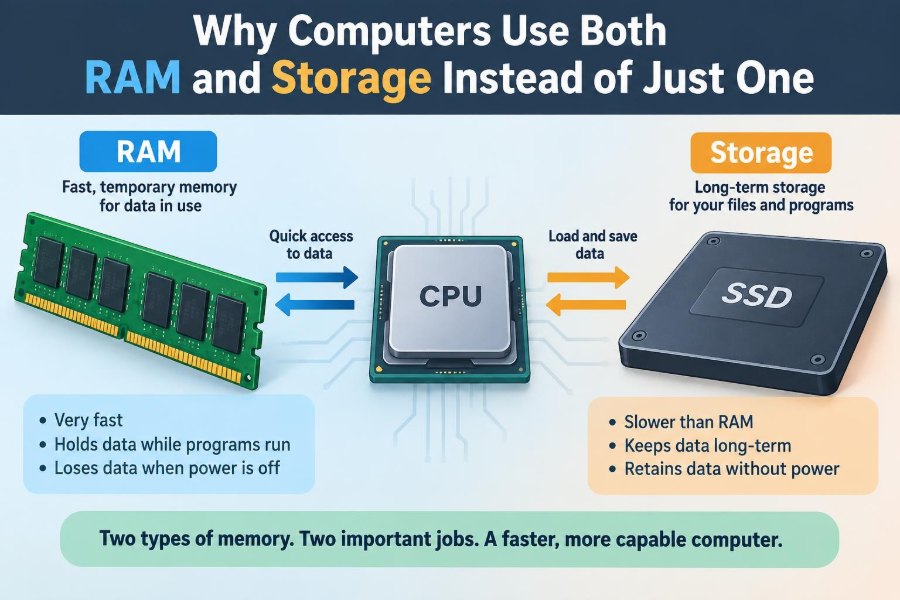
In everyday conversation, people call both RAM and a drive “computer memory.” In technical use, however, they serve very different roles. RAM is the computer’s short-term working area; storage is its long-term library.
A running program needs instructions and data immediately available. Files need to remain available after shutdown. One technology rarely optimizes perfectly for both requirements at once.
⚡ What RAM is designed to do
Random-access memory, or RAM, holds data that the processor is actively using. “Random access” means the system can reach a chosen location directly rather than reading through everything before it.
When you launch a program, the operating system copies needed program code and data from storage into RAM. The processor then reads and changes that information at extremely high speed while the program runs.
💿 What storage is designed to do
Storage keeps information over time: the operating system, applications, documents, games, databases, and saved settings. Common consumer storage includes solid-state drives (SSDs) and hard disk drives (HDDs).
Storage is usually called non-volatile, meaning it retains data without ongoing power. That is why a file saved yesterday remains after a shutdown.
🔌 Volatile memory loses its contents
RAM is volatile. Its electronic memory cells must continue receiving power to preserve their current state. Turn off the machine, remove power, or suffer an abrupt outage, and RAM’s contents vanish.
This sounds like a flaw, but it is an acceptable trade-off for a workspace. A desk does not need to preserve every temporary arrangement after the workday ends; the filing cabinet does.
📚 The desk-and-library analogy
Imagine writing a report. Your desk holds the pages, notes, and tools you are using right now. A library archive holds books and completed records for weeks or years.
RAM is like the desk: quick to work from but limited and temporary. Storage is like the archive: larger and persistent, but retrieving and organizing material takes more time. A computer needs both places.
🏎️ Why processor speed creates a gap
Processors execute instructions at extraordinary speed. If a processor had to wait for long-term storage every time it needed an instruction, most of its potential would be spent idle.
RAM narrows this gap by keeping active material much closer, in performance terms, to the processor. It does not eliminate waiting entirely, which is why computers also use even faster caches.
🪜 The memory hierarchy
Computer memory is arranged as a hierarchy rather than a simple two-layer system. Technologies nearer the processor tend to be faster, smaller, and more costly per unit of capacity.
| Level | Typical role | General trade-off |
|---|---|---|
| CPU registers | Values being used immediately | Fastest and tiniest |
| CPU cache | Frequently needed instructions and data | Very fast, limited capacity |
| RAM | Active programs and working data | Fast, temporary workspace |
| SSD or HDD storage | Files and installed software | Persistent, much larger, slower |
Each layer prevents the next slower layer from being consulted as often. The system works well because software tends to reuse recently accessed information.
🔍 Locality makes the hierarchy practical
Programs often exhibit locality. Temporal locality means data used recently may be used again soon. Spatial locality means data near a recently used location may soon be needed too.
For example, a program reading through a photograph usually processes nearby pixels in sequence. Caches and RAM can keep relevant chunks ready, rather than repeatedly requesting them from a drive.
🚀 Why fast storage still does not replace RAM
Modern SSDs are dramatically faster than mechanical hard drives, especially when opening files or launching applications. But even a fast SSD is designed around persistent, block-based input and output, not the constant fine-grained reads and writes expected of main memory.
Latency—the delay before an operation begins to deliver data—matters as much as transfer speed. RAM can serve the processor’s frequent, small requests with far less delay than an SSD.
🧱 Storage works in blocks and files
Storage devices commonly transfer data in blocks, and operating systems expose that data through files and folders. This structure is excellent for durable documents, organized applications, and recovery after a restart.
A program’s working memory is different. It needs rapidly changing variables, temporary calculations, pointers, and buffers addressed in a way the processor can use directly. RAM is built for this active environment.
🧮 RAM gives programs room to work
Opening a spreadsheet does not place only the visible cells in RAM. The program may load its executable code, interface resources, formulas, document data, undo history, and temporary calculation buffers.
A web browser can use RAM for open tabs, images, scripts, media buffers, and site processes. More active work generally requires more working space.
📦 Storage gives computers a lasting identity
Without persistent storage, a computer would start every time with no operating system, no installed applications, no saved preferences, and no personal files. It would be more like a blank device that forgets itself whenever power stops.
Firmware can help a machine begin the startup process, but normal computing depends on loading an operating system and user data from durable storage.
🌅 What happens during startup
When you power on a computer, firmware initializes essential hardware and locates boot information. It then loads parts of the operating system from storage into RAM.
Once the operating system is running, it continues loading drivers, services, and applications into RAM when needed. Booting is therefore a carefully managed movement from persistent storage into a temporary execution space.
▶️ What happens when an app launches
Launching an app is another example of this movement. The application’s files already exist on storage, but the operating system maps or loads the necessary parts into RAM before the processor executes them.
Some data may be loaded only when required. This demand-based approach avoids filling RAM with every possible part of every installed program.
🗂️ The operating system is the traffic manager
The operating system decides which program gets RAM, protects one program from casually overwriting another’s memory, and reclaims space when a program closes. It also keeps track of which parts of a program are currently resident in physical RAM.
This management is necessary because multiple applications may be active at once, each assuming it has a safe working environment.
🪄 Virtual memory creates a useful illusion
Virtual memory lets each process see a large, continuous address space even though physical RAM is shared and limited. The operating system and processor hardware translate a program’s virtual addresses to physical memory locations.
This design improves isolation and simplifies programming. It also lets the system use storage as a limited fallback when RAM is under pressure, though that fallback is much slower.
🔄 Paging moves less active data
Virtual memory is commonly managed in fixed-size pieces called pages. When RAM is scarce, the operating system may move less recently needed pages to a reserved area on storage, often called a swap file or page file.
If a program later needs one of those pages, the system must retrieve it before execution can continue. This is useful for keeping work alive, but it is not a substitute for adequate RAM.
🐌 Why swapping can make a computer feel stuck
When many active programs collectively need more memory than RAM can hold, the system may constantly move pages between RAM and storage. This condition is often called thrashing.
The processor may spend much of its time waiting for memory transfers instead of performing useful work. Closing unused programs, reducing workload, or adding RAM can help, depending on the cause.
📊 Capacity and speed are separate questions
A larger drive gives you more room for files. It does not automatically give running programs more workspace. Likewise, adding RAM does not create more space for your photo archive or game library.
When considering an upgrade, ask what limit you are hitting: a nearly full drive, slow file access, or memory pressure while multitasking. Those symptoms point to different solutions.
🛠️ SSD upgrades and RAM upgrades solve different problems
Replacing an HDD with an SSD can make startup, application launches, updates, and file searches feel much quicker. Those tasks involve reading and writing persistent data.
Adding RAM is most helpful when the current amount cannot comfortably hold your active applications and operating system. It reduces the need to fall back on slower storage and can make switching among tasks smoother.
🎮 Workloads use the layers differently
A large game needs storage capacity for its installed assets, RAM for the game world and active resources, and often dedicated graphics memory for images and rendering data. A video editor similarly needs durable project media and substantial active workspace.
A simple text editor may need little RAM and little storage by comparison. Requirements depend less on a program’s name than on its data size, features, and number of simultaneous tasks.
🖼️ Graphics memory is another specialized layer
Many computers include graphics memory, often called VRAM, on a discrete graphics card. It holds textures, frame buffers, and other graphics data close to the graphics processor.
Some integrated graphics systems instead share part of ordinary system RAM. This can be efficient and simpler, but it means graphics activity may reduce RAM available to other software.
💰 Why not build everything from extremely fast RAM?
Using enough RAM to hold every installed program and personal file would raise cost substantially and still leave a persistence problem. Conventional RAM loses its contents without power, so the computer would need a way to preserve it during every shutdown.
Battery-backed designs exist for particular uses, but batteries add maintenance, safety, lifetime, and failure considerations. They are not a practical general replacement for durable mass storage.
🔋 Why not make storage act exactly like RAM?
Persistent memory technologies can blur the historical boundary between memory and storage, and systems can use fast storage very effectively. Yet persistence, cost, write behavior, endurance characteristics, interfaces, and latency still create meaningful design trade-offs.
Technology may change the details of the hierarchy, but the basic need remains: computers benefit from keeping a small amount of very fast active data close to processing and a larger amount of durable data elsewhere.
🧹 Free space and free RAM are not the same
A drive with little free capacity can cause problems because the operating system and applications need room for updates, temporary files, and normal file operations. But deleting files does not directly increase physical RAM.
Similarly, seeing RAM in use is not automatically bad. Operating systems often use available RAM for useful caching and release it when programs need it.
📋 Task managers require careful interpretation
System monitoring tools can show RAM use, disk activity, and individual processes. A high RAM figure alone does not prove a problem; look for sustained slowdowns, heavy paging, unresponsive apps, or repeated memory warnings.
High disk use may also come from downloads, updates, indexing, backups, or an application reading large files. Diagnosis works best when you connect a symptom to the resource actually under pressure.
⚠️ Unsaved work lives in a risky place
While you edit a document, its newest changes may exist mainly in RAM until the application saves them to storage. Autosave and recovery features reduce risk, but they are not identical to deliberately saving a file.
A crash, forced restart, or power loss can interrupt that path. Saving important work regularly places a durable copy on storage; backups protect against later deletion, corruption, or device failure.
🛡️ Storage persistence is not permanence
“Non-volatile” means data normally survives loss of power. It does not mean a drive can never fail, a file can never be deleted, or data can never become corrupted.
Useful protection usually involves separate backups, ideally stored independently from the computer. RAM and storage solve availability and speed problems; backup solves a different problem: recovery after loss.
🔐 Security affects both kinds of data
Storage encryption can protect data saved on a lost or stolen device when implemented and managed correctly. RAM can contain sensitive material while a computer is running, which is one reason operating systems use permissions and process isolation.
Security is not achieved by choosing RAM or storage alone. It depends on software design, updates, account protection, encryption practices, and physical control of devices.
🧠 The core design principle
RAM and storage coexist because computer design is a series of trade-offs, not a search for one perfect component. Active computation needs low-latency, rapidly accessible workspace. Long-term use needs high-capacity, power-independent retention.
The hierarchy adds cache and specialized memory where they make sense, while operating systems move data between layers. This combination delivers responsive computing without requiring every byte to be held in the fastest, most expensive form of memory.
RAM lets a computer work quickly in the present, while storage lets it remember across time—and modern computers need both jobs done well. 💾⚡🧠