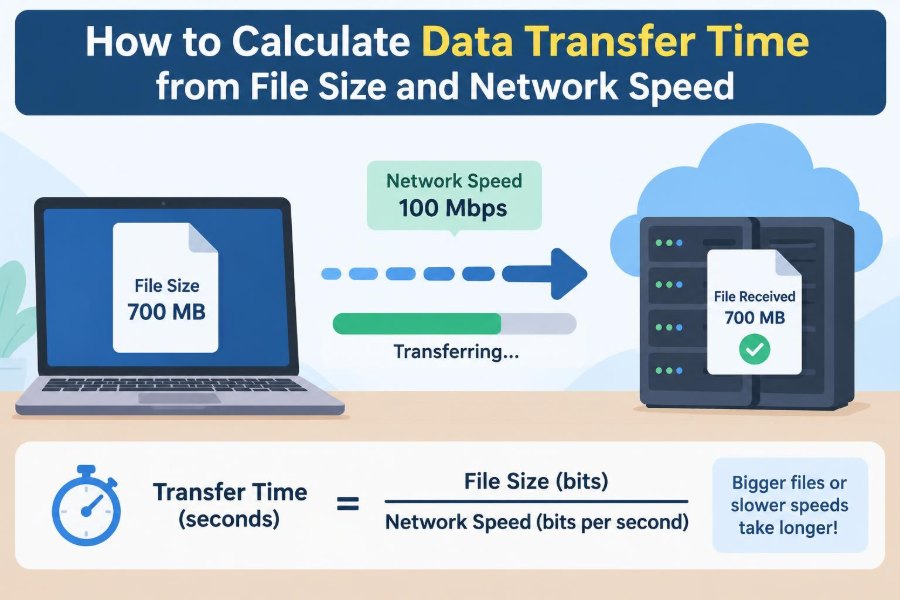

You start downloading a game update before dinner, copy a video archive to cloud storage, or send a large design file to a colleague. The progress bar says “12 minutes remaining,” but you may wonder where that number came from—and whether you can trust it.
Data transfer time is a practical calculation, not a mystery. Once you know the file size and the speed of the connection, you can estimate how long a download, upload, backup, or local file copy should take.
The tricky part is that file sizes and network speeds are usually expressed in different units. Storage is commonly shown in bytes, megabytes, or gigabytes, while internet plans advertise bits per second. A small conversion mistake can make an answer wrong by a factor of eight.
Learning the calculation also helps you plan around real limits: Wi-Fi interference, shared connections, server capacity, protocol overhead, and the often-overlooked difference between download and upload speed.
🧭 The Core Idea Behind Transfer Time
The basic relationship is simple: transfer time equals the amount of data divided by the transfer speed. If a file contains more data, it takes longer. If the connection moves more data each second, it finishes sooner.
Written as a formula:
Time = File size ÷ Transfer speedThe formula works only when both values use compatible units. For example, dividing megabytes by megabytes per second produces seconds.
📦 What Counts as Data Transfer
Data transfer means moving digital information from one place to another. That place might be a web server, a cloud drive, a phone, an external disk, or another computer on the same network.
Common examples include:
- Downloading an operating-system update
- Uploading photos to cloud backup
- Streaming a high-resolution video
- Copying a folder to a USB drive
- Synchronizing project files between team members
The same math applies in each case, although the bottleneck may differ.
🔤 Bits and Bytes Are Not the Same
A bit is the smallest conventional unit of digital information. A byte is a group of eight bits.
1 byte = 8 bitsInternet connection speeds are normally measured in bits per second. File sizes are normally measured in bytes. The lowercase and uppercase letters matter: Mb means megabits, while MB means megabytes.
That is why a connection advertised as 100 Mbps does not download 100 MB every second. Its theoretical maximum is 12.5 MB/s before real-world losses.
🔢 Understanding Common Size Prefixes
Both bits and bytes use prefixes such as kilo, mega, giga, and tera. Network providers usually use decimal prefixes, where each step is 1,000 times the prior unit.
| Prefix | Decimal value | Typical use |
|---|---|---|
| Kilo (K) | 1,000 | Small transfers and older storage references |
| Mega (M) | 1,000,000 | Internet speeds, medium-size files |
| Giga (G) | 1,000,000,000 | Broadband speeds, large downloads |
| Tera (T) | 1,000,000,000,000 | Large storage systems and backups |
Computer storage sometimes uses binary-based quantities instead. This can create small differences in displayed capacity, especially for large drives, but it rarely changes a quick estimate enough to matter.
🧮 The Fastest Formula for Mbps
When a file is measured in gigabytes and a connection is measured in megabits per second (Mbps), a useful approximation is:
Time in seconds ≈ File size in GB × 8,000 ÷ Speed in MbpsThe multiplication by 8,000 converts gigabytes to megabits using decimal units. Divide the result by 60 for minutes, then by 60 again for hours.
For rough planning, this is usually clearer than converting every value into raw bits.
📥 Example: Downloading a 10 GB File
Suppose a software installer is 10 GB and your measured download rate is 50 Mbps.
Time = 10 × 8,000 ÷ 50
Time = 1,600 seconds
1,600 seconds is 26 minutes and 40 seconds. That is the ideal estimate if the speed remains steady and the server can supply data at that rate.
If a download manager reports around 6.25 MB/s, that matches 50 Mbps because 50 ÷ 8 = 6.25.
⬆️ Upload Time Uses the Same Math
An upload calculation follows exactly the same formula. The key question is whether your connection has enough upload bandwidth, meaning capacity from your device out to the internet.
Many home broadband services offer much lower upload speed than download speed. A plan may download at 100 Mbps but upload at 10 Mbps, so sending a 10 GB video could take roughly 2 hours and 13 minutes under ideal conditions.
Always use the direction-specific speed. Download speed cannot predict upload time.
↔️ Download and Upload Speeds May Differ
Connections with unequal directions are called asymmetric. They are common because many households consume more data—watching, browsing, downloading—than they send.
Symmetric services provide similar upload and download speeds. They are particularly useful for cloud backup, remote work, video production, hosting, and frequent large-file sharing.
Before estimating, check whether a speed test reports separate download and upload results. Treat them as separate inputs.
⚙️ Convert Mbps to MB/s
Applications often show transfer progress in MB/s, while internet plans quote Mbps. Convert between them by dividing or multiplying by eight:
MB/s = Mbps ÷ 8
Mbps = MB/s × 8
A 200 Mbps connection has a theoretical rate of 25 MB/s. Conversely, if a browser downloads at 15 MB/s, it is receiving about 120 Mbps.
This conversion is one of the most useful mental shortcuts for interpreting download screens.
🧾 Convert the File Size First When Needed
You can also calculate in megabytes. A 2.5 GB file is approximately 2,500 MB in decimal units. If it transfers at 10 MB/s:
Time = 2,500 MB ÷ 10 MB/s = 250 secondsThat is 4 minutes and 10 seconds. This approach is especially convenient when a file manager already displays both the file size and copy speed in MB-based units.
⏱️ Turning Seconds into Useful Time
Raw seconds are mathematically correct but not always practical. Convert them into minutes and hours so you can decide whether to wait, schedule the job overnight, or find a faster connection.
- 60 seconds = 1 minute
- 3,600 seconds = 1 hour
- 86,400 seconds = 1 day
For instance, 9,000 seconds equals 150 minutes, or 2 hours and 30 minutes.
📏 Decimal and Binary Units Create Small Gaps
Drive manufacturers often label 1 TB as 1,000 GB using decimal measurement. Some operating systems historically display capacity using binary-based values while labeling them with familiar names such as GB.
Strict binary units are named kibibyte (KiB), mebibyte (MiB), and gibibyte (GiB). One GiB is 1,073,741,824 bytes, slightly larger than one decimal GB.
For a precise technical calculation, use the units stated by the device or application. For everyday time planning, consistency is more valuable than excessive precision.
🌐 Advertised Speed Is a Maximum, Not a Promise
An internet service plan’s “up to” speed describes a possible upper limit under favorable conditions. It does not ensure that every download will reach that rate.
Your actual rate can be lower because of network congestion, Wi-Fi quality, the website’s capacity, device performance, and activity by other users. Use a measured speed for a more realistic estimate.
A calculation based on the advertised maximum is best understood as an optimistic lower bound on time.
📊 Why a Speed Test Helps
A speed test samples the connection between your device and a testing server. It can provide a practical starting point for estimating an upcoming transfer.
Run it when your network conditions resemble the time you expect to transfer the file. A test on a quiet wired connection at noon may not represent crowded evening Wi-Fi.
It is still only a sample. The destination server for your actual download may be slower or farther away than the speed-test server.
📡 Wi-Fi Can Be the Bottleneck
Your internet plan may be fast, but the wireless path between your router and device can reduce the usable rate. Distance, walls, competing networks, older equipment, and radio interference all affect Wi-Fi.
If a large transfer matters, moving closer to the router or using a wired Ethernet connection can make results more consistent. Ethernet does not guarantee a faster internet service, but it removes many wireless variables.
For local network copies, Wi-Fi limitations can be even more noticeable because the internet service itself is not involved.
🏠 Shared Connections Divide Available Capacity
Network bandwidth is a limited resource. If several devices download games, stream video, make video calls, or back up files at once, your transfer may receive only part of the available capacity.
Imagine a 100 Mbps connection as a road with a fixed number of lanes. One vehicle may travel freely on an empty road, but traffic slows everyone when the lanes fill.
A time estimate should account for predictable competing activity, especially in homes, offices, and shared accommodation.
🖥️ The Remote Server Also Has Limits
A fast local connection cannot force a remote server to send faster than it can. Websites sometimes limit each download, become busy during popular releases, or place data on infrastructure far from you.
This explains why one site might download at 80 Mbps while another stalls at 8 Mbps on the same computer. The limiting point is the slowest part of the end-to-end path.
For an accurate forecast, observe the transfer rate from that particular service for a minute or two.
📨 Protocol Overhead Uses Some Capacity
Files do not travel across a network as one uninterrupted block. They are split into packets, accompanied by addressing and control information, checked for errors, and reassembled at the destination.
This supporting information is called protocol overhead. Encryption, retransmissions, and connection management can also reduce the payload rate—the rate available for the actual file contents.
As a result, theoretical maximum speed is rarely identical to the file-transfer rate shown by software.
🔁 Retries and Packet Loss Add Delay
When a packet is lost or damaged in transit, reliable protocols such as TCP generally request it again. A small amount of loss may be barely visible; more loss can make transfers slow, uneven, or repeatedly restart.
Weak Wi-Fi signals, overloaded equipment, and unstable connections can increase retransmissions. The simple size-and-speed formula does not directly model this behavior.
If speeds repeatedly fall far below expectations, investigate connection quality rather than assuming the file is unusually large.
🧩 Compression Changes the Size You Actually Move
Compressed formats reduce data size by representing information more efficiently. ZIP archives, compressed backups, and many media formats can therefore transfer faster than their uncompressed source folders.
However, not all files compress well. JPEG images, MP4 video, MP3 audio, and many installers are already compressed, so putting them in a ZIP file may save little space.
Estimate using the size of the file that will actually cross the network, not the size of the original source material.
🎬 Streaming Is Different from Downloading a File
Streaming sends enough data to play media continuously rather than necessarily waiting for the complete item to arrive. The relevant question is whether the connection can sustain the video’s required bitrate.
A video requiring 8 Mbps can generally play smoothly on a stable connection delivering substantially more than 8 Mbps, leaving room for short speed dips and other traffic. The total movie size still matters for data usage, but not in the same way as a single completed download.
Streaming services may also change quality dynamically, which changes the amount of data transferred.
💾 Local Copies Follow the Same Principle
Copying a file between drives uses the same equation, but “network speed” is replaced by the effective speed of the storage path. The slowest component might be the source drive, destination drive, USB port, cable, or file system.
A drive may copy one large file quickly but struggle with thousands of tiny files. Each file requires separate directory and metadata operations, which add work beyond moving the bytes themselves.
Do not assume a drive’s advertised peak speed will be sustained during an entire copy.
🗂️ Many Small Files Behave Differently
A 10 GB video file and a folder containing 100,000 small documents may have the same total size, yet the folder can take longer to transfer. Opening, creating, naming, checking, and closing each item adds overhead.
For archiving or transferring many small files, creating one archive file can sometimes simplify the transfer. It may also improve speed, though compression and extraction require processor time.
This is a useful trade-off: package files when convenience and transfer behavior outweigh the extra preparation step.
📈 Use a Range Instead of One Exact Prediction
Network speed changes over time, so an estimate is more honest when expressed as a range. If a 20 GB download might run between 40 and 60 Mbps, calculate both ends.
At 60 Mbps, the ideal time is about 44 minutes. At 40 Mbps, it is about 67 minutes. Planning for roughly 45 to 70 minutes is more useful than claiming a precise minute.
For important deadlines, include extra margin for interruptions, verification, installation, or post-transfer processing.
🧠 A Practical Estimation Workflow
You do not need a specialized calculator for most transfers. Follow a consistent sequence:
- Find the file size and identify whether it is MB, GB, TB, MiB, or GiB.
- Measure the relevant direction: download, upload, local-copy rate, or network-share rate.
- Convert bits and bytes so the units match.
- Divide size by speed to get seconds.
- Convert to minutes or hours and add a realistic margin.
Keeping units visible at every step prevents most errors.
🚫 Mistake: Treating Mbps as MB/s
The most common error is reading “100 Mbps” as “100 megabytes per second.” Because eight bits make one byte, that mistake predicts an eight-times-shorter transfer.
At 100 Mbps, the theoretical file rate is 12.5 MB/s, not 100 MB/s. A 10 GB file therefore cannot finish in about 100 seconds at that connection speed; its ideal minimum is about 800 seconds.
Watch capitalization carefully: lowercase b means bits, uppercase B means bytes.
🚫 Mistake: Using Plan Speed Instead of Observed Speed
Another common error is calculating with the number on an internet bill while ignoring the actual route and current network conditions. The resulting time may be useful as a best case but disappointing as a schedule.
When possible, use the sustained transfer rate displayed by the application after it has stabilized. If it fluctuates, use a conservative average rather than brief peaks.
This is particularly valuable for large uploads, where a small speed difference can add many minutes or hours.
🚫 Mistake: Forgetting Other Limits
Transfer calculations can overlook data caps, VPN overhead, battery-saving settings, sleep mode, limited disk space, or a destination that throttles incoming uploads. Any of these can interrupt or slow a transfer.
Before starting a long job, check that both ends have adequate free storage and that the device will stay awake. For a laptop, use power settings appropriate for the task.
The arithmetic estimates motion; successful completion also depends on the surrounding system.
🛠️ Ways to Improve a Slow Transfer
Not every slow transfer can be fixed from your side, especially when the remote server is the bottleneck. Still, several actions can improve the conditions you control.
- Use Ethernet for large or time-sensitive transfers.
- Pause other bandwidth-heavy tasks on the same network.
- Move closer to the Wi-Fi router or use a less congested band when available.
- Schedule cloud backups during quiet hours.
- Check for a faster official mirror or download source.
- Transfer fewer, larger archive files when handling huge collections of tiny files.
Test one change at a time so you can tell what actually helped.
🔐 Security Tools Can Affect Speed
VPNs, security scanning, encryption, and corporate network inspection can add processing work or route traffic through additional systems. In some situations, this reduces the effective transfer rate.
That does not mean security tools should be disabled casually. For sensitive files or required workplace systems, protection and policy may matter more than speed.
Instead, include the tool in your estimate and use an approved faster connection or workflow if one is available.
🧪 A Complete Worked Example
Imagine uploading a 35 GB project archive to a cloud service. A speed test shows 25 Mbps upload speed, but other household use means you expect about 20 Mbps for most of the upload.
Time = 35 GB × 8,000 ÷ 20 Mbps
Time = 14,000 seconds
14,000 seconds is 233 minutes and 20 seconds, or about 3 hours and 53 minutes. Because cloud services, Wi-Fi, and background traffic can vary, planning for four to five hours is reasonable.
This is a hypothetical estimate, not a guarantee. Watching the first few minutes of actual upload speed provides the best opportunity to revise it.
🧮 Quick Reference Calculations
These ideal examples use decimal units and assume a stable connection with no meaningful overhead:
| File size | Speed | Approximate time |
|---|---|---|
| 1 GB | 10 Mbps | 13 minutes 20 seconds |
| 1 GB | 100 Mbps | 1 minute 20 seconds |
| 10 GB | 50 Mbps | 26 minutes 40 seconds |
| 100 GB | 1 Gbps | 13 minutes 20 seconds |
Real transfers commonly take longer. Use the table to build intuition, not as a promise of performance.
✅ The Principle to Remember
Every transfer-time estimate starts with the same relationship: data amount divided by effective speed. The difficult part is choosing units correctly and recognizing that the effective speed is usually lower and less stable than a headline number.
Convert bits and bytes carefully, measure the relevant direction, and treat advertised bandwidth as a ceiling rather than a guaranteed rate. Then add practical allowance for Wi-Fi, shared traffic, server limits, and overhead.
A useful transfer estimate is not the most precise-looking number; it is the one based on matching units and realistic conditions.
With that habit, you can quickly judge whether a transfer will take seconds, an afternoon, or an overnight window—and plan your work with far fewer surprises. 💻⏱️📡