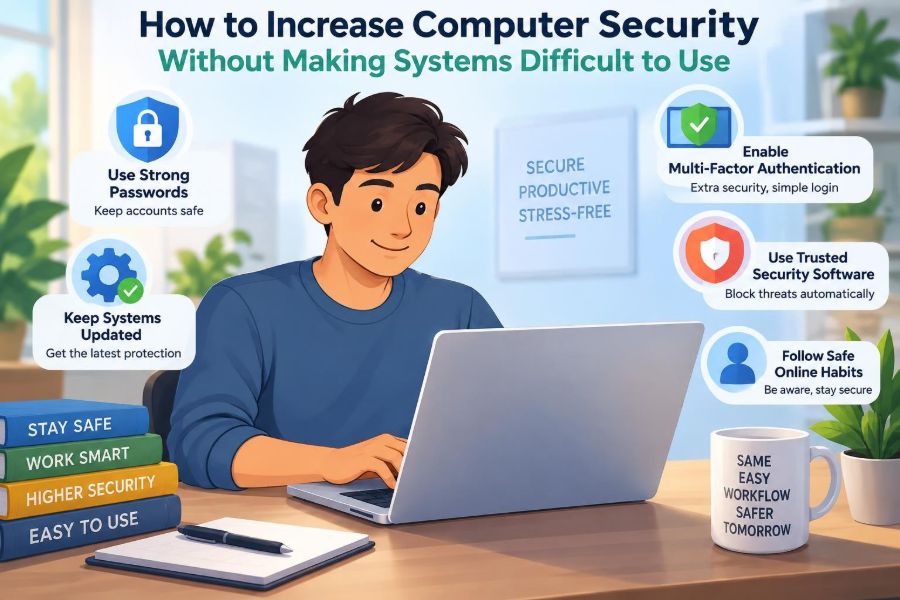

A laptop asks for a password, then a code from a phone, then a recovery answer, then rejects the password because it was changed recently. The user is late for a meeting, so they write the password on a sticky note or approve a sign-in prompt without reading it.
That is not simply a user problem. It is often a security design problem. Controls that interrupt ordinary work too often, or make the safe path confusing, encourage people to find workarounds.
Good computer security protects accounts, devices, and data while letting legitimate people complete legitimate tasks with reasonable effort. The goal is not to remove every bit of friction. It is to place friction where it stops meaningful risk and remove it where it only creates frustration.
This balance matters for a student sharing files with a project group, a household protecting online banking, and an organization managing thousands of employee accounts. Usability and security are not opponents; when designed well, each supports the other.
🧭 Start With the Real Goal
Security is often described as “locking things down,” but a locked system is not useful if authorized people cannot use it. A better goal is to protect the confidentiality, integrity, and availability of information.
Confidentiality means only appropriate people can see data. Integrity means data cannot be altered improperly. Availability means people can access systems and information when they need them. A useful safeguard considers all three rather than treating login difficulty as the only measure of security.
⚖️ Understand Productive Friction
Some friction is valuable. Entering a verification code before a new device accesses an account can stop an attacker who knows a password. Waiting a few seconds for that check is usually a fair trade.
Other friction adds little protection. Requiring users to change a strong, unique password every month may lead to predictable variations such as SpringPassword2!. Security design should ask: what specific attack does this step reduce, and is there a less disruptive way to reduce it?
👥 Design for Real Human Behavior
People forget details, work under time pressure, use small screens, and sometimes need help from a colleague or family member. A system that assumes perfect attention and memory will fail in ordinary conditions.
For example, vague error messages such as “authentication failed” do not tell a legitimate user whether they mistyped a password, used the wrong account, or need to verify a device. Clear guidance makes the secure path easier to follow without exposing sensitive information to an attacker.
🎯 Protect What Actually Matters
Not every account or action has the same consequences. Reading a public newsletter is different from changing payroll details, downloading customer records, or deleting a cloud project.
A practical approach classifies assets and actions by impact. More sensitive data and irreversible actions deserve stronger verification, tighter permissions, and better logging. Routine, low-risk tasks can remain simple.
- Viewing general information may need only a normal sign-in.
- Changing a password or recovery address should require fresh verification.
- Approving a large payment or exporting sensitive records may need an additional check.
🔐 Make Passwords Easier to Do Right
Passwords remain common, but users should not be expected to memorize dozens of unrelated secrets. The safer practical pattern is a long, unique password for every account, stored in a reputable password manager.
A password manager generates and fills strong credentials, reducing reuse and typing errors. It also makes phishing harder when the manager recognizes that a look-alike website is not the saved site. Users still need to protect the manager with a strong main password and available recovery options.
🗝️ Prefer Length and Uniqueness Over Clever Tricks
Complexity rules alone can produce passwords that look complicated but are easy to predict once a pattern is known. A memorable multiword passphrase is often easier to type and remember than a short string packed with substitutions.
Uniqueness is essential. If one service is breached, a reused password can give criminals a shortcut into email, shopping, social, or workplace accounts. A password manager removes much of the burden that uniqueness creates.
📱 Use Multi-Factor Authentication Thoughtfully
Multi-factor authentication, usually called MFA, asks for more than one kind of evidence: something you know, such as a password; something you have, such as a security key or authenticator app; or something you are, such as a fingerprint.
MFA significantly improves account protection when implemented well, but its experience varies. An authenticator app or hardware security key is generally more resistant to phishing than an SMS code, although SMS can still be better than password-only access when other options are unavailable.
🔔 Avoid Approval-Prompt Fatigue
Push-based MFA can become dangerous when an attacker repeatedly sends sign-in requests and hopes the account owner accepts one just to silence notifications. This is often called prompt fatigue.
Number matching can help: the sign-in screen displays a number, and the user enters or selects that number in the authenticator app. More broadly, users should be taught a simple rule: never approve a request they did not initiate, and report unexpected prompts promptly.
🪪 Move Toward Phishing-Resistant Sign-In
Phishing-resistant authentication checks more than a code copied into a webpage. Security keys and device-based passkeys can bind authentication to the legitimate site, making a fake site less able to reuse what a victim provides.
Passkeys can also reduce password resets because the device handles the credential. Their practical limitation is recovery: users need a clear, secure way to regain access if they replace or lose a device. Convenience is only real when recovery is workable.
🚪 Use Single Sign-On With Care
Single sign-on, or SSO, lets users sign in once to access several approved services. It can reduce password reuse, simplify account provisioning, and make it easier for an organization to remove access when someone leaves.
However, the central sign-in account becomes especially valuable. Protect it with strong MFA, careful recovery procedures, and monitoring. SSO reduces the number of doors a person must unlock; it also makes the main key more important.
🧩 Apply Least Privilege
The principle of least privilege means giving each person, program, or device only the access needed for its current task. It limits damage if an account is compromised or someone makes an honest mistake.
A graphic designer may need to upload material to a project folder but not change billing settings. A student assistant may need access to a class roster but not every departmental record. Narrow permissions are easier to understand and review than broad “just in case” access.
⏳ Give Elevated Access Only When Needed
Administrator privileges can install software, alter security settings, and reach sensitive parts of a system. Everyday browsing and email should normally happen from a standard account, not an administrator account.
For occasional administrative work, use a separate privileged account or a temporary elevation process. This adds a deliberate pause before a high-impact action while keeping regular work less exposed to malware and accidental changes.
🧱 Keep Devices Updated Without Surprises
Software updates repair defects, including vulnerabilities that attackers may exploit. Delaying every update can leave known weaknesses open, but forcing disruptive restarts in the middle of important work can cause users to disable updates entirely.
Choose predictable maintenance windows where possible. Let users defer nonurgent restarts within sensible limits, show why an update is needed, and automatically install urgent security fixes when risk justifies it. Reliable update processes are more effective than occasional reminders.
🛡️ Use Built-In Device Protections
Modern operating systems commonly include firewalls, disk encryption, malware protection, secure boot features, and automatic updates. Turning on well-maintained built-in protections is often more usable than assembling a confusing collection of overlapping tools.
Disk encryption deserves special attention on portable devices. If a laptop is lost or stolen, encryption helps prevent someone from reading its stored data by removing the drive. Keep recovery keys in an approved, secure location rather than only on the device itself.
📥 Control Software Installation
Unapproved software can introduce malware, intrusive browser extensions, or unsupported tools that expose data. Yet an absolute ban on useful software may push people to use personal devices or unofficial web services.
Offer an approved software catalog and a clear request path for exceptions. Explain expected review times and alternatives. When people have a workable legitimate route, they are less likely to seek risky shortcuts.
🌐 Make Safe Browsing the Default
Many compromises begin with a deceptive message or website, not a dramatic technical break-in. Browser warnings, DNS filtering, and email protections can block known dangerous destinations before users must make a difficult judgment.
Defaults matter. A browser configured to update automatically, warn about suspicious downloads, and use secure connections reduces risk quietly. Training remains useful, but systems should not rely on every person recognizing every new scam.
✉️ Teach Phishing Recognition Through Context
Phishing messages commonly create urgency, impersonate a familiar service, or ask a recipient to sign in through a supplied link. The safest habit is to pause and independently open the expected app or type the known address rather than trusting an unexpected message.
Training should use realistic situations: a fake document-sharing request, a parcel notice, or a message appearing to come from a manager. It should also make reporting easy. Blaming people for every mistake discourages reports and hides useful warning signs.
🧾 Verify High-Risk Requests Out of Band
An “out-of-band” check uses a different communication channel. If an email asks a finance employee to change bank details, they can call a known number or use an established internal contact method to confirm the request.
This is especially useful for payment instructions, password-reset requests, changes to supplier information, and unusual data sharing. Do not use the phone number or reply address supplied in the suspicious message; those may belong to the attacker.
💾 Make Backups Routine and Recoverable
Backups reduce the impact of ransomware, hardware failure, accidental deletion, and corrupted files. They are not merely copies stored somewhere; they must be accessible, protected, and periodically tested.
Keep backups separate enough that a compromised account or device cannot easily erase them too. For important work, maintain more than one copy and practice restoring a file or system. A backup that cannot be restored is only an assumption.
🧪 Test Recovery Before an Emergency
Account recovery is a common source of both lockouts and unauthorized access. Weak recovery questions, easily guessed personal facts, or a poorly protected email inbox can undermine otherwise strong sign-in controls.
Provide recovery codes, verified alternate methods, and identity checks proportionate to the account’s sensitivity. Test the process with ordinary users before a crisis. The right question is not just “Can someone reset access?” but “Can the right person do so safely and promptly?”
👀 Give Users Clear Security Visibility
People make better decisions when they can see relevant account activity. A simple page showing signed-in devices, recent security changes, active sessions, and recovery methods can help users spot something unusual.
Notifications should be specific enough to be useful: “New sign-in from a new device” is more actionable than a generic “account activity” alert. But excessive alerts are counterproductive. Reserve urgent notices for events that require attention.
📊 Log Events Without Creating a Surveillance Burden
Logs record events such as sign-ins, permission changes, software installation, and data exports. They help administrators investigate incidents and identify patterns, but collecting every possible detail can create privacy, storage, and review problems.
Log the events that support security decisions, protect logs from unauthorized alteration, and define how long they are retained. Tell users what is monitored when policy and law require it. Security monitoring should be targeted and proportionate.
🧑🤝🧑 Build Security Into Team Workflows
Teams often share information because it is fast, not because it is safe. Sending files to personal email accounts or placing a shared password in a chat message may solve an immediate problem while creating a long-term exposure.
Provide shared folders, role-based project spaces, and approved collaboration tools that make correct sharing easier. A useful workflow lets a manager add a new teammate, remove a departing one, and review access without hunting through scattered accounts.
📶 Treat Public Networks as Untrusted
Public Wi-Fi is convenient, but its operator and other users may not deserve the same trust as a home or managed workplace network. Secure websites using HTTPS protect much web traffic, yet users should still avoid unnecessary sensitive activity on unknown networks.
For organizational work, a properly configured virtual private network, or VPN, may be appropriate when it fits the organization’s design. A VPN is not a cure-all: it does not make a phishing site legitimate or fix an infected device.
🧹 Reduce Data You Do Not Need
Data cannot be exposed if it was never collected or has been securely deleted according to a legitimate retention process. Old exports, abandoned accounts, unnecessary copies, and unused browser extensions all expand the attack surface.
Regularly remove dormant accounts, revoke old access, and dispose of data that no longer serves a business, educational, or personal need. Retention requirements may apply in some settings, so deletion practices should follow relevant policies and obligations.
🔄 Review Access as Roles Change
Access decisions that made sense at the start of a project may become excessive months later. People change jobs, finish courses, move teams, or take on temporary responsibilities.
Periodic access reviews catch these changes. Focus first on powerful accounts, sensitive repositories, external collaborators, and former users. Automation can help flag inactivity, but a responsible owner should still understand why access exists.
🧰 Prepare a Simple Incident Response Path
Even careful systems can face a lost device, suspicious sign-in, malware alert, or misdirected file. During an incident, people need plain instructions, not a long policy document hidden on an intranet.
A basic response path might include disconnecting a suspected infected device from networks, reporting the issue to the right contact, preserving relevant details, resetting credentials when advised, and checking whether others may be affected. The exact steps depend on the environment and should be planned in advance.
🚫 Avoid Security Theater
Security theater is a visible measure that creates a feeling of protection without meaningfully reducing the likely risk. Examples can include forcing arbitrary password changes while allowing reuse, or displaying warnings so often that everyone clicks through them automatically.
Before adding a control, define the threat, expected benefit, operational cost, and likely user response. If a measure causes frequent workarounds, its real-world protection may be weaker than it appears on paper.
🧭 Measure Friction Alongside Risk
Useful security programs monitor both defensive signals and usability signals. Repeated password resets, abandoned enrollment, delayed software updates, support tickets, and use of unapproved tools can reveal that a process is too difficult.
These signals do not automatically mean a control should be removed. They identify where designers should investigate, simplify instructions, improve tools, or apply stronger checks only to riskier situations.
🏗️ Use Layered Defenses Instead of One Perfect Control
No single password, product, or policy prevents every failure. Layered security combines controls so that one mistake does not automatically become a major incident.
| Layer | Example | What it helps limit |
|---|---|---|
| Account | Unique password and MFA | Unauthorized sign-ins |
| Device | Updates and encryption | Exploited software and lost hardware |
| Network | Filtering and secure remote access | Known malicious destinations and unsafe connections |
| Data | Permissions and backups | Overexposure, deletion, and recovery failures |
The layers should work together without duplicating unnecessary obstacles. For instance, strong MFA and device trust may allow fewer repeated password requests during a normal session.
🧠 Make the Secure Choice the Easy Choice
The strongest long-term improvement is often design, not another warning. Autofill from a password manager, clear sharing controls, automatic updates, sensible defaults, and a fast way to report suspicious activity all guide people toward safer behavior.
Security becomes sustainable when it fits the task. A student should be able to share a project with classmates without exposing it publicly. An employee should be able to request needed access without borrowing someone else’s account.
✅ Bring Security and Usability Together
Increasing security does not mean making every action harder. It means making harmful actions difficult, suspicious actions noticeable, and ordinary legitimate work straightforward.
Use stronger checks for high-impact changes, make credentials unique and manageable, keep software and devices protected, limit unnecessary access, and rehearse recovery. Then listen to the people using the system: their confusion, delays, and workarounds are valuable design feedback, not evidence that they do not care about security.
The best computer security is practical security: protection that people can understand, use consistently, and rely on when something goes wrong. Build it into normal work rather than placing it in the way of normal work. 🔐💻🛠️