
A laptop can fail during a deadline. A phone can be lost on a trip. A cloud account can be locked, a folder can be overwritten, or ransomware can make familiar files unreadable in minutes.
Most people do not discover that their backup system is weak until they need it. At that point, the question is no longer whether a backup existed, but whether the right version can be found, opened, and restored quickly enough.
A strong backup strategy is not a single external drive or a cloud-sync icon. It is a practical system for keeping valuable information recoverable when a device, account, file, or location fails.
The good news is that a useful strategy does not require enterprise software or a large budget. It requires knowing what matters, storing copies in different places, and checking that recovery actually works.
🧩 Understand What a Backup Really Is
A backup is an independent copy of data that can be used to restore information after loss, damage, deletion, or corruption. Independence is the key word: if one problem affects the original, it should not automatically destroy the backup too.
A file copied to another folder on the same computer offers some protection from accidental edits, but not from a failed disk, theft, malware, or a damaged operating system. It is a convenience copy, not a complete backup plan.
🔄 Separate Backup From Syncing
Cloud storage services often synchronize files between devices. This is useful for access and collaboration, but synchronization is not always backup.
If you accidentally delete a synchronized file, that deletion may be copied to every connected device. Version history and recycle-bin features can help, but their retention periods and capabilities vary. Treat sync as one layer of protection, not the only layer.
🎯 Identify the Files You Cannot Easily Replace
Start by identifying data whose loss would cost real time, money, or irreplaceable memories. This prevents a common mistake: backing up a computer broadly while overlooking the app data, account exports, or folders where essential work actually lives.
- Personal photos, videos, scans, and family records
- School assignments, research notes, and portfolios
- Work documents, source code, designs, and project files
- Financial records, tax documents, and receipts
- Password manager vaults and recovery codes
- Device settings, browser bookmarks, and application data where needed
Operating systems and applications can usually be reinstalled. Original photographs and the only copy of a project often cannot be recreated.
🗂️ Know Where Your Important Data Lives
Data is frequently spread across more places than expected: desktop folders, downloads, a second drive, a phone, email attachments, cloud services, and applications that store files in hidden locations.
Make a short inventory. For each important category, record the usual location, its owner, and whether another copy already exists. This simple map reveals gaps, such as photos backed up from a computer but not from a phone.
📏 Set Recovery Goals Before Choosing Tools
Backup decisions become clearer when you define two practical goals. The recovery point objective (RPO) is the maximum amount of recent work you can afford to lose. The recovery time objective (RTO) is how quickly you need to be working again.
For example, a student writing an essay may accept losing one day of edits but needs files back within an evening. A freelancer with active client work may need hourly versions and a faster restore path. These are planning targets, not guarantees.
🧠 Use the 3-2-1 Principle as a Starting Point
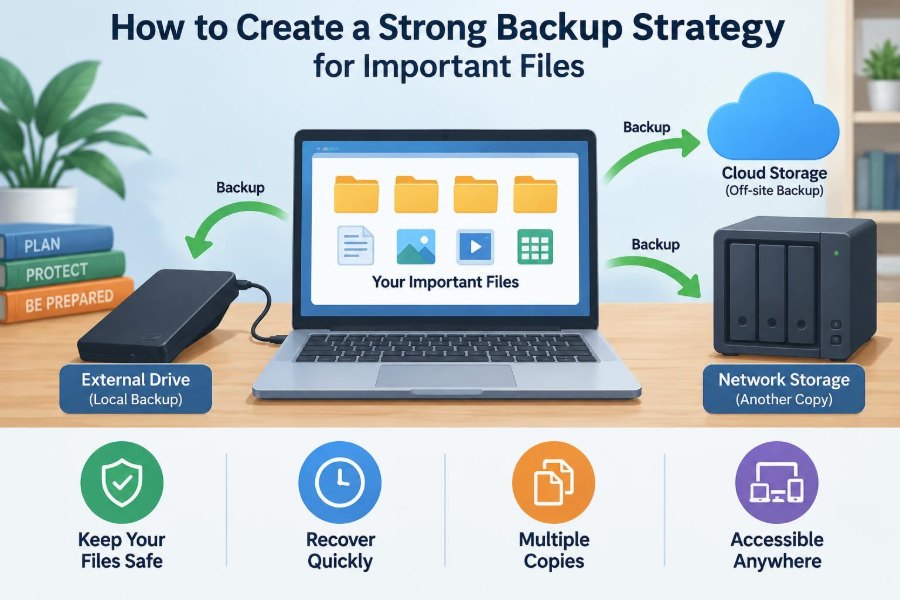
A widely used rule of thumb is the 3-2-1 backup principle: keep at least three copies of important data, on two different types of storage, with one copy kept off-site.
One possible arrangement is the working copy on a computer, a backup on an external drive, and another copy in a reputable cloud backup service or a drive stored at a different physical location. The principle reduces the chance that one incident removes every copy.
🏠 Why Location Matters as Much as Storage
Keeping an external drive beside a desktop computer is convenient, but both can be harmed by the same theft, fire, water damage, or power event. This is called a shared failure: supposedly separate copies are exposed to the same risk.
An off-site copy protects against local disasters. For many people, encrypted cloud backup is the simplest off-site option. Another option is a drive stored securely with a trusted person or in another location, updated on a planned schedule.
💾 Choose Storage Media for the Job
No storage medium is permanently reliable. Drives wear out, accounts can become inaccessible, and removable media can be misplaced. The sensible approach is to match the medium to the needed speed, cost, capacity, and location.
| Option | Best use | Main limitation |
|---|---|---|
| External hard drive or SSD | Fast local backups and restores | Can be lost, damaged, or affected by local events |
| Cloud backup service | Automatic off-site protection | Requires internet access and account security |
| Cloud file storage | Access, sharing, and selected file copies | Sync behavior may spread unwanted changes |
| Network-attached storage | Centralized backups for several devices | Needs setup, maintenance, and its own off-site copy |
⚡ Prefer Automation Over Good Intentions
Manual backup routines often fail because people are busy precisely when their data is changing fastest. Automatic backups turn a vague reminder into a repeatable process.
Configure automatic local backups where possible, then let a separate service or process handle an off-site copy. Automation still needs occasional review, but it greatly reduces missed backup windows.
🕒 Match Backup Frequency to How Fast Files Change
There is no universal schedule. A folder containing completed family photos may only need backup after each import, while an active coding project or design file may need frequent versions throughout the day.
Think about the answer to a plain question: “If this device failed just before lunch tomorrow, how much work could I accept losing?” Use that answer to set a realistic frequency.
🧬 Keep Versions, Not Just the Latest Copy
A current copy is not always a usable copy. A document can be corrupted silently, an error can be saved over the correct file, or malware can encrypt files before a backup runs.
Versioning stores older states of files so you can restore an earlier version. Check how many versions your chosen tool keeps, how long it retains them, and whether deleted files remain recoverable for a limited period.
🛡️ Plan for Ransomware and Silent Corruption
Ransomware is malicious software that can encrypt files and demand payment. It can also reach connected drives or synchronized folders, depending on how those systems are configured.
Maintain at least one backup that is difficult for an infected device to alter. Depending on the tool, this may mean a disconnected drive used after backup, protected cloud versions, or storage with immutability features. No single setting is a complete defense, so combine this with software updates and careful account security.
🔌 Use External Drives Carefully
An external drive is often the most affordable way to create a fast local backup. It is particularly useful when restoring many gigabytes would be slow over an internet connection.
Keep the drive in a safe, dry place and label its purpose and backup date. If it remains permanently connected, it is convenient but more exposed to power problems and malware. If it stays disconnected, it is safer from some threats but depends on you reconnecting it regularly.
☁️ Evaluate Cloud Backup Beyond Storage Size
When selecting a cloud option, look beyond capacity. Consider which devices and file types are included, whether external drives are covered, how version history works, and how restoration is performed.
Also examine practical constraints: internet upload speed, data caps if applicable, multi-factor authentication, account recovery options, and whether you can export your data. A large backup may take days or longer to upload initially, especially on a slow connection.
🔐 Encrypt Backups Without Losing the Key
Encryption converts readable data into protected data that requires a key or password to access. It is especially valuable for off-site drives and cloud backups containing personal documents, financial data, or confidential work.
However, encryption shifts responsibility to you. If a service uses a private encryption password that only you know, forgetting it may make your backup unrecoverable. Store recovery information safely, ideally in a trusted password manager and a separate secure emergency record.
🔑 Protect the Accounts That Protect Your Data
A backup is only as secure as the account controlling it. Use a unique, strong password for backup and cloud-storage accounts, and enable multi-factor authentication where available.
Save recovery codes somewhere other than the account itself. Review recovery email addresses and phone numbers too. An outdated recovery method can become the weak link when you urgently need access.
📱 Include Phones and Tablets in the Plan
Phones commonly hold the newest photos, messages, authenticator apps, notes, and contacts. Yet they are often omitted because their backup settings are less visible than a computer’s file folders.
Check whether photos are fully uploaded, whether device backups are enabled, and whether app-specific data is included. A photo library may synchronize while messages, device settings, or files in a particular app do not.
💼 Handle Work and School Data Responsibly
Before copying workplace or institutional files to a personal drive or cloud account, check the applicable policies. Some data may be confidential, regulated, contractually controlled, or required to stay within approved systems.
For work, the best approach is often to use organization-approved backup and storage tools while confirming what they cover. Do not assume that a shared drive, project platform, or colleague’s copy automatically meets your recovery needs.
🧱 Back Up Databases and Specialized Applications Correctly
Some applications do not store their useful data as ordinary documents. Accounting tools, note systems, virtual machines, development environments, and databases may need built-in export or backup procedures.
Copying an open database file can produce an incomplete or inconsistent copy. Read the application’s documentation, use its backup function when available, and test restoration before relying on the result.
🧾 Preserve Passwords, Recovery Codes, and Digital Records
Passwords are not merely account conveniences; they may be required to reach encrypted backups, email, cloud files, and identity documents. A password manager with a secure backup and documented recovery process is usually safer than scattered notes or reused passwords.
Keep essential recovery codes separate from the devices and accounts they unlock. For highly important records, consider a protected offline copy as well as a digital one.
📦 Create a Simple Backup Inventory
A backup inventory does not need to be complicated. A short document can list what is backed up, where the copies are located, how often they run, and how restoration works.
- Data category and primary location
- Local backup destination and last verified date
- Off-site backup destination and account owner
- Encryption or recovery information location
- Special restore instructions for unusual applications
This inventory is especially useful when someone else must help recover data, or when you revisit a setup months later and cannot remember its details.
🧪 Test Restores, Not Just Backup Notifications
A successful backup notification only shows that a process completed. It does not prove that the files are present, uncorrupted, decryptable, and understandable.
Periodically restore a small sample to a different folder or spare device. Open documents, inspect photos, and verify that the restored version is the one you expected. For critical systems, practice restoring a larger set of files and measure how long it takes.
🔎 Check the Right Things During a Restore Test
A useful test asks more than “Can I download a file?” Check whether the backup contains the full folder structure, correct permissions where relevant, usable filenames, and recent versions.
For example, restoring a project folder is not enough if hidden configuration files, linked media, or a required database export are missing. Test the workflow you would actually need after a failure.
🚨 Prepare for Common Failure Scenarios
Different failures require different responses. Thinking through them makes a backup strategy more practical and reveals whether your recovery goals are realistic.
🧰 A few useful scenarios
- Accidental deletion: Restore a recent version or recover from the service’s deletion history.
- Failed laptop: Replace or repair the device, then restore from a local drive or cloud backup.
- Lost phone: Secure accounts first, then restore device data and files onto a replacement.
- Ransomware: Disconnect the affected device from networks, avoid overwriting clean backups, and restore known-good versions after the incident is contained.
- Home damage or theft: Recover from the off-site copy, not a drive stored in the same location.
🧹 Avoid Backing Up Digital Clutter Forever
Backups should protect valuable information, not create endless copies of downloads, temporary files, and duplicate media. Excess clutter increases storage needs and makes recovery harder to navigate.
Review large folders occasionally. Archive completed projects, delete disposable material deliberately, and organize important files into clear locations before relying on automation.
⚠️ Recognize Common Backup Mistakes
Several habits create a false sense of security. They may work under normal conditions but fail when recovery is truly needed.
- Keeping every copy on one device or in one building
- Assuming sync automatically protects against deletion and corruption
- Never checking whether backups finished or include the right folders
- Using only one drive with no off-site copy
- Encrypting data but losing the password or recovery key
- Ignoring phone data and application-specific exports
- Waiting until a device fails before learning the restore process
🪜 Build a Practical Starter Plan
If your current approach is “my files are on my computer,” begin with a manageable first version. Back up the most valuable folders to an external drive, enable an off-site service for those same folders or the whole device, and turn on version history where available.
Then schedule a monthly reminder to check backup status and restore one sample file. Once that routine works, expand it to phones, specialized applications, and records that need stronger protection.
🏡 Adapt the Strategy to Your Situation
A single student, a household sharing photos, and a small business will not have identical needs. More valuable or frequently changing data usually justifies more frequent backups, better version retention, and clearer restore documentation.
Budget also matters. A modest system that runs reliably and is tested is better than an elaborate system that is never maintained. Start with the highest-risk data and improve the plan over time.
📅 Review Your Plan When Your Digital Life Changes
Backup systems need maintenance because devices, storage locations, and accounts change. A new phone, a new project folder, a changed password manager, or a canceled cloud subscription can quietly create a gap.
Review your inventory after major changes and at regular intervals. Confirm that storage space is available, payment methods and recovery details are current, and old devices have been securely removed from account access.
✅ The Core Principle: Recoverability Beats Mere Copies
The goal is not to collect duplicate files. The goal is to recover the right data, in a usable form, within an acceptable time after something goes wrong.
That is why a strong strategy combines independent copies, different locations, sensible automation, version history, account security, and restore tests. Each layer addresses a different failure mode, and together they make data loss much less likely to become permanent.
A backup is trustworthy only when you know what it protects, where it is stored, and how you would restore it. Set up one reliable layer this week, test it, and build from there. 💾🔐☁️