
It is Monday morning, and a small design firm cannot open the proposal it promised to send before noon. The file is on an office desktop, but the employee who created it is working from home.
Across town, a retailer has a different problem: a laptop has failed, taking years of product photos and spreadsheets with it. Its owner assumed the files were safe because they were “on the computer.”
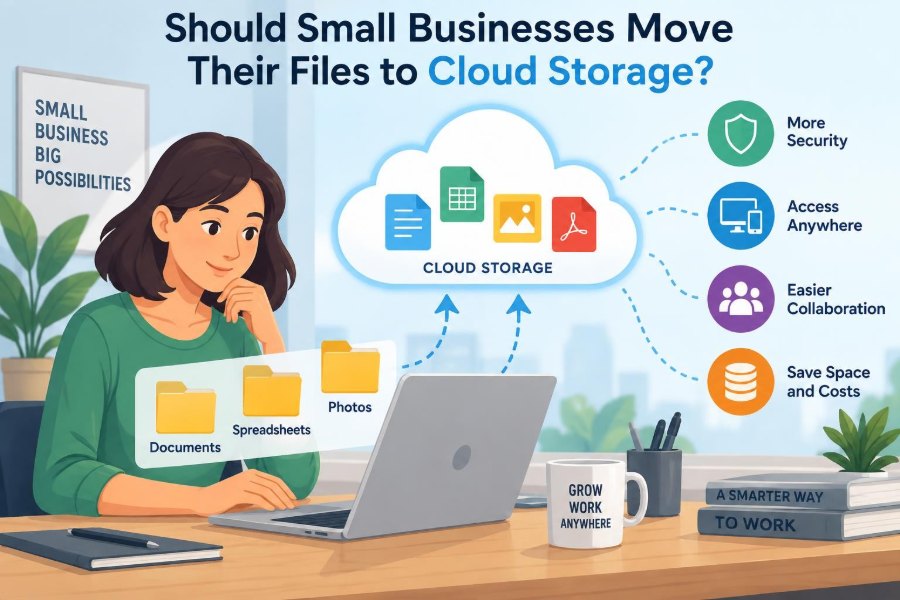
Situations like these make cloud storage sound like an obvious answer. Files can be available from many devices, shared with coworkers, and kept away from a single fragile machine.
But moving business files to the cloud is not simply a matter of dragging folders into an online drive. The right decision depends on security, internet access, costs, workflows, legal duties, and a plan for recovering from mistakes. ☁️
☁️ 1. What Cloud Storage Actually Means
Cloud storage is a service that stores data on servers operated by a provider and makes that data available over a network, usually the internet. Instead of keeping the only copy of a file on one computer or office server, a business stores it in an online account.
Users normally reach those files through a web browser, desktop application, mobile app, or synchronized folder. The important idea is not that files are floating somewhere mysterious; they still live on physical hardware, just hardware managed elsewhere.
🗂️ 2. Why Small Businesses Consider It
Small organizations often have limited technical staff, a mix of personal and work devices, and people who work in different places. A shared cloud location can reduce the confusion caused by emailing attachments back and forth.
It can also make everyday tasks easier: a manager can review a document while traveling, a team can use the latest version of a spreadsheet, and a new employee can receive access without copying files from an old computer.
📍 3. The Central Question Is Not “Cloud or No Cloud”
The useful question is: which files should be stored where, under what controls, and for what purpose? A business may sensibly use cloud storage for collaboration while retaining local copies, specialized systems, or offline archives for other needs.
A thoughtful setup is usually a hybrid of tools and habits. It is not an all-or-nothing migration.
👥 4. Better Access Can Improve Daily Work
Cloud storage is especially valuable when employees need the same current files. A shared folder is usually more reliable than sending a revised attachment to several people and hoping everyone deletes the older one.
Access can follow the employee rather than the device. This helps remote work, customer visits, field work, and unexpected absences, provided the account is properly secured.
- Teams can reach approved files from authorized devices.
- Shared documents can be organized around projects or departments.
- Permissions can be changed when roles change.
🔄 5. Synchronization Is Helpful, but It Is Not Magic
Many services synchronize a cloud folder with folders on computers. When a person edits a file, the service may upload the change and download it to other connected devices.
Synchronization can create conflicts when two people edit the same file at once, especially with file types that do not support real-time collaboration. It can also spread an accidental deletion quickly, which is why version history and backups matter.
🧩 6. Collaboration Depends on File Type
Some documents are designed for simultaneous editing and show who is making changes. Other files, such as large media projects, engineering files, or database files, may need check-in procedures or specialized software.
Before moving a department, test its real files and routines. A solution that works beautifully for meeting notes may work poorly for large video files or records used by a line-of-business application.
🔐 7. Security Is a Shared Responsibility
A cloud provider is generally responsible for operating and protecting its infrastructure. The business remains responsible for choices such as who receives an account, who can open a folder, whether strong sign-in protection is enabled, and what data users upload.
This is often called a shared responsibility model. Buying a secure service does not make weak passwords, excessive permissions, or careless sharing safe.
🪪 8. Start with Strong Identity Controls
Every worker should generally use an individual account rather than a shared team password. Individual accounts make it possible to assign appropriate access, remove access promptly, and understand which account performed an action.
Multi-factor authentication adds another verification step beyond a password, such as an authenticator app or security key. It substantially reduces the risk that a stolen password alone will unlock company files.
- Require unique, strong passwords managed securely.
- Turn on multi-factor authentication for all accounts, especially administrators.
- Remove or disable accounts when workers leave.
- Review recovery email addresses and recovery methods.
🗝️ 9. Give People Only the Access They Need
The principle of least privilege means giving a person the minimum access needed for their work. A temporary contractor may need one project folder, not the entire finance archive.
Limiting access reduces the damage from mistakes and compromised accounts. It also makes organizational boundaries clearer: payroll records, customer information, and public marketing materials should not normally sit in one unrestricted folder.
📤 10. Treat Sharing Links Carefully
A sharing link can be convenient, but its settings matter. Some links allow anyone who obtains the link to open a file; others require recipients to sign in with a named account.
For sensitive material, prefer named recipients, limited permissions, and an expiration date when the service supports it. Review old links because a link sent months ago may still provide access today.
🧱 11. Encryption Helps, but Does Not Solve Everything
Encryption in transit protects data while it travels between a device and the service. Encryption at rest protects stored data on the provider’s systems. Reputable business services commonly describe both protections.
Encryption does not decide whether the wrong employee has access, whether a recipient forwards a file, or whether malware encrypts synchronized folders. It is one protective layer, not a complete security strategy.
🧾 12. Know What Data You Are Moving
Not every file carries the same risk. Public brochures are different from employee records, customer contact details, contracts, financial documents, health-related information, or trade secrets.
Create a simple data inventory before migration. Identify sensitive categories, where they are currently stored, who needs them, and whether they need special retention or access rules.
Examples of useful categories
- Public: approved materials intended for anyone to see.
- Internal: routine work documents for employees.
- Confidential: client, personnel, financial, or strategic records.
- Restricted: highly sensitive data with tightly limited access.
⚖️ 13. Consider Legal and Contractual Duties
Some businesses must follow privacy laws, sector-specific rules, customer contracts, or records-management obligations. These requirements vary by location, industry, and the kind of information involved.
Cloud storage can support compliance, but it does not automatically create it. A business should understand its obligations and check whether a provider’s terms, controls, data-location options, and administrative features fit those obligations.
💾 14. Cloud Storage Is Not Automatically a Backup
A synchronized cloud folder is designed to keep copies aligned. If someone deletes a file, overwrites it, or uploads a corrupted version, that unwanted change may synchronize too.
A backup is a separate recoverable copy intended for restoration after loss. It should have retention that allows the business to recover an earlier, clean version when needed.
🛟 15. Plan for Recovery Before an Incident
Ask practical questions: Can the business restore a deleted folder? How long are previous versions retained? Who is allowed to restore data? How would work continue if an account were locked or a service became temporarily unavailable?
Test the answers with a harmless sample file. A recovery feature is useful only if people know how to use it and the required version still exists.
🦠 16. Ransomware Changes the Conversation
Ransomware is malicious software that can encrypt files and demand payment. If infected files synchronize to cloud storage, the cloud copy may also become unusable.
Version history, isolated backups, malware protection, timely software updates, and limited write permissions all help reduce risk. No single control is enough, so businesses should use layers.
🌐 17. Internet Reliability Still Matters
Cloud storage depends on connectivity for uploading, downloading, and synchronization. A slow connection can make large files frustrating, while an outage can limit access to files that were not stored locally.
Many tools offer offline access or local synchronization. Businesses should decide which essential files need local availability and ensure employees understand which copies are current.
📦 18. Large Files Need Special Testing
High-resolution photos, design assets, video, scanned archives, and technical project files can take substantial time to transfer. They may also use more storage and create version conflicts if several people work on them.
Test upload speed, download speed, folder behavior, and workflow performance with realistic files. Do not judge a system only by how quickly it handles a small text document.
💰 19. Compare Total Cost, Not Just Subscription Cost
A storage plan may appear inexpensive until a business adds more users, more capacity, backup tools, training, migration time, and support needs. On the other hand, maintaining an office server also involves equipment, electricity, replacement, administration, and risk.
The right comparison is the total cost of ownership: money, staff time, downtime risk, and the value of easier collaboration. A small business should choose a plan it can operate consistently, not merely the cheapest option today.
📊 20. A Simple Comparison Framework
| Question | Cloud storage may fit well when… | Extra planning is needed when… |
|---|---|---|
| Access | Staff work from several locations or devices. | Internet access is unreliable or tightly controlled. |
| Collaboration | Teams frequently share current documents. | Files require specialized locking or applications. |
| Security | Accounts, permissions, and multi-factor authentication can be managed. | Sensitive data has strict contractual or regulatory requirements. |
| Recovery | Separate backup and version-restoration processes exist. | The business assumes synchronization alone is a backup. |
| Administration | Someone owns user, folder, and policy management. | No one is responsible for reviewing access. |
🧑💼 21. Choose a Clear Administrator
Even a very small company needs someone accountable for the service. This person does not need to be a full-time IT specialist, but they should understand accounts, permissions, billing, support contacts, and recovery procedures.
Administrative accounts deserve extra protection because they can create users, change settings, and access broad areas of data. Use them only for administration rather than routine email or document work.
🧹 22. Good Folder Design Prevents Confusion
A migration is a chance to replace years of folders named “New,” “Final,” and “Final Final.” Build a structure that matches how the organization works, such as department, client, project, and year.
Keep the design simple enough that people will follow it. A short naming convention can prevent duplicates and make search more useful.
Practical naming habits
- Use descriptive project or client names.
- Include dates in a consistent format when dates matter.
- Mark approved templates clearly.
- Avoid storing personal files in company workspaces.
🧪 23. Migrate in Stages, Not in a Rush
Start with a small, lower-risk group of files and a few users. Check permissions, synchronization, searching, sharing, recovery, and the experience on the devices employees actually use.
Then move one department or project area at a time. Staged migration makes mistakes easier to detect and gives the business time to improve instructions before sensitive or critical material is moved.
🧭 24. Keep an Inventory During Migration
Record what has been moved, what remains on old systems, and which location is now the official source. Without this record, employees may continue editing an obsolete copy on a desktop or old server.
For important archives, verify that folders and files arrived as expected. Do not delete the original source until the migration has been checked and the retention plan permits removal.
📚 25. Train People in the New Workflow
Technology fails when users are left to guess. Employees need short, practical guidance on saving files, sharing folders, recognizing external-sharing warnings, using multi-factor authentication, and reporting a lost device or suspicious sign-in.
Training should explain the reason behind the rule. People are more likely to use named sharing correctly when they understand that an unrestricted link can expose customer information.
🔎 26. Review Access Regularly
Permissions drift over time. A person changes roles, a project ends, a contractor leaves, or a shared link is forgotten. Periodic reviews help the business remove access that is no longer justified.
Reviewing does not have to be complicated. A manager can confirm who should access each sensitive area, while the administrator checks inactive accounts, external guests, and broad sharing settings.
🚪 27. Plan for Leaving Employees and Vendors
Offboarding should include more than collecting keys and equipment. Disable or remove the person’s account, transfer ownership of business files, review shared folders, and protect any accounts that relied on the worker’s phone or recovery address.
The same care applies to outside accountants, consultants, and technology providers. Access should have a purpose, an owner, and an end point.
⚠️ 28. Watch for Common Mistakes
Many cloud-storage problems come from routine shortcuts rather than advanced attacks. A little planning avoids the most common failures.
- Using one shared login for the entire office.
- Giving everyone access to every folder.
- Assuming deleted or overwritten files can always be recovered.
- Leaving public or anonymous sharing enabled by default.
- Moving data without checking legal, customer, or retention requirements.
- Failing to train staff about phishing and suspicious sharing requests.
✅ 29. The Core Principle: Move Files with Control
For many small businesses, cloud storage can improve access, collaboration, and resilience. It is often a sensible move, especially when the current alternative is scattered files on individual computers and email attachments.
However, the benefit comes from the combination of technology and management: individual accounts, strong sign-in protection, sensible permissions, tested recovery, clear folder ownership, staff training, and regular review.
Small businesses should move files to cloud storage when they can manage it as a controlled business system, not when they treat it as an unplanned online folder. ☁️🔐📁