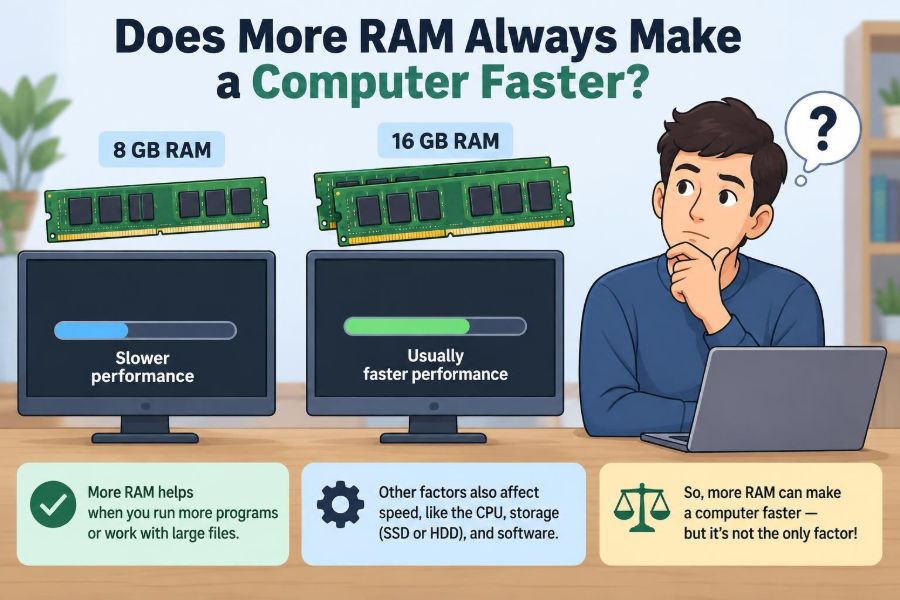

Your laptop slows down while a video call is open, a browser has dozens of tabs, and a document refuses to respond. Someone suggests the familiar fix: “Just add more RAM.” It sounds sensible—and sometimes it is exactly the right answer.
But then there are the frustrating cases. A computer with plenty of memory still takes a long time to start, games stutter, files copy slowly, or a program feels sluggish. More RAM may change nothing at all.
That is because a computer is not powered by one part working alone. Its processor, storage drive, graphics hardware, cooling system, software, and network connection all influence what “fast” feels like.
RAM is essential, but its benefit depends on what is currently limiting the machine. Understanding that limit helps you spend money wisely and diagnose slowdowns more accurately.
🧠 What RAM Actually Does
RAM, or random-access memory, is the computer’s short-term working space. Programs use it to hold the data and instructions they need right now: an open spreadsheet, browser tabs, image layers, game assets, and parts of the operating system.
RAM is fast compared with long-term storage. It is also temporary: when power is removed, its contents disappear. Your files remain on an SSD or hard drive; RAM holds the active material needed to work with them efficiently.
🧰 The Desk Workspace Analogy
Imagine storage as a filing cabinet and RAM as the surface of your desk. A larger desk lets you keep more folders open at once instead of repeatedly putting them away and retrieving them.
That analogy explains both the value and the limit of RAM. Expanding a desk helps when it is crowded. It does not make you read, write, or calculate faster when the desk already has plenty of unused space.
⚡ Why RAM Can Feel Fast
A processor can access data in RAM far more quickly than data stored on a typical SSD, and vastly more quickly than data on a mechanical hard disk. Programs therefore try to keep frequently needed information in memory.
When enough RAM is available, switching between active applications tends to be smoother. A browser may keep tabs ready in memory, and an editor may retain undo history and recently used files without rebuilding everything.
📦 Why More Capacity Is Not More Speed
RAM capacity is measured in gigabytes, such as 8 GB, 16 GB, or 32 GB. Capacity answers one question: how much active data can fit in memory.
It does not automatically make the processor execute instructions faster. If 16 GB already accommodates your normal workload, moving to 32 GB creates extra room rather than doubling the computer’s general speed.
🚦 The Bottleneck Principle
A bottleneck is the component or resource currently restricting performance. Think of a road trip: widening an empty section of highway does not help if traffic is stopped at a single-lane bridge ahead.
More RAM helps only when memory capacity is the bridge causing the traffic. If the processor is fully busy, the drive is slow, the graphics processor is overloaded, or the internet connection is weak, memory upgrades have limited effect.
🔄 What Happens When RAM Runs Low
When physical RAM becomes crowded, the operating system must make room. It may remove less-used data from memory, compress some memory contents, or move data temporarily to storage.
This last process is commonly called paging, swapping, or using virtual memory. It lets programs continue running, but storage—even a fast SSD—is slower than RAM. Repeatedly moving data back and forth can make a computer feel suddenly unresponsive.
🧊 Recognizing Memory Pressure
Memory pressure often appears during multitasking rather than during one simple task. An application may pause after you return to it, browser tabs may reload, and switching windows may take noticeably longer.
These signs are suggestive, not proof. A slow computer can have several causes at once. The useful next step is to check a system monitor while the slowdown is happening rather than guessing from a single symptom.
📊 Capacity, Speed, and Latency Are Different
People often use “RAM speed” to mean several different properties. Capacity is the amount of memory. Data rate describes how much data memory can transfer over time. Latency describes how long it takes before a requested operation begins to deliver data.
For most everyday upgrades, insufficient capacity has a much larger practical impact than small differences in memory timing. Once capacity is sufficient, faster RAM can help certain workloads, but the gain varies substantially by processor, software, and system design.
| Memory characteristic | What it affects | Typical practical question |
|---|---|---|
| Capacity | How many active programs and data sets fit | Do apps slow down when many are open? |
| Data rate | How quickly memory transfers data | Can this workload benefit from more bandwidth? |
| Latency | Delay before access begins | Does this platform respond to lower memory delay? |
| Channels | Available memory bandwidth paths | Is the installed configuration balanced? |
🌐 Why Browser Tabs Consume Memory
Modern web pages are often small applications. They can contain scripts, images, video, advertisements, fonts, caches, collaboration tools, and background processes. Each open tab may require memory, and browsers often separate tabs or site processes for stability and security.
Twenty simple text pages are not equivalent to twenty busy dashboards or video sites. If browsing is your main workload, the number and type of tabs you keep open matters more than a universal “right” RAM amount.
🧑💻 Everyday Office Workloads
Email, documents, spreadsheets, video meetings, cloud storage sync, and a browser can overlap heavily during a workday. A modest amount of RAM may handle each task independently yet struggle when all are active together.
For this kind of use, extra memory often improves responsiveness by reducing the need to close applications or wait for them to reload. Still, a video meeting with poor audio or frozen video may be a network or CPU issue rather than a RAM issue.
🎨 Creative Applications Need Context
Photo editors, design tools, audio workstations, and video editors may use significant memory, especially with high-resolution files, many layers, large sample libraries, or long timelines. More RAM can allow larger projects to remain active and reduce reliance on temporary storage.
Rendering and exporting are different. Those tasks may depend more on CPU cores, graphics acceleration, codec support, or storage throughput. A memory upgrade can improve the editing experience without making every export proportionally faster.
🎮 Gaming Is Not a Simple RAM Story
Games need system memory for the operating system, game code, world data, background applications, and other resources. Too little available RAM can contribute to stutter, long asset loading, or instability.
However, frame rate is frequently limited by the CPU or GPU. If a graphics card is already working at its limit at a chosen resolution and visual setting, adding unused system RAM will not create extra graphics-processing power.
🖼️ Shared Memory on Integrated Graphics
Many laptops and lower-power desktops use integrated graphics, where graphics functions are built into the processor and use part of the system’s RAM. In this design, memory capacity and bandwidth can affect graphics performance more directly.
Memory configuration matters here. Two matched modules can often provide more memory bandwidth than one module, depending on the platform. Compatibility rules differ by device, so the manufacturer’s documentation remains the safest guide.
🧪 Scientific, Engineering, and Data Tasks
Some workloads genuinely require large amounts of memory: processing large datasets, running virtual machines, compiling complex software, analyzing scientific images, or working with detailed simulations. If the active dataset does not fit comfortably in RAM, performance can decline sharply.
Yet these workloads can also be limited by processor design, specialized accelerators, storage speed, or the algorithms used. Adding memory allows a larger problem to fit; it does not necessarily make a small, already memory-resident problem run faster.
🖥️ Virtual Machines Multiply Demand
A virtual machine is a software-created computer running inside your real computer. It needs an allocated portion of RAM, and the host operating system still needs memory for itself and other applications.
This makes RAM especially valuable for developers, IT learners, and testers who run multiple operating systems at once. Assigning too much memory to a virtual machine can also hurt the host, so allocation should leave comfortable room for both environments.
💾 SSDs Reduce Pain but Do Not Replace RAM
A fast SSD makes paging less painful than a traditional hard drive. It can also make booting, launching applications, opening files, and loading levels much faster.
But an SSD is not interchangeable with RAM. Constant paging still consumes storage bandwidth and adds delays. The best experience is usually enough RAM to avoid frequent paging, paired with a solid-state drive for normal storage tasks and occasional virtual-memory use.
🐢 Hard Drives Can Magnify the Problem
Mechanical hard drives rely on moving parts and are much slower at the small, scattered reads and writes common in paging. A system that runs short of RAM while using a hard drive may become particularly sluggish.
In that situation, an SSD upgrade can be transformative even if RAM is also limited. The right order depends on diagnosis: severe memory pressure suggests adding RAM; slow startup and file loading often point strongly toward storage.
🔥 CPU Limits Look Different
A processor is responsible for executing instructions. Video encoding, software compilation, spreadsheet recalculation, encryption, and complex simulation can keep it busy even when plenty of memory remains free.
Typical clues include consistently high CPU usage during the slow task, active cooling fans, and improvement only after the calculation ends. More RAM may help if the program is also paging, but it cannot substitute for CPU capability.
🎯 GPU Limits Have Their Own Symptoms
The GPU handles many graphics and parallel-computing tasks. In games and visual applications, low frame rates at demanding settings may indicate a graphics limit, particularly if lowering resolution or visual quality improves performance.
Dedicated graphics cards usually have their own video memory, called VRAM. System RAM and VRAM serve related but distinct roles. Adding system RAM generally does not expand the physical VRAM on a dedicated graphics card.
📡 Network Delays Cannot Be Fixed With RAM
A web application can feel slow because it is waiting for a server or an internet connection. Video calls may stutter because of unstable Wi-Fi, congestion, latency, or limited upload capacity.
Extra RAM can help the local computer stay responsive while these tasks run, but it cannot make a distant server answer sooner. Separating local lag from network delay prevents many unnecessary upgrades.
🧹 Background Software Uses Real Resources
Startup applications, browser extensions, cloud synchronization, security scans, game launchers, and update services all consume some combination of memory, CPU time, disk activity, and network bandwidth. A powerful computer can still feel cluttered by too many unnecessary background tasks.
Reviewing what launches automatically is a practical first step. Avoid indiscriminately ending unfamiliar processes, though: some are essential system services, and others may restart automatically.
🔍 How to Check Whether RAM Is the Constraint
Use the operating system’s built-in performance tools while recreating the slowdown. Look at memory use, CPU use, disk activity, and—where available—GPU activity. The goal is to observe a pattern, not merely to find the largest percentage.
- If memory use stays near available capacity and disk activity rises during app switching, more RAM may help.
- If one application keeps the CPU very busy, investigate processor demand or that application’s settings.
- If storage remains busy while programs open or files load, the drive may be the limiting component.
- If performance drops only online, test the network before changing hardware.
Resource displays vary among operating systems, and high memory usage alone is not automatically bad. Operating systems often use spare RAM as a helpful cache and release it when applications need space.
📏 Choosing a Sensible Capacity
There is no single RAM amount that suits every person. A student writing papers and browsing research sites has different needs from a designer editing large images or a developer running containers and virtual machines.
A good target is enough memory for your usual workload, plus room for the operating system and occasional overlap between programs. Buying vastly more than you can use may offer less value than investing in faster storage, a better processor, or a device that is easier to maintain.
🧩 Compatibility Comes Before Capacity
Not every computer accepts every memory module. RAM generations, physical module formats, supported speeds, maximum capacity, and whether memory is soldered or replaceable all matter.
Check the exact device model and manufacturer specifications before purchasing. Laptops commonly use compact modules, desktops often use different modules, and many thin laptops have non-upgradeable memory. Forcing an incompatible part can damage hardware.
⚖️ Why Matched Modules Can Matter
On systems designed for multiple memory channels, installing memory in a balanced configuration can increase available bandwidth. This is often relevant to integrated graphics and some memory-intensive tasks.
“Matched” does not mean every computer requires identical branded sticks. It means following the platform’s supported arrangement. Mixing modules may work in some cases, but the system can operate at a lower common speed or in a less efficient mode.
🛠️ Upgrade Safety and Good Practice
Before opening a computer, confirm that upgrades are supported and that you understand the warranty terms. Shut the device down fully, disconnect power, follow the official service instructions, and avoid static electricity by working carefully in a suitable environment.
After installation, verify that the operating system recognizes the expected amount of memory. If the device fails to start or reports less memory than expected, reseat the module only if you can do so safely; otherwise, seek qualified support.
🚫 Common RAM Upgrade Mistakes
The most common mistake is treating RAM as a universal cure. That can lead to spending money while the real issue—an aging hard drive, overheating, malware, a weak GPU, a failing battery power mode, or overloaded software—remains.
- Buying memory without checking compatibility.
- Judging performance only by startup time, which is often storage-related.
- Leaving dozens of unnecessary startup programs enabled after upgrading.
- Confusing free RAM with wasted RAM; cached memory can be useful.
- Expecting more capacity to increase internet speed or repair a failing drive.
🧭 A Better Upgrade Decision Process
Start with the task that feels slow. Is it booting, changing tabs, opening large files, gaming, rendering, or joining a video meeting? Then monitor the system during that task and identify the resource under sustained pressure.
- Back up important files before hardware changes or major troubleshooting.
- Install operating-system and application updates when appropriate.
- Reduce unnecessary background activity and test again.
- Check memory, CPU, storage, graphics, temperature, and network behavior.
- Choose the upgrade that addresses the observed bottleneck.
This approach is less exciting than a one-part answer, but it produces better results. It also helps distinguish a hardware limitation from a poorly behaving application.
🌱 The Core Principle: Enough RAM Is the Goal
More RAM makes a computer faster when the current workload does not fit comfortably in available memory. It reduces expensive paging, supports more active programs, and can make multitasking feel dramatically smoother.
Once there is enough RAM for the work you actually do, additional capacity often sits unused. At that point, performance depends on the next limiting resource: processor power, graphics capability, storage performance, cooling, software efficiency, or the network.
The useful question is not “What is the maximum RAM I can install?” It is “What is slowing down my computer during the tasks I care about?” That question turns an upgrade from a guess into a practical solution.
More RAM is valuable when memory is the bottleneck; otherwise, the fastest improvement comes from fixing the component or workload that is truly holding the system back. 💻🧠⚡