
You are signing in to a work tool on a new laptop. The password prompt appears, and your mind offers several possibilities: a familiar word, a number pattern, perhaps the password you use for other sites. Trying one feels harmless—until that same password is exposed in a breach somewhere else.
Many people know they should use different, hard-to-guess passwords. The difficult part is not understanding the advice; it is carrying it out across email, banking, shopping, school, streaming, healthcare, and workplace accounts.
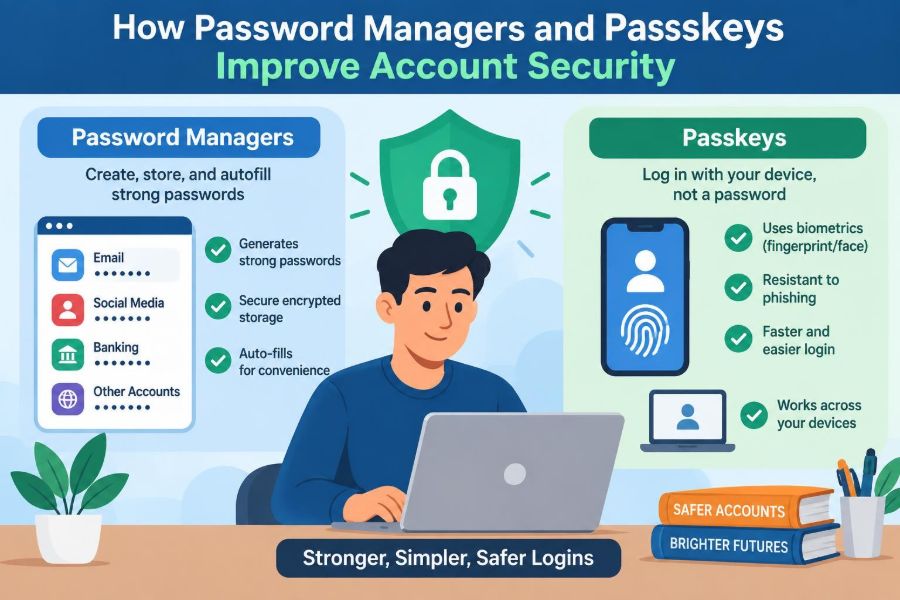
Password managers reduce the memory burden. Passkeys reduce dependence on passwords altogether for services that support them. Both can make safer choices easier than risky shortcuts.
Neither tool is magic. They still require sensible device security, careful sign-in habits, and recovery planning. But understanding what they protect against makes it far easier to use them well.
🔐 The Password Problem Is a Scale Problem
A password can be secure in isolation and still fail as part of a person’s broader online life. The problem grows with the number of accounts: people naturally reuse passwords, make small variations, or choose memorable patterns that attackers can guess.
Modern account security is therefore less about inventing one brilliant password and more about managing many separate credentials reliably.
🧩 Why Reused Passwords Create Chain-Reaction Risk
When a service suffers a data breach, attackers may obtain password hashes—stored mathematical representations of passwords—or, in poorly protected cases, more directly usable credentials. They often test stolen email-and-password pairs on unrelated services.
This technique is called credential stuffing. It works because a password that was valid for one site is reused elsewhere, not because attackers somehow need to guess it again.
Unique passwords contain the damage. A compromised forum account should not become a path into email, payroll, or financial accounts.
🎯 Guessing Is More Targeted Than It Looks
Attackers do not rely only on random guesses. They can try common passwords, names, dates, sports teams, and details visible on social media. Password variations such as Summer2025! or a company name plus a number remain recognizable patterns.
Longer passwords generally offer more possible combinations, but unpredictability matters too. A short random string may resist guessing better than a longer phrase copied from a movie or public profile.
🧠 Human Memory Is a Poor Credential Database
People are excellent at remembering meaning and routines, but not dozens of unrelated random secrets. This leads to predictable coping strategies: reuse, simple transformations, notes in insecure places, or repeated password resets.
A password manager changes the task. Instead of memorizing every password, you protect one well-designed vault and let software store distinct credentials for each account.
🗄️ What a Password Manager Actually Stores
A password manager is an application or browser-integrated service that stores credentials in an encrypted vault. It may also hold passkeys, recovery codes, secure notes, payment details, and identity information for form filling.
Encryption converts readable information into data that should be unusable without the correct key. With a well-designed manager, the vault is intended to be decrypted on your device after you authenticate, rather than exposed as ordinary readable text on a server.
Implementation details differ by provider, so features and recovery options deserve review rather than assumption.
🔑 The Master Password Has a Different Job
The master password unlocks the password manager, so it deserves more care than an ordinary site password. It should be long, unique, and memorable only to you—not a recycled password from another account.
A useful approach is a private multiword passphrase with unusual structure. Avoid using a famous quotation, a predictable personal phrase, or information that someone who knows you could infer.
Where available, enable multifactor authentication for the manager itself. This adds another check if someone obtains or guesses the master password.
🎲 Randomly Generated Passwords Remove the Creativity Trap
Password managers can generate long, random passwords for every account. Because you do not need to type or memorize them regularly, a password such as mQ7!zL... is practical even though it is inconvenient to remember.
Generation settings may include length, symbols, digits, or passphrase-style words. A service’s particular password rules sometimes limit choices, but the key goal remains: use a unique, sufficiently long credential for that account.
📝 Saving a Login Is Not the Same as Securing It
A web browser can save passwords, and modern browsers increasingly provide strong protections and synchronization. For some people, this can be a reasonable starting point. A dedicated password manager may offer more cross-platform flexibility, sharing controls, vault organization, and security reporting.
The important question is not whether a tool has a familiar name. Ask how it protects stored data, how it synchronizes across devices, how it handles multifactor authentication, and whether it fits the devices you actually use.
🪄 Autofill Can Prevent Lookalike-Site Mistakes
A password manager typically matches a saved login to a website’s address. If you visit a deceptive lookalike domain, it may refuse to offer the credential because the address does not match the legitimate site.
This is helpful against phishing, although it is not a guarantee. Incorrectly saved URLs, deceptive pages, browser extensions, and rushed clicks can still cause trouble. Treat a missing autofill suggestion as a prompt to inspect the address rather than manually entering your password.
🎣 Passwords Are Valuable to Phishers
Phishing messages attempt to persuade someone to reveal a credential or approve a sign-in. They may imitate a delivery service, employer, bank, software provider, or colleague, often creating urgency around an invented problem.
A password can be copied from a fake page and used by an attacker. This is one reason passwords, even unique ones, have a structural weakness: they are shared secrets that a user must sometimes type into a website.
🛂 Multifactor Authentication Adds a Separate Check
Multifactor authentication (MFA) requires more than one kind of evidence before granting access. It may combine something you know, such as a password, with something you have, such as an authenticator app or security key.
MFA can limit the harm from a stolen password. However, prompts and codes can also be phished or socially engineered. Never approve an unexpected sign-in request simply because it appeared on your phone.
📱 Not All MFA Methods Offer the Same Protection
Text-message codes are better than password-only sign-in in many situations, but they can be vulnerable to phone-number takeover and phishing. Time-based codes from an authenticator app avoid some telephone-network risks, though a fake site can still ask for the code.
Hardware security keys and passkeys are designed to check the real site during authentication, which makes them more resistant to ordinary phishing attempts.
| Method | What you use | Practical consideration |
|---|---|---|
| Password only | A shared secret | Easy to reuse, guess, or phish |
| Password plus code | Password and a temporary code | Stronger, but codes may be entered into fake sites |
| Passkey | Device authentication such as biometrics or PIN | Designed to avoid sending a reusable secret to the site |
🗝️ What a Passkey Is
A passkey is a modern sign-in credential based on public-key cryptography. Instead of proving identity by sending a reusable password, your device uses a credential created for that specific account and site.
The passkey may be unlocked with your device PIN, fingerprint, face recognition, or another local method. The website does not receive your fingerprint or face scan; those are used locally by the device to authorize use of the passkey.
🔬 Public-Key Cryptography in Plain Language
When you create a passkey, two mathematically related keys are involved. The private key stays protected by your device or credential manager. The public key is registered with the website.
At sign-in, the site sends a challenge. Your device signs that challenge with the private key, and the site verifies the result using the public key. The private key is not sent to the site.
Think of it as a lock designed for one account: the site can verify that the right key was used without receiving a copy of the key.
🌐 Why Passkeys Resist Common Phishing
Passkeys are bound to the legitimate website’s domain. A credential created for one domain should not work on a similarly named fraudulent domain. This origin checking is a major security advantage over a password that can be typed anywhere.
That protection has boundaries. A compromised device, a stolen unlocked session, malicious software, or approval of an unexpected device-to-device sign-in can still create risk. Passkeys reduce an important attack path; they do not remove the need for caution.
📲 Passkeys Can Live on Devices or Sync Securely
A passkey may be stored on a physical security key, kept on a device, or synchronized through a platform’s credential system or some password managers. Synchronization can make passkeys convenient across a phone, tablet, and computer.
Convenience introduces planning questions: Which account synchronizes the passkey? What happens if you lose every signed-in device? Can you access the passkey from a work computer? Check the service’s current support and recovery design before depending on it for critical accounts.
🔄 Password Managers and Passkeys Work Together
Passkeys are not necessarily a replacement for password managers. Many password managers can store and use passkeys alongside passwords, giving one interface for accounts that have adopted passkeys and those that have not.
For the foreseeable future, many people will use a mixed setup. A manager supplies unique passwords where required; passkeys offer passwordless sign-in where available; MFA and recovery methods protect the accounts around both.
🏦 Protect the Accounts That Reset Everything Else
Email is often the recovery channel for other accounts, making it especially valuable. Primary email, password-manager access, financial accounts, mobile-carrier accounts, work identity systems, and cloud storage deserve the strongest available protections.
Start by using unique credentials, MFA or passkeys where supported, and accurate recovery details. A low-risk account can be cleaned up later; a recovery account deserves attention first.
🚦A Practical Order for Improving Existing Accounts
- Secure your primary email account with a unique password and strong available MFA or a passkey.
- Set up a reputable password manager and protect it with a unique master passphrase and MFA where offered.
- Change reused passwords, beginning with financial, work, shopping, and social accounts.
- Turn on passkeys for important services that support them and test a sign-in before removing fallback methods.
- Record recovery codes in the vault or another secure location, not only on the device they protect.
This sequence avoids a common mistake: changing many passwords while leaving the email account that can reset them relatively exposed.
👥 Share Access Without Sharing a Password
Families and teams sometimes need access to a utility account, shared subscription, or business service. Sending a password in chat or email creates copies that are difficult to track and revoke.
Password managers may provide controlled sharing through a shared vault or item. Use it only when the account’s terms and organizational policies allow sharing, and remove access when the need ends. For workplace systems, individual accounts with roles are usually preferable.
🏢 Workplace Accounts Need Clear Boundaries
Do not casually place employer credentials in a personal system if company policy prohibits it. Organizations may require an approved manager, device management, single sign-on, or hardware keys to meet security and audit requirements.
Likewise, avoid using a work password for personal accounts. Separating these environments limits the consequences of a breach, job change, or lost device.
🧳 Device Loss Is a Recovery Scenario, Not Just a Hardware Problem
A lost phone can contain active sessions, authentication prompts, synced passkeys, and access to email. Use a strong device lock, prompt operating-system updates, and enable device-location or remote-wipe features where appropriate.
Before a loss happens, identify another trusted way to reach critical accounts. This may include a second signed-in device, securely stored recovery codes, or a recovery contact offered by a service. Do not rely on memory during an emergency.
🧯 Recovery Codes Need Deliberate Storage
Recovery codes are usually one-time codes provided when setting up MFA. They can restore access if your phone or authenticator is unavailable, so they should be treated with nearly the same care as passwords.
Store them in an encrypted vault, or use a secure offline method that fits your threat model. A screenshot left in an unprotected photo library or an email sent to yourself may expose the very fallback intended to protect you.
⚠️ Common Password Manager Mistakes
- Using a weak or reused master password.
- Leaving the vault unlocked on a shared or unattended computer.
- Ignoring alerts about reused or compromised passwords.
- Installing an imitation extension or app rather than verifying the publisher.
- Saving credentials for a misspelled or fraudulent website.
- Assuming vault storage eliminates the need to protect devices and email.
Good tools reduce friction, but careful setup determines much of their value.
🚫 Common Passkey Misunderstandings
A passkey is not simply a password stored on your phone, and your biometric data is not uploaded to each website during normal passkey use. Biometrics generally unlock a local credential; the account verifies a cryptographic response.
It is also inaccurate to assume every site, browser, device, and workplace environment supports passkeys equally. Compatibility continues to improve, but maintaining a secure fallback and recovery plan remains practical.
🔍 Review Your Security Dashboard Periodically
Many password managers identify reused, weak, old, or known-exposed credentials. These reports are useful for prioritization, not a reason to change every password on a rigid calendar.
Changing a strong, unique password without a reason can create confusion. Change credentials promptly when you suspect phishing, see unauthorized activity, receive a credible breach notice, or discover reuse on an important account.
📨 Treat Unexpected Sign-In Messages as Signals
A password-reset email, MFA prompt, new-device notice, or account alert may mean an attacker is attempting access—or it may be a mistaken notification. Do not use links or phone numbers in a surprising message to investigate.
Instead, open the service through its known app or address, review active sessions and security settings, and change credentials if there is a credible concern. Report suspicious workplace messages through the organization’s established channel.
🧱 Account Security Has More Than One Layer
Strong authentication is only one layer. Keep operating systems, browsers, and password-manager apps updated; install software from trusted sources; lock devices; and watch for malware or unwanted browser extensions.
Also consider session security. If a computer is shared, sign out when finished. If a service offers a list of signed-in devices, review it after a lost device or suspicious event.
⚖️ Convenience and Security Need Honest Trade-Offs
Security that is too inconvenient is often bypassed. Syncing passkeys and passwords across personal devices can substantially improve day-to-day use, while a hardware security key may provide a more isolated option for especially sensitive accounts.
There is no identical setup for everyone. A student with one phone and laptop, a family coordinating shared services, and an administrator protecting business systems face different recovery and access needs. Choose protections you can maintain correctly.
🧭 A Sensible Personal Setup
For many individuals, a strong baseline is straightforward: a trusted password manager, a unique master passphrase, MFA on the manager and primary email, randomly generated unique passwords, and passkeys enabled on important supported accounts.
Add secure recovery-code storage and a locked, updated phone or computer. Then improve accounts gradually rather than trying to rebuild your entire digital life in one sitting.
✅ The Core Principle: Reduce Reusable Secrets
Password managers make it realistic to avoid password reuse. Passkeys go further by avoiding a reusable password at the sign-in step and verifying the legitimate site as part of the process.
The central goal is not to collect every security feature. It is to make account takeover harder while preserving a safe path back in when devices fail, are replaced, or are lost.
Use unique credentials, protect the accounts that recover your identity, and favor phishing-resistant sign-in methods when they are available. Small, deliberate improvements turn account security from a memory test into a manageable system. 🛡️🔑📱