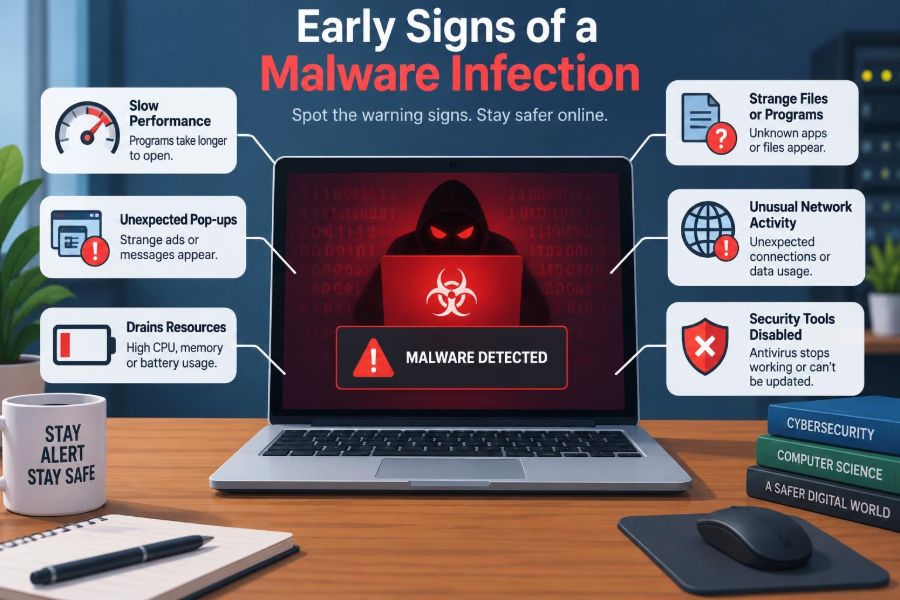

A laptop that suddenly takes twice as long to start can feel like an ordinary inconvenience. A browser opening unfamiliar tabs may seem like a one-off mistake. An employee who cannot access a shared folder might assume the network is simply having a bad day.
Sometimes those explanations are correct. Computers slow down, applications crash, and networks experience legitimate outages. But small, unexplained changes can also be the first visible effects of malware: software designed to disrupt, spy on, steal from, or gain unauthorized control of a system.
The earliest signs are often subtle because many attackers want to remain unnoticed long enough to collect information or spread to other devices. Recognizing unusual behavior early gives a person or organization more time to contain the problem before it becomes a major incident.
This does not mean treating every pop-up as proof of an attack. It means learning to distinguish a temporary technical fault from a pattern that deserves careful checking.
🦠 What Malware Means
Malware is a broad term for malicious software. It includes viruses, worms, ransomware, spyware, trojans, adware, rootkits, and other programs that perform harmful or unauthorized actions.
A virus traditionally attaches itself to another file and spreads when that file runs. A worm can spread across networks without needing a person to open each copy. Modern incidents often combine techniques, so identifying the exact label matters less at first than noticing suspicious behavior and responding safely.
🔎 Why Early Detection Changes the Outcome
Malware commonly operates in stages. It may first establish persistence, meaning it arranges to run again after a restart. It may then collect passwords, map network resources, or contact a remote command-and-control server.
Stopping an infection during these early stages can limit data loss, downtime, and the number of affected accounts. In a business, a single compromised workstation may otherwise become a stepping stone to shared drives, cloud services, or administrative systems.
⚖️ A Symptom Is Not Proof
Many malware indicators have harmless explanations. A full storage drive, an overdue operating-system update, failing hardware, or a poorly written browser extension can all cause slowdowns and crashes.
The useful question is not “Is this definitely malware?” but “Is this behavior expected, explainable, and limited?” Several unusual signs appearing together—especially after a suspicious download, login, or email attachment—justify a closer investigation.
🐢 Unexpectedly Slow Performance
A computer that becomes consistently slow while doing simple work may be running unwanted processes in the background. Malware can consume processor time, memory, disk activity, or network bandwidth while mining cryptocurrency, scanning files, encrypting data, or communicating externally.
Check whether the slowdown persists after closing normal applications and restarting. On Windows, Task Manager can show unusually busy processes; Activity Monitor provides similar visibility on macOS. An unfamiliar process is not automatically malicious, so record its name and seek verification rather than deleting system files at random.
🌡️ Constant Fan Noise and High Resource Use
Fans become louder when a device produces heat. Brief bursts are normal during video calls, updates, games, or large spreadsheets. The warning sign is sustained high activity when the computer is idle or performing a lightweight task.
A browser-based cryptominer, for example, may use substantial processor power without displaying an obvious window. High resource use can also come from legitimate security scans or cloud synchronization, so compare the active process with tasks you intentionally started.
🧩 Programs You Do Not Remember Installing
New icons, toolbars, browser extensions, or applications deserve attention when nobody knowingly installed them. Potentially unwanted programs sometimes arrive bundled with free software, while more harmful malware may disguise itself with a generic name or familiar-looking icon.
Review recently installed applications and browser add-ons. Look for a clear publisher, a sensible installation date, and a legitimate purpose. Avoid removing unfamiliar items blindly if the device is managed by an employer or school; an approved IT tool can look unfamiliar to an individual user.
🚀 Strange Startup Applications
Malware often tries to survive a reboot by adding itself to startup settings, scheduled tasks, login items, or system services. This technique is called persistence.
A newly appearing startup entry with an unclear name, an unusual file location, or no publisher information can be a useful clue. It is more suspicious when it matches other symptoms, such as browser changes or repeated security warnings. Security software and device-management tools may also start automatically, so context matters.
🌐 Browser Redirects and Changed Search Results
If searches repeatedly go through an unfamiliar site, your home page changes without permission, or advertisements appear on pages that normally have none, a browser hijacker or unwanted extension may be involved.
These programs may track browsing, inject ads, or direct traffic through affiliate pages. First inspect extensions, search-engine settings, and browser policies. A change that returns immediately after being corrected suggests that another installed program or managed policy is restoring it.
📣 Pop-Ups That Ignore Normal Boundaries
Modern browsers can display legitimate notifications, so a pop-up alone is not conclusive. The concern grows when warnings continue outside the browser, claim that a device is infected, demand immediate payment, or urge you to call a phone number.
Fake support alerts are designed to create urgency. Do not call the number, install a “cleaner,” or give remote access to someone who contacts you unexpectedly. Close the page if possible, and use your trusted security tools or support channel instead.
🔐 Repeated Password Prompts
Unexpected requests to sign in again can be caused by expired sessions, password changes, or legitimate multi-factor authentication. They can also be phishing pages or signs that an attacker is trying to use stolen credentials.
Check the address carefully before entering a password. If you receive approval prompts for logins you did not initiate, deny them and change the password from a known-clean device. Review active sessions and recovery settings for the affected account.
📨 Emails or Messages Sent From Your Account
Friends reporting strange messages from you is a serious account-level warning. Malware may steal browser session cookies or saved passwords, but a compromised email account can also result from phishing without any infection on the local device.
Examine the Sent folder, forwarding rules, connected applications, and sign-in history if available. Tell contacts not to open recent unexpected messages. Changing the password is necessary, but also remove unauthorized forwarding rules and sign out of sessions that you do not recognize.
🗂️ Files That Move, Change, or Become Unreadable
Files disappearing, gaining unusual extensions, or becoming unreadable may indicate ransomware or another destructive program. Ransomware commonly encrypts files and may leave a payment note, but file damage can also result from disk failure or a synchronization conflict.
Do not repeatedly open, rename, or overwrite affected files. Disconnect the device from networks, preserve any message or filename details, and contact qualified support. A tested backup can be valuable, but connecting backup media to an actively infected device can put the backup at risk.
💾 Unfamiliar Files and Folders
New folders in temporary locations, downloads, or startup paths can be worth investigating, particularly if they appeared at the same time as other symptoms. Malware may use random-looking names to blend in, though legitimate applications also create temporary files constantly.
Focus on behavior rather than a filename alone. Does the file launch automatically? Does it have a trusted digital signature? Is it associated with a known application? Security scanning and endpoint-management tools provide safer answers than opening suspicious files to “see what they do.”
🛡️ Security Tools That Turn Off or Cannot Update
Some malware attempts to weaken defenses by disabling antivirus protection, blocking security websites, changing firewall settings, or preventing updates. A security application that suddenly will not open is therefore a significant signal.
There are legitimate causes, including an expired subscription, operating-system corruption, or a conflict with another security product. Still, do not assume a broken security tool is harmless. Use a trusted support process or scan from a known-clean recovery environment when appropriate.
🔄 Updates That Fail for No Clear Reason
Operating-system and browser updates occasionally fail because of storage shortages, connectivity problems, or temporary server issues. Repeated failures paired with disabled security features or blocked vendor sites deserve more attention.
Attackers benefit when vulnerable software stays unpatched. Check whether the problem affects only one update or whether several trusted update services are inaccessible. Record error messages; they are more useful to support staff than a general report that “updates do not work.”
📡 Unexplained Network Activity
A device normally sends and receives data for browsing, backups, video calls, and cloud storage. Suspicion arises when there is substantial traffic during idle periods, connections to unfamiliar destinations, or unexpected use of mobile data.
On a managed network, administrators may see this through firewall, DNS, or endpoint logs. At home, a router dashboard may show an unfamiliar device or unusually high usage. Traffic alone rarely proves malware because legitimate software can be busy in the background.
📶 A Network That Becomes Unusually Slow
One infected device can affect others by consuming bandwidth, repeatedly scanning local addresses, or participating in a botnet. A botnet is a group of compromised devices controlled remotely, often used for spam, denial-of-service activity, or further attacks.
Network slowness also has ordinary explanations: a large backup, video streaming, weak Wi-Fi coverage, or an ISP issue. A practical check is to identify whether performance improves when a suspicious device is disconnected from Wi-Fi or Ethernet.
🖨️ Devices Acting Without a User
Printers producing unexpected pages, webcams activating unexpectedly, or peripherals behaving oddly can be unsettling. Some events are simple driver or software faults, but unauthorized control is possible when a system has been compromised.
For webcams, an indicator light is useful but not a complete security guarantee because behavior depends on the hardware and software. Covering a camera when unused can add privacy, while unexplained activity should prompt a review of app permissions, running processes, and recent installations.
👥 Unrecognized Accounts and Permission Changes
On shared computers and business systems, unknown user accounts, new administrator privileges, or altered file permissions are high-value warning signs. Attackers often seek elevated access because it lets them disable controls and reach more systems.
Administrators should verify whether a change came from a documented support request, automated management tool, or approved update. Individual users should not attempt to fix account permissions they do not understand; report the change promptly.
🧠 Memory, CPU, and Disk Clues in Context
Resource monitors are valuable because they turn a vague feeling—“my computer is weird”—into observable facts. Note the process name, the amount of CPU, memory, disk, or network use, and whether activity continues after normal programs close.
| Observation | Possible benign cause | Reason to investigate further |
|---|---|---|
| High CPU use | Updates, video rendering, security scan | Unknown process remains active while idle |
| High disk use | Cloud sync, indexing, low free space | Many personal files change unexpectedly |
| High network use | Backup, streaming, game download | Unknown software transmits data repeatedly |
| New startup item | Approved application update | No clear publisher or user-approved purpose |
The table is a guide, not a diagnostic test. Patterns across several observations are more meaningful than one reading.
🪤 Phishing Can Be the First Warning
Not every compromise begins with a technical exploit. A convincing email can persuade someone to enter credentials on a fake sign-in page, approve a malicious multi-factor request, or run an attachment that installs malware.
Warning signs include unexpected urgency, mismatched sender addresses, unusual payment requests, and links that do not lead where their visible text suggests. Even a well-crafted message may look plausible, so verify sensitive requests through a separate, known contact method.
📱 Signs on Phones and Other Connected Devices
Malware concerns are not limited to desktop computers. On phones, unexpected accessibility permissions, unfamiliar device-administrator apps, excessive battery drain, unexplained mobile-data use, or persistent ads can justify investigation.
These symptoms also occur with ordinary apps and aging batteries. Install applications from reputable sources, review permissions, and keep the operating system updated. In an organization, a compromised phone with access to work email can create risks beyond the phone itself.
🏢 Network-Wide Patterns Matter
A single slow machine may be a local problem. Several computers receiving the same strange pop-up, losing access to shared files, or contacting the same suspicious domain suggests a broader issue.
Organizations should encourage reporting without blame. A user who quickly says, “I opened a file that now seems suspicious,” gives the security team a better chance to isolate systems and search for related activity elsewhere.
🧯 What to Do First When You Suspect Malware
A calm first response reduces the chance of turning a contained problem into a larger one. If there are signs of active encryption, unauthorized access, or suspicious network behavior, disconnect the affected device from Wi-Fi and unplug Ethernet if that can be done safely.
- Stop entering passwords or financial information on the suspected device.
- Disconnect it from networks when active compromise is plausible.
- Record symptoms, filenames, messages, and approximate times.
- Notify your IT or security team if the device belongs to work or school.
- Run approved security checks or follow professional incident-response guidance.
Avoid “cleaning” by deleting random files, installing multiple unknown antivirus products, or immediately restoring files over the original system. Those actions can erase useful evidence or make recovery harder.
🔒 Change Credentials From a Clean Device
If passwords may have been exposed, use a different device that you reasonably trust to change them. Start with email accounts because email often controls password resets for other services.
Use unique passwords stored in a password manager where possible, and enable multi-factor authentication. Multi-factor authentication reduces the value of a stolen password, although users should still reject prompts they did not initiate and protect recovery codes.
🧪 Scan, Investigate, and Escalate Carefully
Run an up-to-date scan from trusted security software, but recognize its limits. Detection tools may miss brand-new threats, misconfigured systems, or activity that occurred in online accounts rather than on the computer itself.
For business devices, incident responders may collect logs, isolate endpoints, examine persistence mechanisms, and determine whether data was accessed. A home user facing encryption, financial-account concerns, or repeated reinfection may need reputable professional support rather than trial-and-error fixes.
🧱 Backups Reduce Damage but Need Protection
Backups do not prevent malware, but they can make recovery possible after hardware failure, deletion, or ransomware. A useful backup is separate from the main device, protected from routine modification, and tested by restoring files occasionally.
Cloud synchronization is helpful but is not always the same as a backup. If encrypted or deleted files synchronize quickly, the unwanted change may spread. Version history and offline or otherwise isolated copies provide additional resilience.
🧰 Everyday Practices That Lower Risk
Most prevention is not dramatic. It is a collection of habits that reduce the number of opportunities an attacker has.
- Install operating-system, browser, and application updates promptly.
- Download software from official or well-established sources.
- Use standard user accounts for everyday work rather than administrator accounts.
- Review browser extensions and app permissions periodically.
- Be skeptical of unexpected attachments, links, and remote-support requests.
- Keep backups and verify that they can be restored.
No single tool or habit eliminates risk. Layers work together: updates close known weaknesses, cautious behavior reduces phishing exposure, and backups help when prevention fails.
🚫 Common Mistakes During a Suspected Infection
A common mistake is waiting because the symptom seems too minor. Another is panicking and entering payment details into a pop-up that claims to offer instant repair. Both reactions can increase harm.
People also sometimes reuse passwords after an incident or reconnect an isolated device before understanding what happened. Treat the event as an opportunity to improve account security and document lessons, not as a reason for shame.
📋 A Practical Reporting Checklist
Clear details help support teams act faster. Before reporting, gather what you can without opening suspicious files or taking risky actions.
- Device name, user account, and location if relevant
- What changed and when it first appeared
- Names of suspicious programs, files, or browser extensions
- Exact wording of error messages or ransom notes
- Recent downloads, attachments, links, or login prompts
- Whether other devices or accounts show similar behavior
A screenshot can be helpful if it does not expose passwords, private records, or confidential business information.
🎯 The Core Principle: Notice Patterns, Then Respond Safely
Early malware detection is less about memorizing one dramatic symptom and more about noticing deviations from normal behavior. A slow computer, unusual pop-up, unknown login prompt, and changed browser setting together tell a more useful story than any one sign alone.
Verify before drawing conclusions, contain a credible threat quickly, and use trusted people and tools for the next steps. That balanced approach avoids both complacency and needless alarm.
The best early warning is a change you cannot explain—and the safest response is to investigate it methodically before it spreads or causes further damage. Staying observant, updated, and prepared makes security problems far more manageable. 💻🛡️🔍