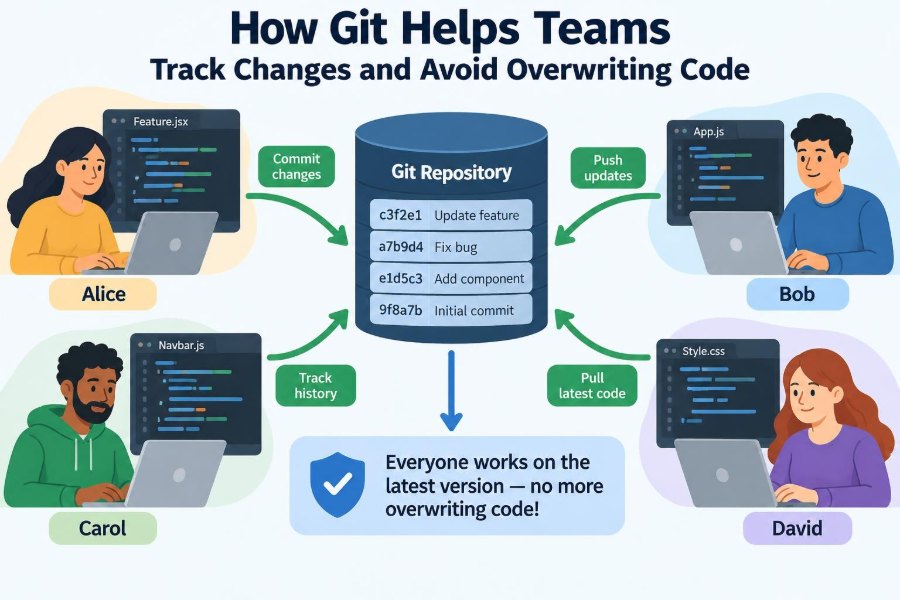

It is Friday afternoon, and two developers have spent the day editing the same checkout form. One developer fixes a validation problem. The other improves the layout. Both save a file with the same name.
Without a shared system for managing changes, someone must decide which copy to keep. A hurried replacement may erase useful work, introduce a bug, or leave the team unsure about what changed and why.
Git was designed to make this kind of work safer. It records the history of a project, helps people combine independent changes, and makes differences visible before they become expensive mistakes.
For students, Git builds habits used in real software projects. For working professionals, it provides a dependable workflow for collaboration, review, recovery, and release management. 🔄
🧩 1. The problem Git solves
Code is rarely written just once by one person. Files evolve as teams add features, correct defects, update documentation, and adapt to new requirements.
If a project is shared through renamed folders, email attachments, or messages such as final-really-final, its history becomes confusing. Git replaces that uncertainty with a structured record of changes.
- Who made a change?
- What did the change modify?
- Why was it made?
- How can the team restore an earlier working version?
📚 2. Git is a version control system
Version control is a method for recording changes to files over time. Git is a distributed version control system, meaning each contributor normally has a complete local copy of the project history.
This differs from simply storing backup copies. Git understands lines within text files, so it can show meaningful differences between versions and combine many changes intelligently.
Although Git can track many file types, it is especially effective for source code, configuration files, documentation, and other plain-text content.
🗂️ 3. A repository holds the project history
A repository, often shortened to repo, is a project folder managed by Git. It contains the current files plus hidden Git data that records commits, branches, and other history.
A repository may live only on a computer, or it may be shared through a remote hosting service. The remote is useful for teamwork, but Git itself does not depend on any particular website.
Creating a repository gives a project a memory. Instead of asking which folder is newest, a team can inspect its recorded timeline.
📸 4. Commits are meaningful snapshots
A commit is a saved snapshot of selected changes. Each commit has an identifier, a creator, a time, and a message describing its purpose.
Good commits are small enough to understand and focused on one logical task. For example, a commit called Validate empty email addresses is easier to review and reverse than one enormous commit called Updates.
A commit does not need to be a final product release. It is a reliable checkpoint in the project’s development story.
📝 5. Commit messages explain intent
The code shows what changed, but a commit message can explain why. That context matters when another developer reads the history weeks or months later.
A useful message starts with a short action-oriented summary. If needed, a longer description can explain a limitation, a decision, or a related issue.
- Clear:
Prevent duplicate order submissions - Too vague:
Fix stuff - Too broad:
Changes to app
Clear messages turn the repository history into practical documentation.
💻 6. The working directory is where edits begin
The working directory is the set of files currently checked out on a developer’s computer. Editing a file changes the working directory, but Git does not automatically include that edit in the next commit.
This separation gives developers time to inspect their work. They can compare changed files with the last commit before deciding what should become part of project history.
It also prevents accidental snapshots of temporary experiments, debug output, or unrelated edits.
🎯 7. The staging area lets you choose carefully
Git has an intermediate area called the staging area, also known as the index. Developers add chosen changes to this area before creating a commit.
This may seem like an extra step, but it is valuable. A single edited file can contain two unrelated fixes; Git can stage one part now and leave the other for a separate commit.
git add checkout.js
git commit -m "Validate shipping address fields"
Thoughtful staging produces cleaner, more reviewable history.
🔍 8. Status and diff reveal what changed
Before committing, developers should inspect their work. The command git status reports which files are modified, staged, or untracked.
The command git diff displays line-by-line differences that have not yet been staged. A staged comparison can also be inspected before committing.
These checks catch common mistakes: forgotten files, unintended deletions, debugging statements, and edits made in the wrong branch. A brief review now can prevent a long investigation later. 👀
🌳 9. Branches separate lines of work
A branch is an independent line of development within a repository. Teams commonly keep a stable main branch while creating short-lived branches for features, fixes, or experiments.
For example, one developer can work on search while another updates account settings. Their work remains separate until the team is ready to combine it.
Branches are lightweight in Git, so creating one does not mean copying the entire project folder. They encourage safe experimentation without disrupting stable code.
🛤️ 10. Main is the shared baseline
Many projects use a branch named main as the primary shared line of development. It usually represents code the team considers integrated and reasonably stable.
Teams decide their own rules for main. Some require automated tests and peer review before changes enter it; others use additional branches for releases or deployments.
The important idea is consistency. Everyone should know which branch is the baseline and whether they should commit directly to it.
🧪 11. Feature branches reduce risk
A feature branch gives a task its own workspace. It can hold incomplete code without exposing that incomplete state to people using the main branch.
Feature branches are useful for more than large features. A focused bug fix, documentation correction, or configuration change can benefit from an isolated branch and a clear review.
- Start from an up-to-date shared baseline.
- Name the branch for its purpose.
- Make focused commits.
- Integrate it after review and testing.
🔀 12. Merging combines compatible work
A merge combines the history and file changes from one branch into another. If two developers changed different parts of the project, Git can often join those changes automatically.
Imagine that one branch adds a new help page while another corrects a calculation in a separate file. A merge can preserve both contributions rather than forcing one person’s work to replace the other’s.
Git uses the common history of branches to determine how their files diverged. This is the foundation of safe parallel development.
⚠️ 13. Merge conflicts need human decisions
A merge conflict occurs when Git cannot safely determine how to combine changes. This often happens when two branches edit the same lines in different ways.
Git does not guess because either version may be important. Instead, it marks the disputed area and asks a person to choose, rewrite, or combine the intended result.
<<<<<<< current branch
return total;
=======
return formatCurrency(total);
>>>>>>> incoming branch
A conflict is not a failure. It is a signal that the team needs to make a deliberate decision.
🛠️ 14. Resolving conflicts preserves both ideas
To resolve a conflict, open the marked file, understand both versions, and edit it into the correct final form. Remove the conflict markers, test the result, stage the resolved file, and complete the merge or rebase operation.
Do not resolve conflicts by automatically choosing one side unless you understand the consequence. The discarded side may contain a necessary security fix, test, or business rule.
Communication is often the fastest solution when a conflict involves unfamiliar code. Ask the author about the intent before finalizing it.
🌐 15. Remotes connect team members
A remote is a named reference to another copy of a repository, often a shared server used by the team. A remote commonly named origin is created when a project is cloned.
Remotes let contributors exchange commits while preserving the complete local workflow. Developers can inspect, commit, branch, and compare changes even when temporarily offline.
A remote is not merely storage. It becomes a shared meeting point for branches, reviews, automation, and agreed project history.
⬇️ 16. Clone, fetch, pull, and push have different jobs
Several commands are easy to confuse because they all involve a remote repository. Knowing the distinction prevents surprises.
| Command | Purpose |
|---|---|
git clone |
Creates a local copy of a repository for the first time. |
git fetch |
Downloads remote history without changing current working files. |
git pull |
Fetches remote changes and integrates them into the current branch. |
git push |
Uploads local commits to a remote repository. |
Fetching first is often a calm way to inspect incoming work before integrating it.
📥 17. Pull before your work becomes stale
While a developer is working, teammates may add commits to the shared branch. Their local branch can become behind the remote version.
Regularly bringing in relevant changes helps reveal integration issues early. Small, frequent updates are usually easier to understand than a large merge after several days of independent work.
Before starting a new task, it is good practice to update the local view of the shared baseline. Before opening a review request, update again and test the combined result.
📤 18. Push shares commits, not every keystroke
A local commit exists only on the developer’s machine until it is pushed to a remote. Pushing shares those recorded commits with collaborators and backup systems connected to that remote.
Git does not send uncommitted working-directory changes. This is another reason commits should represent understandable units of work: they are the pieces teammates receive.
Teams may protect important branches so that direct pushes are limited. Such rules help ensure changes receive checks and review before becoming part of the common baseline.
👥 19. Pull requests make collaboration visible
A pull request, sometimes called a merge request, is a hosted-platform workflow for proposing that one branch be integrated into another. It is not a core Git command, but it is widely used with Git repositories.
A pull request presents the changed files, commits, discussion, and often automated test results. Reviewers can ask questions before the changes affect the target branch.
This process shifts collaboration from private assumptions to visible technical conversation.
🧐 20. Code review catches more than bugs
Reviewers look for correctness, but review also spreads knowledge. A teammate may notice unclear naming, missing tests, accessibility concerns, an overlooked edge case, or a simpler design.
For authors, a small pull request is easier to explain and revise. For reviewers, it is easier to verify a focused change than a large mix of formatting, refactoring, and new behavior.
- Explain the purpose of the change.
- Include relevant tests or verification notes.
- Keep discussion respectful and specific.
- Address feedback before merging.
🧬 21. Rebase can create a cleaner sequence
Rebase moves or replays commits onto a different base commit. Developers may use it to place a feature branch on top of the newest main branch before integration.
Unlike a merge, rebasing rewrites the branch’s commit history. That can make a linear story easier to read, but it requires care because old commit identifiers are replaced.
A practical safety rule is to avoid rebasing commits that other people may already be using. Shared history should not change unexpectedly.
⏪ 22. Undoing changes requires the right tool
Git offers several ways to recover from mistakes, and the best choice depends on whether the change is uncommitted, local, shared, or already deployed.
git restore can discard selected working-directory changes. git revert creates a new commit that reverses an earlier commit, which is often safer for public history.
Commands such as git reset can move branch pointers and may discard local work depending on their options. Use them only after understanding what will be retained and what may be lost.
🏷️ 23. Tags identify important versions
A tag is a named marker for a particular commit. Teams often use tags to identify releases, milestones, or other versions they want to find quickly.
Unlike an ordinary branch, a tag is generally intended to stay fixed. It says that a specific point in history has special meaning.
Tags make it easier to answer questions such as which exact source version was used for a release. They also support reproducible investigation when a problem appears later.
🙈 24. Git ignore keeps noise out of history
Some files should usually not be committed: locally generated build output, editor settings, temporary files, and secrets stored in local configuration. A .gitignore file tells Git which untracked paths to ignore.
Ignoring a file does not protect information that has already been committed. If a password or token enters repository history, treat it as exposed and follow the organization’s security process.
Teams should commit shared ignore rules so every contributor avoids the same unnecessary files.
🧾 25. Git works best with text, not large binaries
Git compares and stores changes efficiently for text files. Large binary files, such as many media assets or generated archives, do not provide the same line-by-line advantages and can make repository history heavy.
The correct approach depends on the project. Some teams use specialized large-file support or separate asset storage, while keeping source code and metadata in the main repository.
The key is to understand what belongs in version control and what should be produced during builds or managed elsewhere.
🤖 26. Automation adds confidence to every change
Git-based workflows often connect commits and pull requests to automated checks. These may build the project, run tests, check formatting, scan dependencies, or prepare a deployment.
Automation does not replace thoughtful review. Instead, it handles repeatable checks consistently, freeing people to focus on design, behavior, and maintainability.
When a check fails, the commit history and branch context help the team identify which change likely introduced the problem.
📏 27. A practical team workflow
A simple workflow gives Git its greatest value. Exact branch names and approval rules vary, but the sequence below is widely useful.
- Update your local view of the shared project.
- Create a branch for one focused task.
- Make small changes and inspect the diff.
- Stage and commit logical units with clear messages.
- Push the branch and open a pull request.
- Respond to review, resolve conflicts, and run checks.
- Merge according to team policy, then remove obsolete branches.
Consistency matters more than copying a complicated workflow that nobody follows.
✅ 28. The core principle: shared history enables safe change
Git does not eliminate mistakes or disagreements. What it provides is a disciplined way to record work, compare alternatives, integrate compatible changes, and recover when a decision needs to be revised.
Commits make changes traceable. Branches let people work independently. Merges and reviews bring work together deliberately rather than allowing one file copy to overwrite another.
When a team treats Git history as a clear record of intent, collaboration becomes safer, easier to review, and far less dependent on guesswork. 🌱🤝💻